Import and export data
In this article
Plaky supports CSV import and export, allowing you to bring in data from spreadsheets, migrate from other tools, and export your Board data for reporting.
Import CSV data #
CSV import works the same way whether you’re creating a brand new Board from your file or adding data into an existing one. There are two steps when importing a CSV file: file setup and column mapping. The only difference is where you start.
Create a new Board from CSV #
So erstellst du ein neues Board aus einer CSV-Datei:
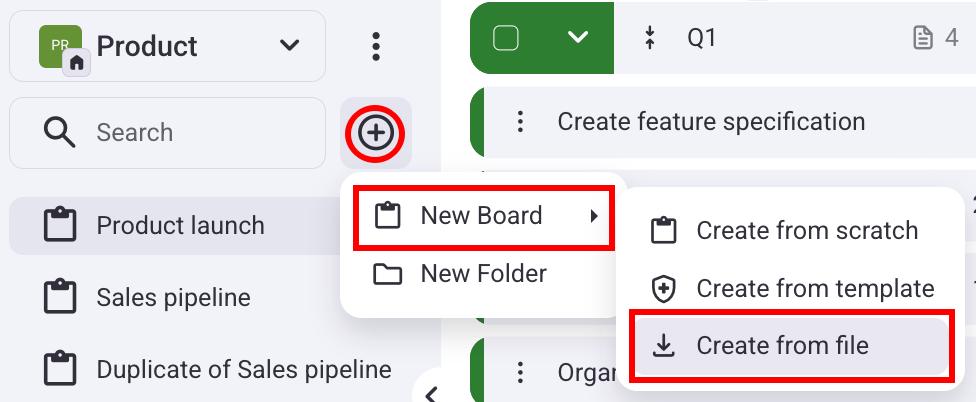
- Klicke auf die + Schaltfläche in der linken Seitenleiste
- Fahre mit der Maus über Neues Board
- Select Create from file
- Lade eine CSV-Datei hoch
- Choose a delimiter
- Toggle if your file has headers or not
- Click Proceed
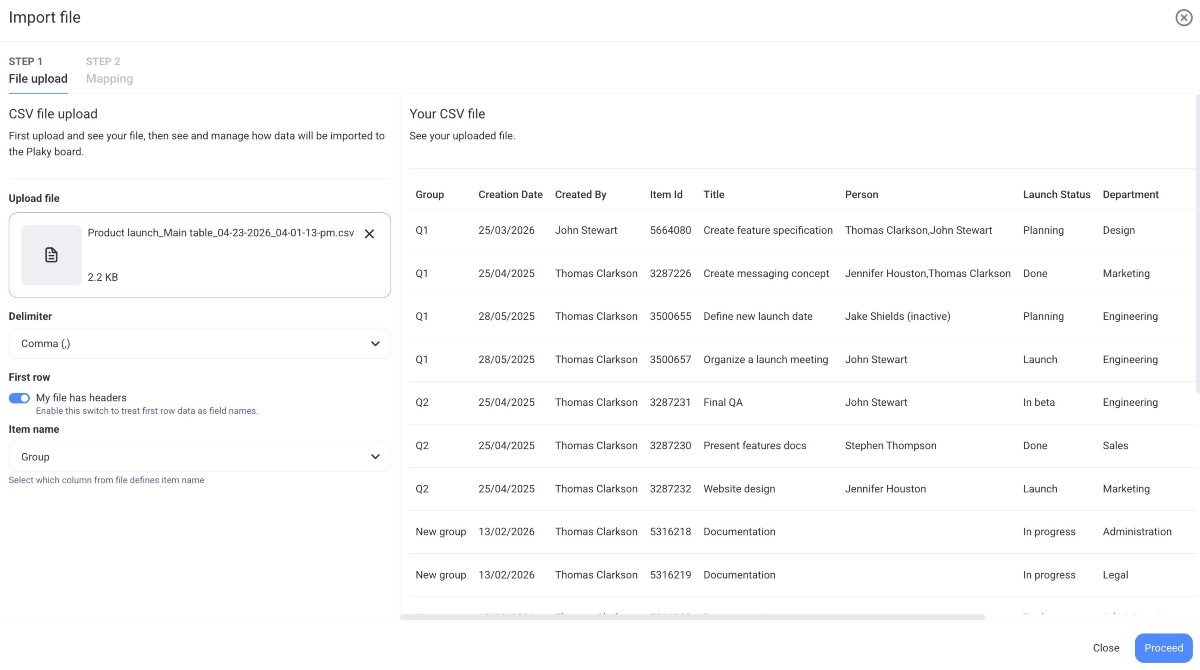
Now that you have imported your file, you can move on to mapping.
- Select the destination group
- Create a new Item group
- Select a CSV column for group name
- Ordne die CSV-Daten den gewünschten Board-Feldern zu
- Klicke auf Import abschließen, um die Aktion abzuschließen
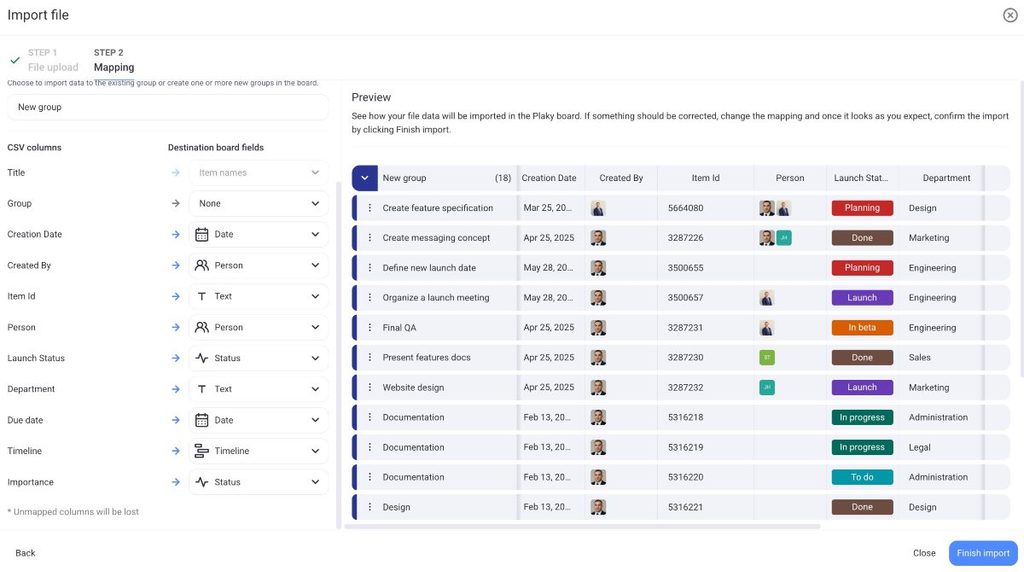
If the CSV column contains more columns than the allowed number of Fields on the Board (a limitation exists on the Free plan), you can map the CSV columns up to that limit, and additional column mapping will be disabled. If some column’s data is not that important for you, you can always choose to skip the mapping for that column by choosing the option None.
Subitems cannot be imported from a CSV file.
Nicht zugeordnete Spalten gehen verloren.
To import a CSV file to an existing Board:
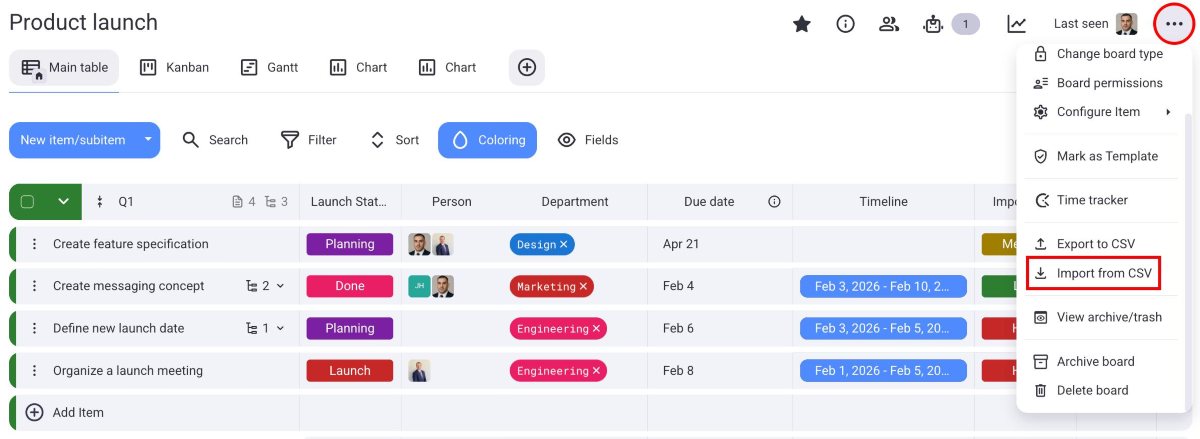
- Klicke auf die drei Punkte rechts
- Select Import from CSV
- Lade eine CSV-Datei hoch
- Wähle das Trennzeichen aus
- Aktiviere die Option, falls die erste Zeile Überschriften enthält
- Wähle die Spalte aus, die den Namen des Elements enthält
- Click Proceed to move on to mapping
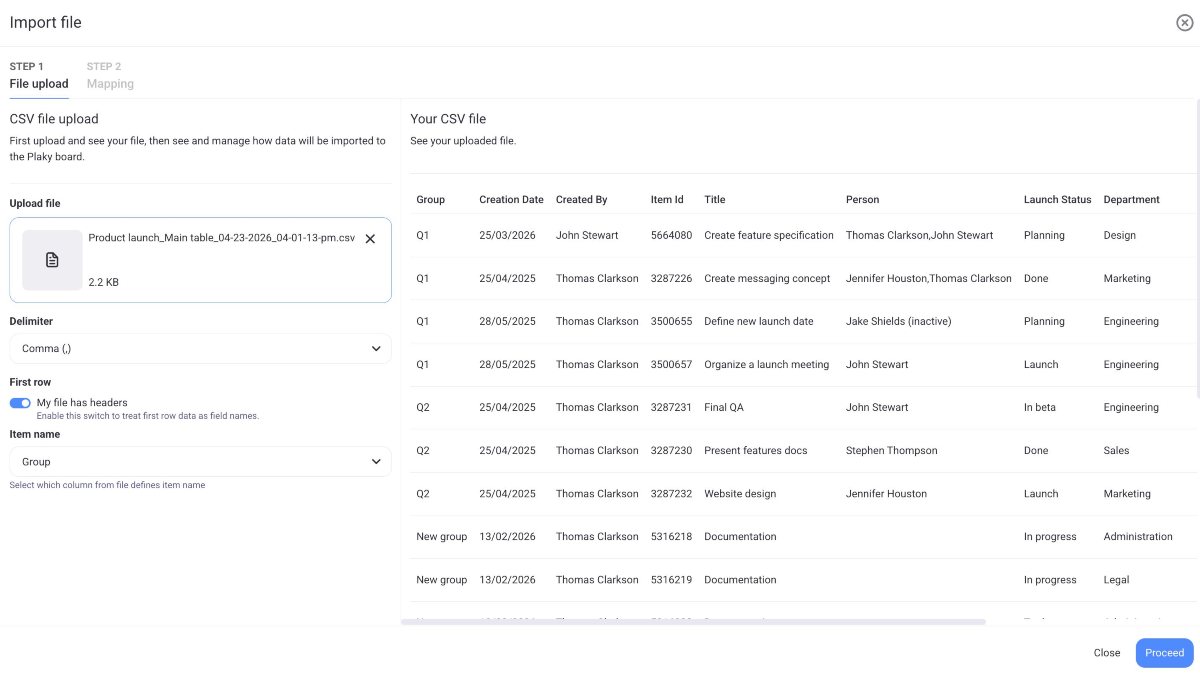
Once the file is uploaded, you can proceed to map the columns.
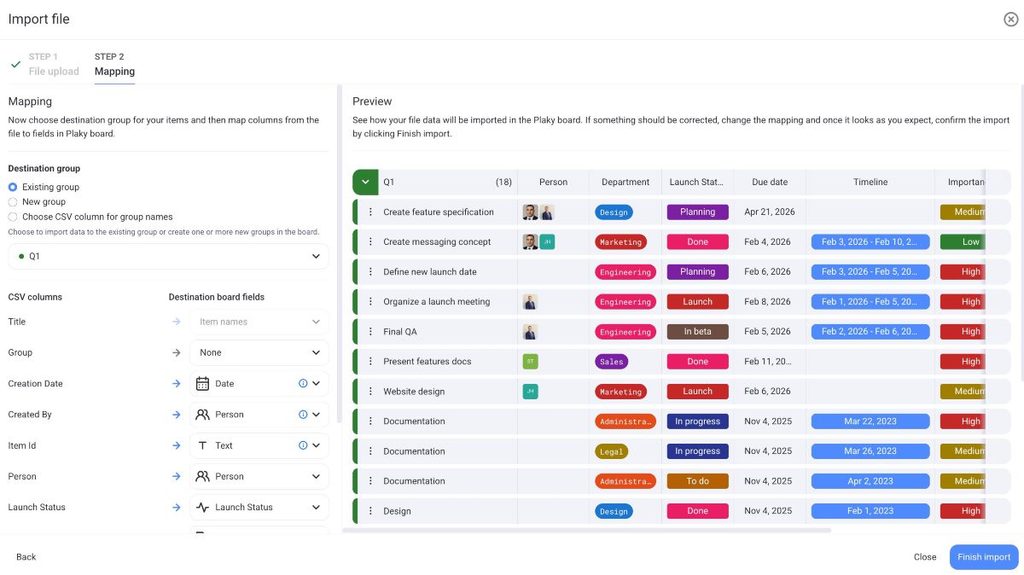
- Select the destination group
- Create a new Item group
- Select a CSV column for group name
- Map to what Board Fields you want to import the data from the CSV (updateovati prema novom master fields feature-u)
- Click on Finish import to complete the action
Erforderliches CSV-Format #
- Plaky verwendet standardmäßig ein Komma als Trennzeichen. Du kannst dies jedoch in ein Tabstopp-Zeichen, einen Strich, ein Leerzeichen oder ein Semikolon ändern.
- Wenn die Datei nicht als Datei mit Kopfzeilen markiert ist, wird die erste Zeile als Elementdaten behandelt. Bei CSV-Dateien sind die Spaltennamen dann generisch: Spalte 1, Spalte 2 usw.
- Die maximale CSV-Dateigröße beträgt 10 MB.
If you have a large file with many rows, split it to avoid exceeding the limit.
Hinweise #
- Wenn du nicht auswählst, welche Spalte den Elementnamen definiert, wird standardmäßig die erste Spalte aus deiner CSV-Datei als Elementname verwendet.
- Die maximale Anzahl von Zeilen in der CSV-Datei beträgt 1001
- Die Zeichenbeschränkungen innerhalb der App gelten auch für CSV-Dateien
- CSV-Datei kann bis zu 18 Werte für ein Statusfeld enthalten; alle zusätzlichen Werte werden beim Import übersprungen
- Die maximale Anzahl der zu importierenden Elementgruppen beträgt 20; alle zusätzlichen Elementgruppen werden der letzten Elementgruppe auf dem Board zugeordnet
- Der Inhalt der CSV-Datei muss nicht auf Englisch sein
- Du kannst jeweils nur eine CSV-Datei auf ein Board hochladen; eine neue CSV-Datei kann erst hochgeladen werden, nachdem der Import der ersten Datei abgeschlossen ist
- Jedes Feld auf dem Board kann nur einer Spalte aus der CSV-Datei zugeordnet werden (1 Spalte = 1 Feld)
- CSV-Spalten, die Buchstaben oder Zahlen enthalten, können Textfeldern zugeordnet werden. Wenn du jedoch versuchst, Textspalten Zeitleisten-, Datums- oder Zahlenfeldern zuzuordnen, werden sie beim Import übersprungen
Export CSV data #
If you need to analyze your project progress, share information with stakeholders, or perform further data analysis, you can export a Board in CSV format in Plaky.
Here’s how you can export a Board:
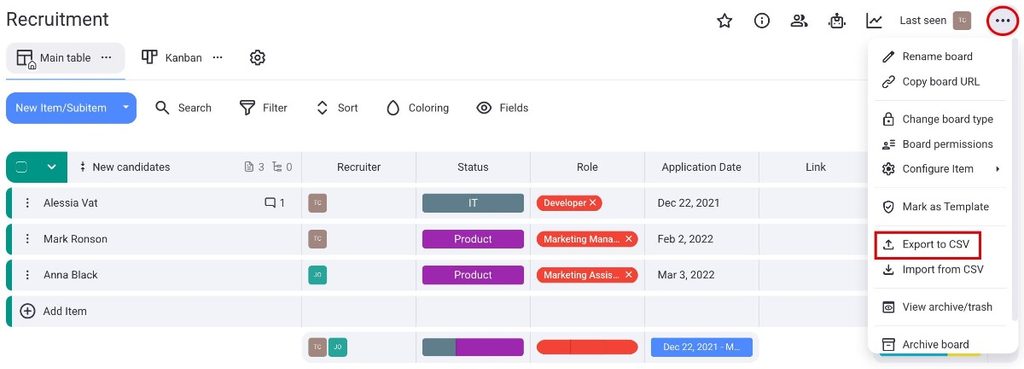
- Open the Board you would like to export
- Click on the three dots in the top right corner
- Wähle Als CSV exportieren
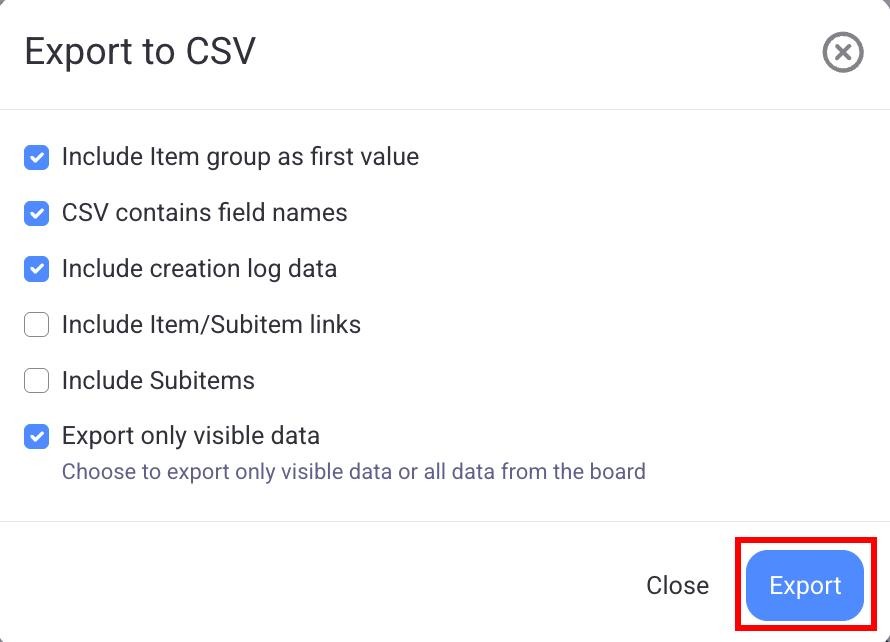
Choose the data to export. You can select if you want the following:
- Elementgruppe als ersten Wert einschließen
- Feldnamen in CSV enthalten
- Protokolldaten zur Erstellung einschließen
- Elemente-/Unterelemente.Links einschließen
- Unterelemente einschließen
- Export only visible data (Filters and Field visibility will affect the display)
Passe den Export nach deinen Bedürfnissen an. Jede Board-Ansicht (Tabelle, Kanban, Gantt) kann als CSV exportiert werden.
Click on Export to complete the action.
Der CSV-Dateiname hat dieses Format: boardName_viewName_date_time.csv.
You can’t export user comments from your Plaky Board.