Invite and manage users
In this article
Plaky is a project management tool, and inviting and managing users is one of the steps you will need for effective project management.
Benutzerplätze #
User seats determine how many members you can invite to your Plaky Workspace. Here’s how user seats are calculated:
- Owner, Member, Admin — 1 user seat per role
- Viewer — 5 free roles per paid seat
For example, you have 10 paid seats, you can have 10 Admins or Members (in any combination and up to 50 Viewers.
Invite users #
Users are invited at the Workspace level, and once added to the Workspace, they can be added to individual Spaces and Boards. Only Admins and the Owner can invite new users.
You can invite new users by sending them an email invitation. Users can then find the invitation link in their email inbox. Here’s how to send the invitation:
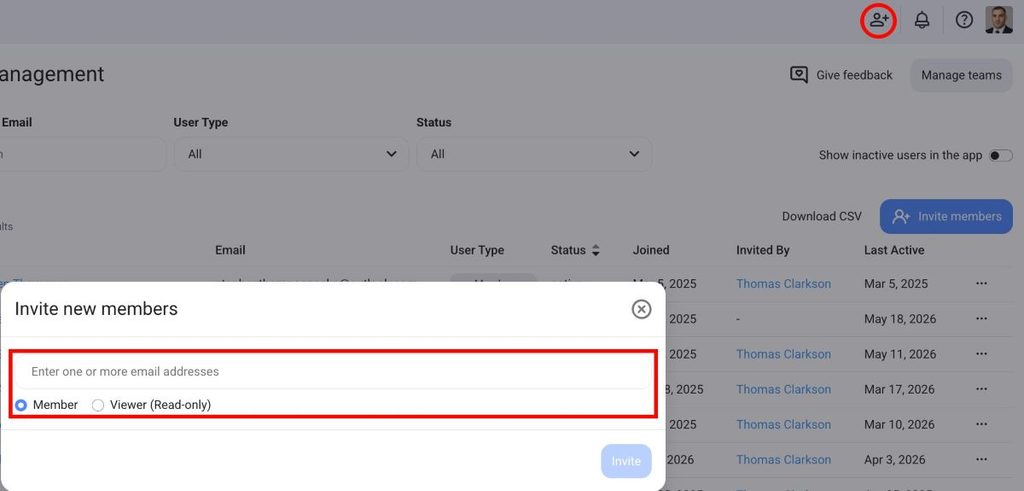
- Click on the Invite members icon in the top right corner
- Enter the email address
- Select the user role
- Click Invite to send the invitation
Oder
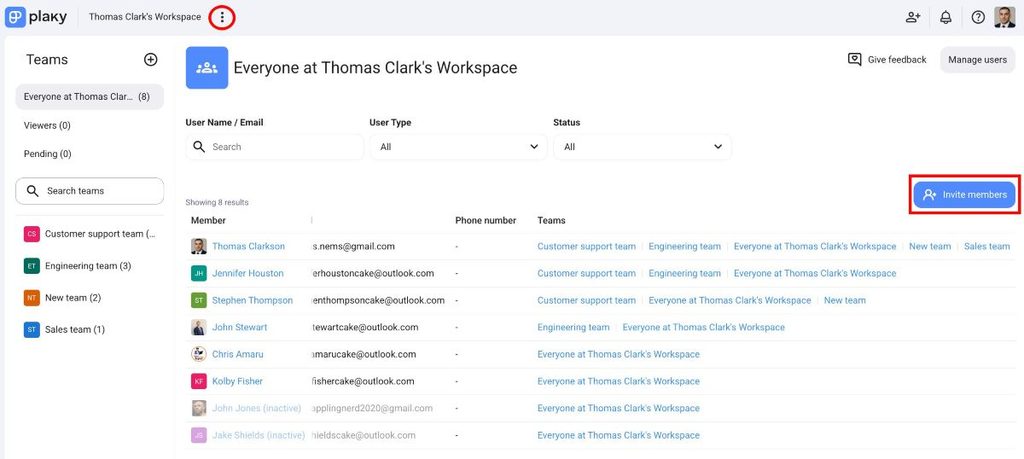
- Click on the three dots next to the Workspace name
- Click on Teams
- Click on Invite members
- Enter email address
- Select user role (Member or Viewer)
- Click Invite to send the invitation
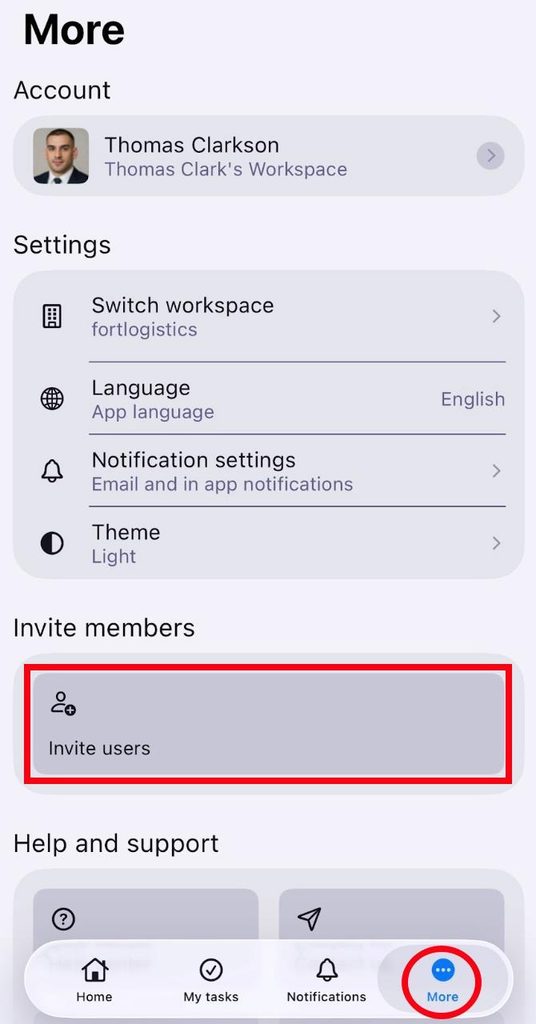
- Tippe in der unteren Seitenleiste auf Mehr
- Tap on Invite users
- Enter the email address
- Select Member or Viewer role
- Tap on ✔️ to send the invitation
Oder
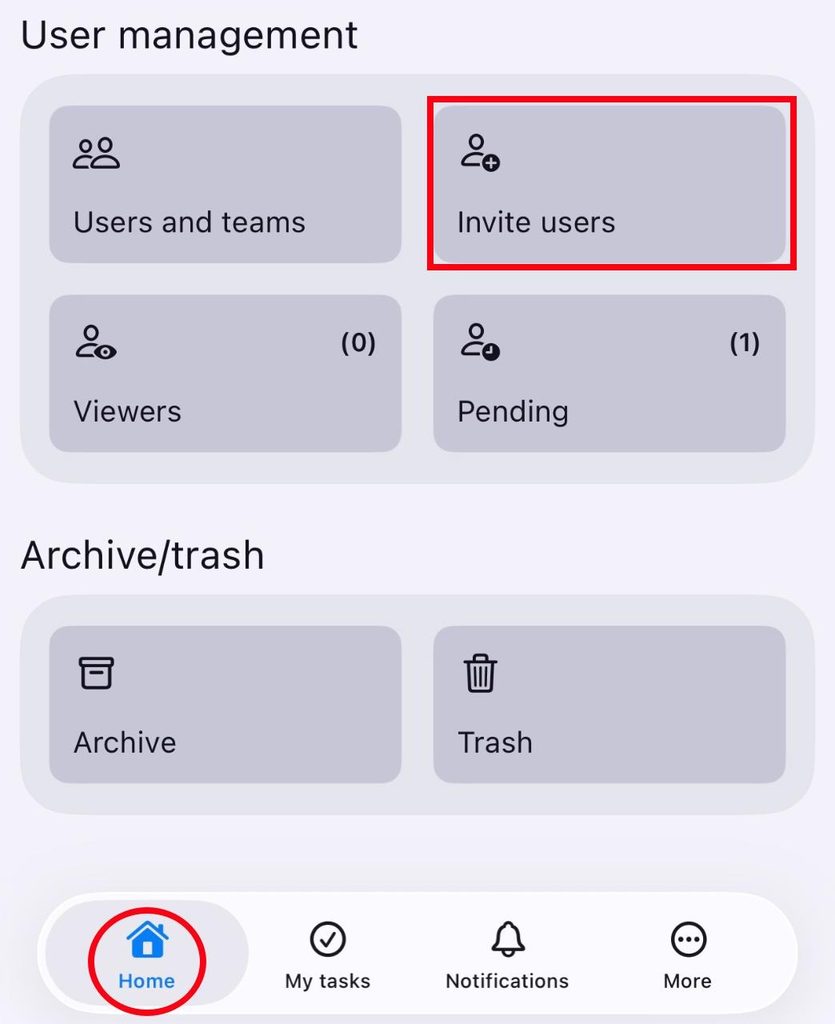
- Scroll down on the Home screen
- Tap on Invite users
- Enter the email address
- Select Member or Viewer role
- Tap on ✔️ to send the invitation
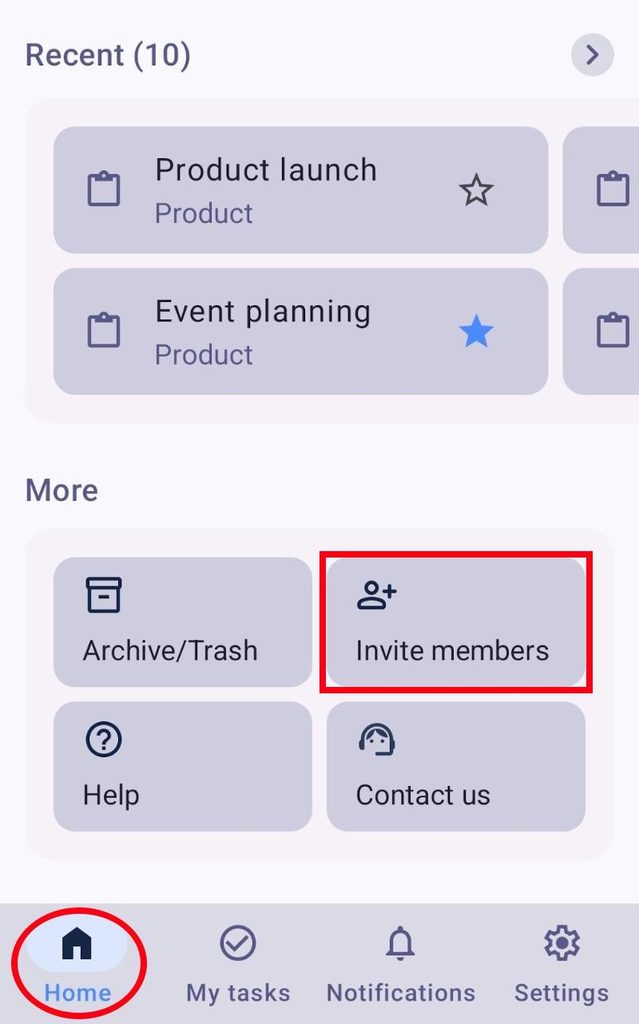
- Scroll down on the Home screen
- Tap on Invite members
- Enter the email address
- Select Member or Viewer role
- Tap on Invite to send the invitation
Pending invitations #
Users who have been invited but haven’t accepted appear with a Pending label in the user list. They still occupy a seat and can be mentioned, assigned to Items, and added to Teams.
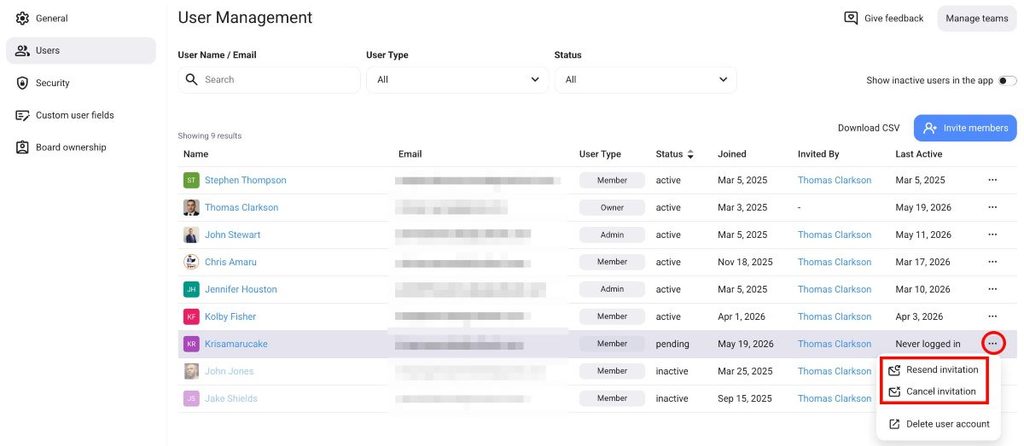
You can resend or cancel a pending invitation. Here’s how you can do this:
- Click on the three dots next to the Workspace name
- Klicke auf Verwaltung
- Ensure that the Users tab is active
- Click on the three dots next to a pending member
- Select Resend/Cancel invitation
Change user types #
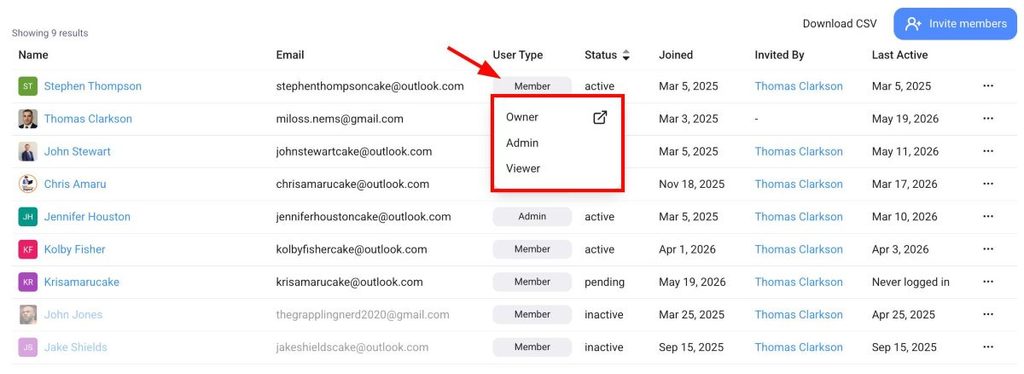
Any Admin can change a Member’s role. However, only the Owner can demote another Admin back to Member. Here’s how you can change user types:
- Click on the three dots next to the Workspace name
- Klicke auf Verwaltung
- Ensure that the Users tab is active
- Click on the user role in the User type column
- Select the user role
Deactivate and delete users #
Removing a user from Plaky is a two-step process. First, deactivate the user in Plaky, then delete the user from your CAKE.com account.
Admins can’t deactivate or delete other Admins, only the Owner can do this.
To deactivate the user:
- Click on the three dots next to the Workspace name
- Klicke auf Verwaltung
- Ensure that the User tab is active
- Click on the three dots next to a member
- Select Deactivate user
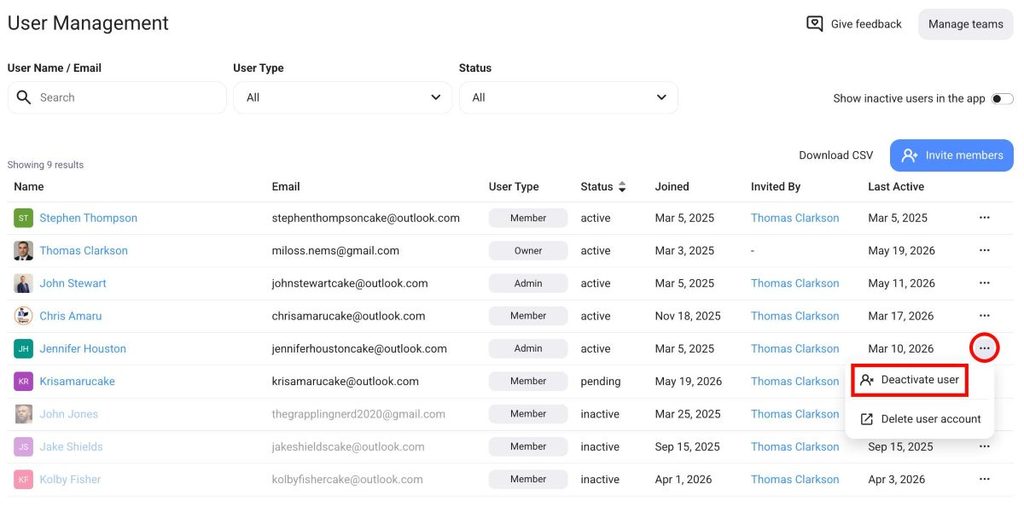
Once the user is deactivated, you can delete the user by following these steps:
- Click on the three dots next to the Workspace name
- Klicke auf Verwaltung
- Ensure that the Users tab is active
- Click on the three dots next to a member
- Select Delete user account to get redirected to the CAKE.com account
- Select a member
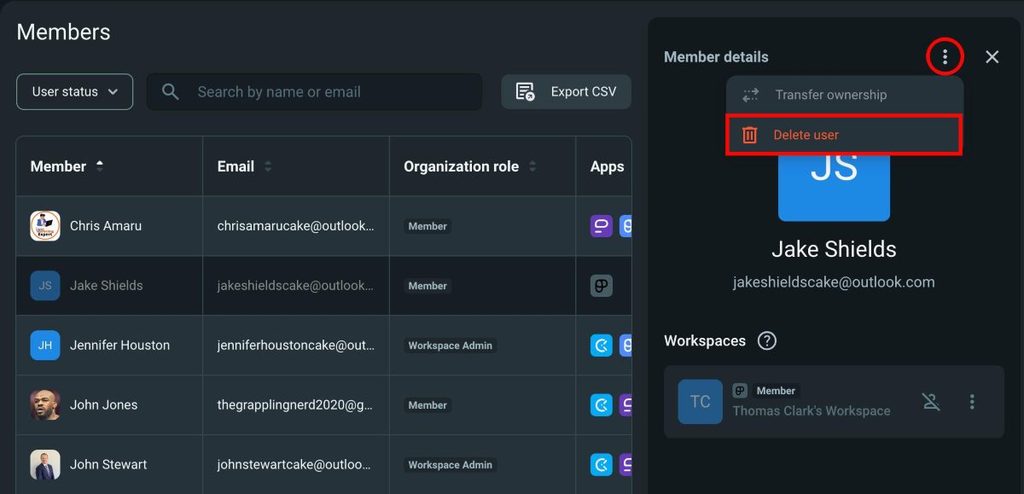
- Click on the three dots next to Member details
- Select Delete user