Board members, permissions, and activity logs
In this article
This article covers how you can add members to your Board, how you can set Board permissions, and what you can see in the activity log.
Add or remove members from a Board #
If your Project requires you to grant or revoke access to your Team Members on your Board, you can do so by making your Board Private (available on paid plans only) and adding or removing Users. When someone is added to a Board, they are subscribed to it and will receive notifications about activity on Items they’re watching, and those Items will appear in assignment fields.
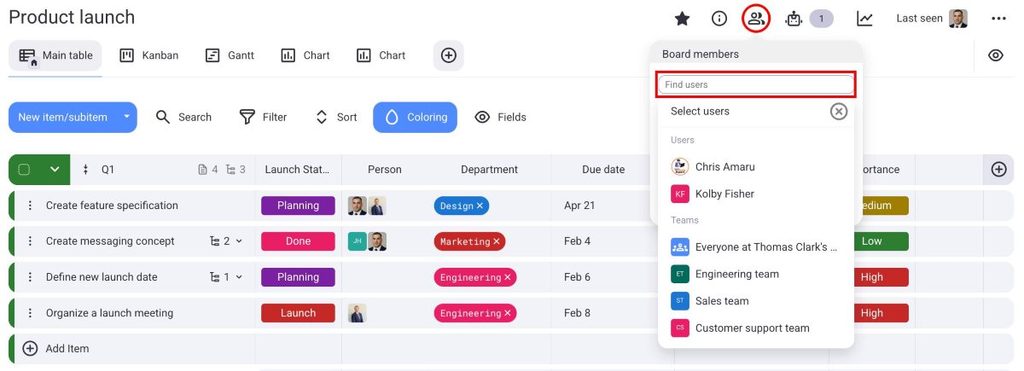
To add members to a Board:
- Navigate to the Board members button at the top
- Search for members in the Board members dialog box
- Choose the member you’d like to add
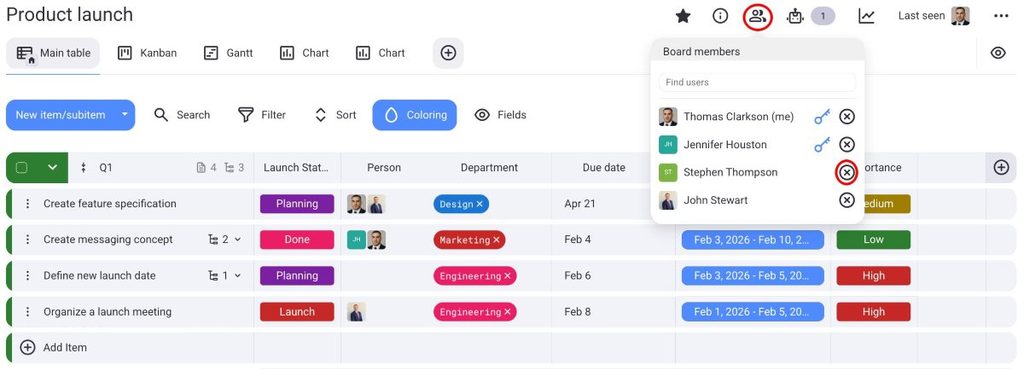
To remove members from a Board:
- Navigate to the Board members button at the top
- Click X next to the member you’d like to remove
Board-Berechtigungen #
The default Board Permission (Edit everything) applies to all Boards. To change to another type of Permission, you need an Enterprise subscription plan.
Board Permissions in Plaky allow Board Owners to control the level of access and editing rights granted to individuals or user groups for a specific Board. Changing Board permissions is a paid feature available only on the Enterprise plan.
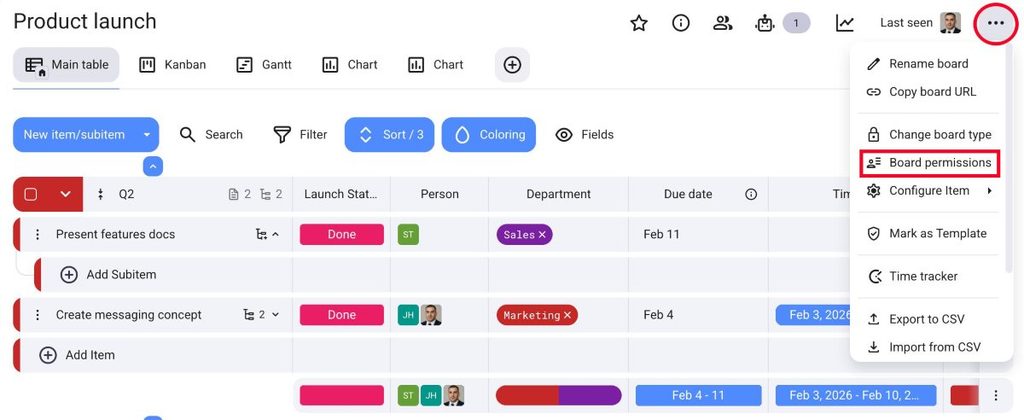
If you want to change Board permissions, follow these steps:
- Click on the three dots in the top-right corner to open the Board menu
- Select Board permissions
- Wähle eine der Optionen aus
- Klicke auf Speichern, um die Aktion abzuschließen
- Tippe auf die drei Punkte oben rechts
- Tap on Board info
- Select Permission
- Choose Permission type
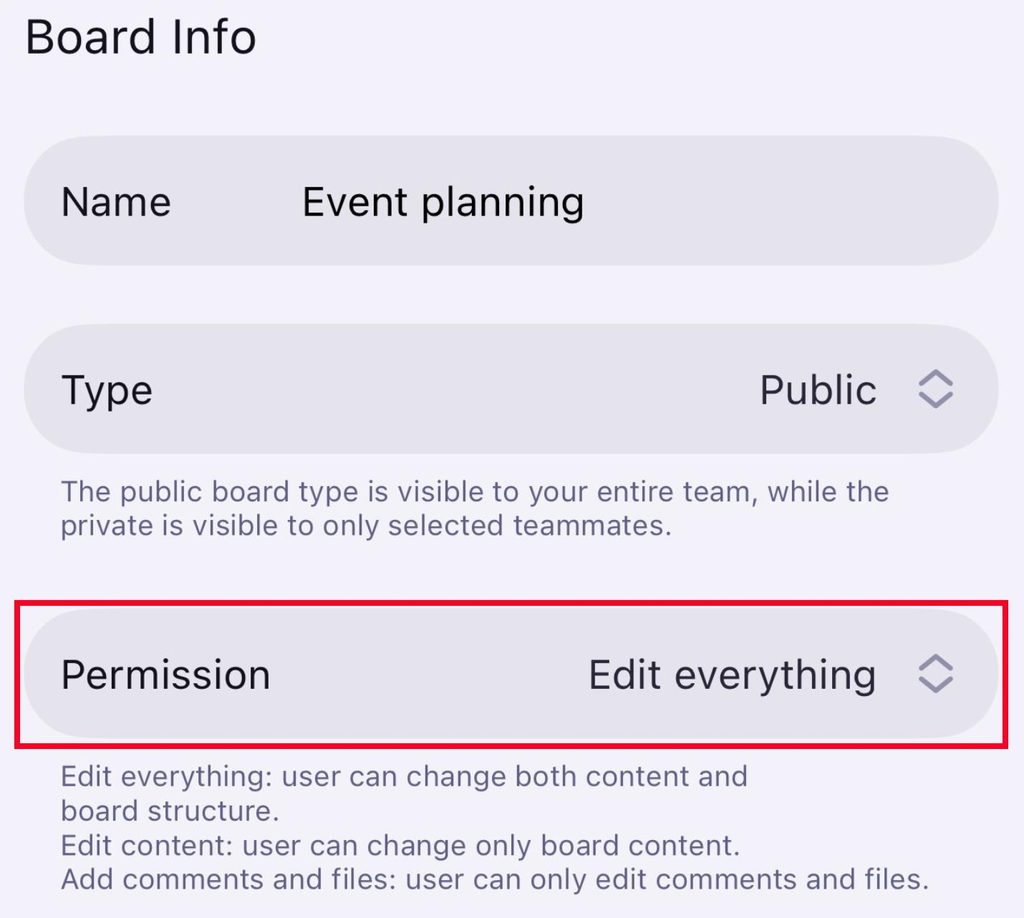
- Tippe auf die drei Punkte oben rechts
- Tap on Change board permissions
- Choose which Permissions apply
- Tippe auf Speichern, um die Aktion abzuschließen
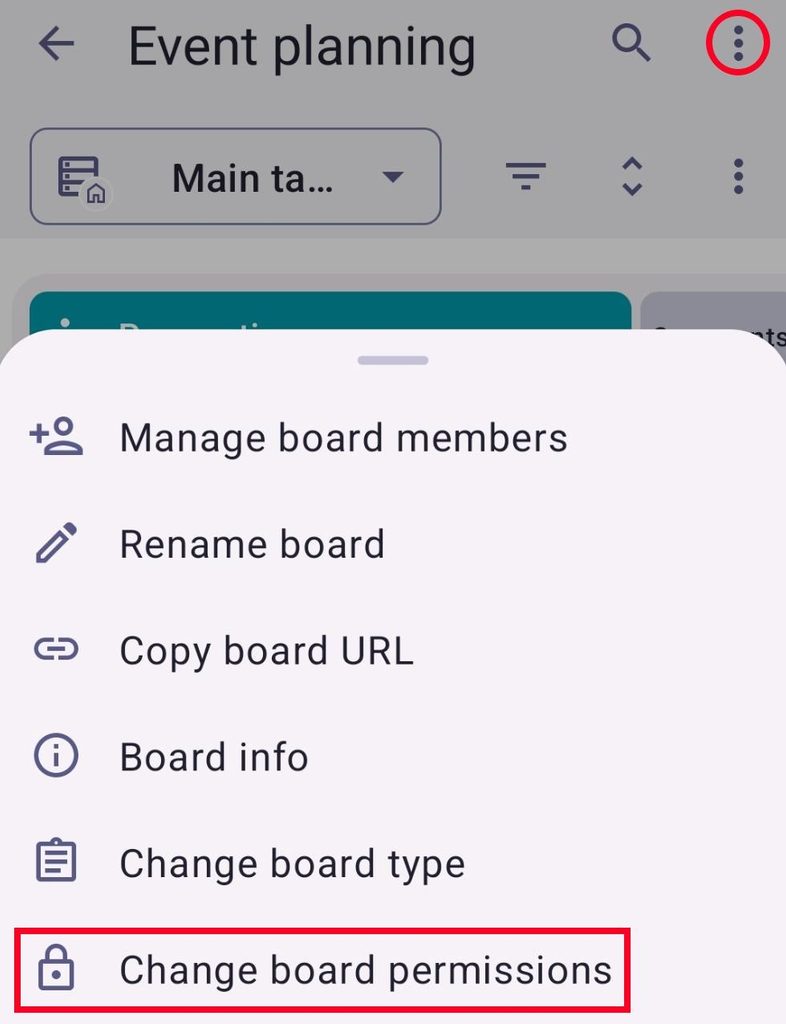
In Plaky, there are three distinct types of Board permissions:
Alle bearbeiten #
Edit everything permission is the default Board permission, and it grants users the highest level of access and editing rights on a Board. Users can change both content and Board structure, and they can add, edit, and delete the following:
- Elemente
- Unterelemente
- Felder im Board
- Ansichten
- Kommentare
- Dateien
- Groups
- Feldwerte
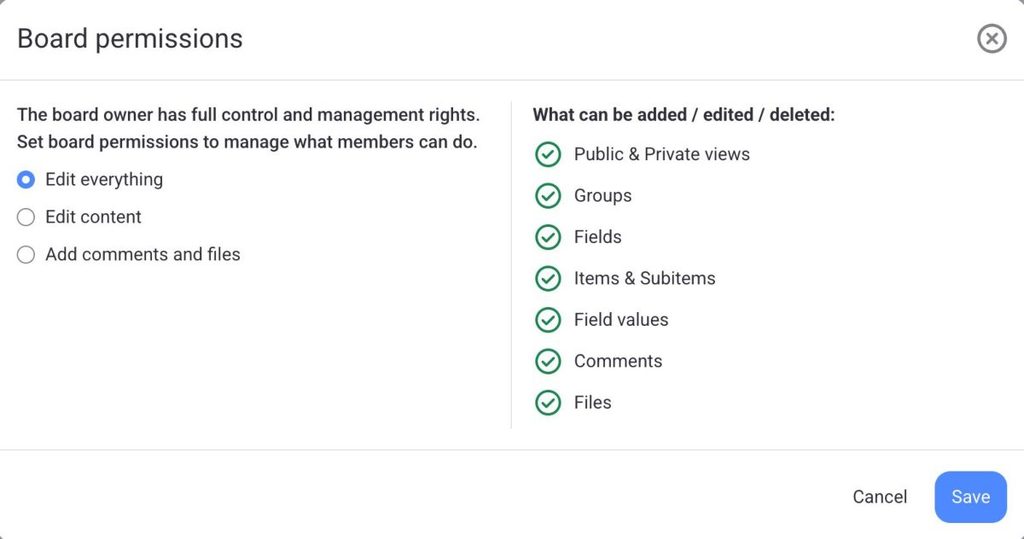
Darüber hinaus können Benutzer ein Board mit Filter, Zusammenfassungszeile, Board umbenennen, Board sortieren und andere Funktionen organisieren.
Inhalt bearbeiten #
Edit content permission allows users (Admins and Members who are not Board owners) to change Board content and lets them add, edit, and delete the following:
- Elemente
- Unterelemente
- Kommentare
- Dateien
- Private Ansichten
- Feldwerte
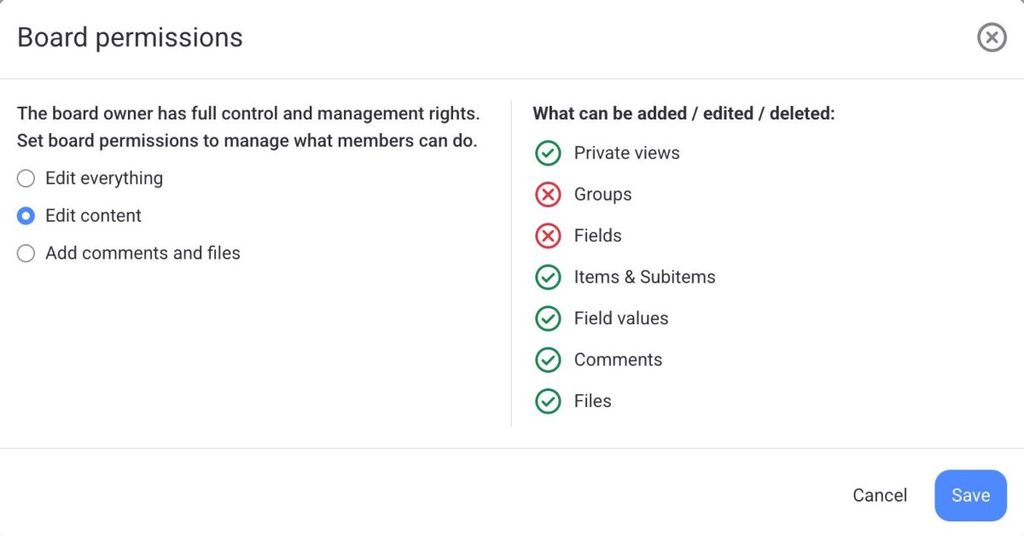
Benutzer mit dieser Berechtigung können jedoch nicht die Struktur, Ansichten oder Einstellungen des Boards ändern.
Kommentare und Dateien hinzufügen #
Add comments and files permission limits users’ editing rights to adding comments and files only. With this permission set, users (Admins and Members) can view all of the Board’s content but can only add, edit, or delete their own:
- Kommentare
- Dateien
- Private Ansichten
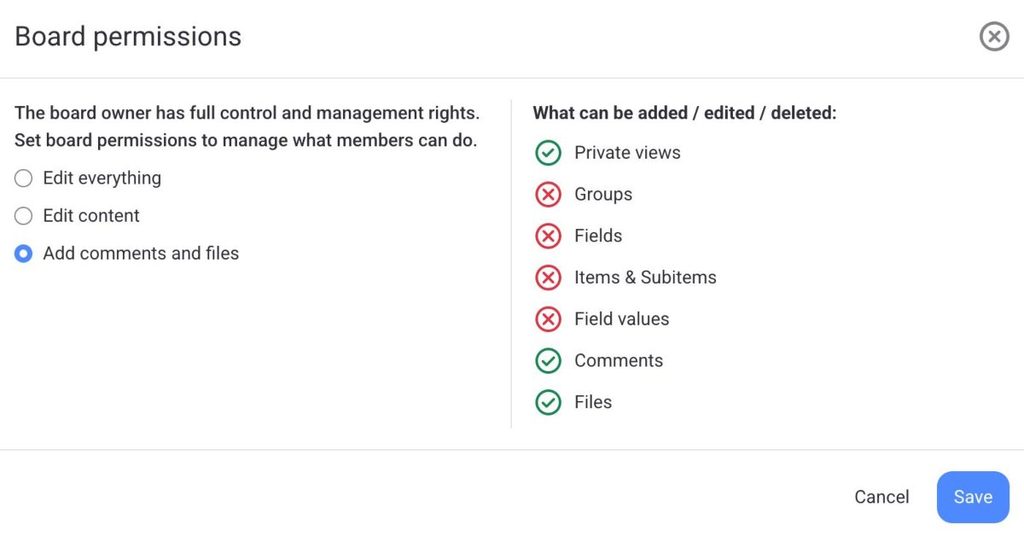
This type of permission is particularly useful for fostering collaborative discussions and resource sharing while maintaining control over the Board’s core content.
Activity log #
With Activity Log, you can track your Team’s tasks and keep up with the activities on the Board or Item.
There are 2 types of activity logs available in Plaky:
- Board-Aktivitätsprotokoll
- Element-Aktivitätsprotokoll
Der Zugriff auf den Verlauf richtet sich nach deinem Abonnement. Im Free-Abonnement kannst du auf den Aktivitätsverlauf der letzten 7 Tage zugreifen, im Pro-Abonnement auf die letzten 6 Monate, während im Enterprise-Abonnement eine unbegrenzte Aufzeichnung aller vergangenen Aktivitäten möglich ist.
Board activity log #
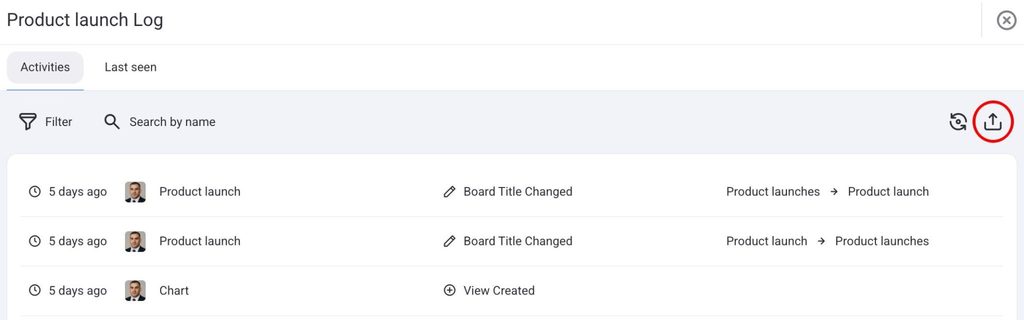
The Board Activity Log displays all past activities on the Board, including status changes and updates, Item deletions, and Team Member assignments.
To check the Activity log for Boards, click the Activity log button at the top of the Board.

Das Panel öffnet sich mit der Liste aller vergangenen Board-Aktivitäten. Jeder Eintrag enthält die folgenden Informationen: Zeitpunkt der Änderung, Autor der Änderung, Name des Boards/der Ansicht/des Felds/der Gruppe oder des Elements, an dem die Änderung vorgenommen wurde, und wie es vor und nach der Änderung aussah.
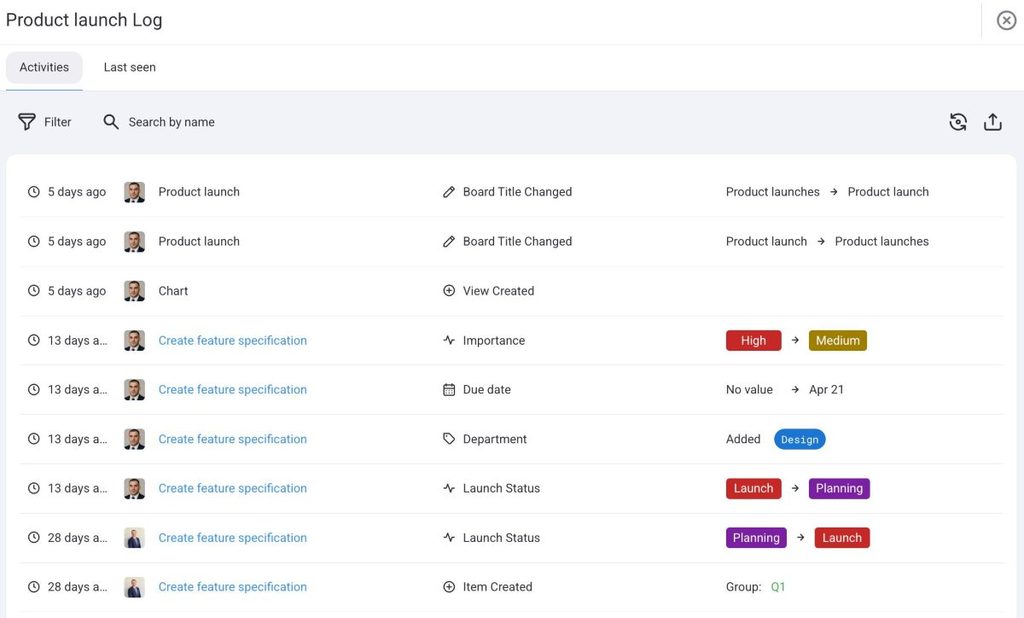
Use the Filter button to narrow entries by time period, Item group, Field type, person, or event type. Use Search by name to find all changes made by a specific useItem activity log
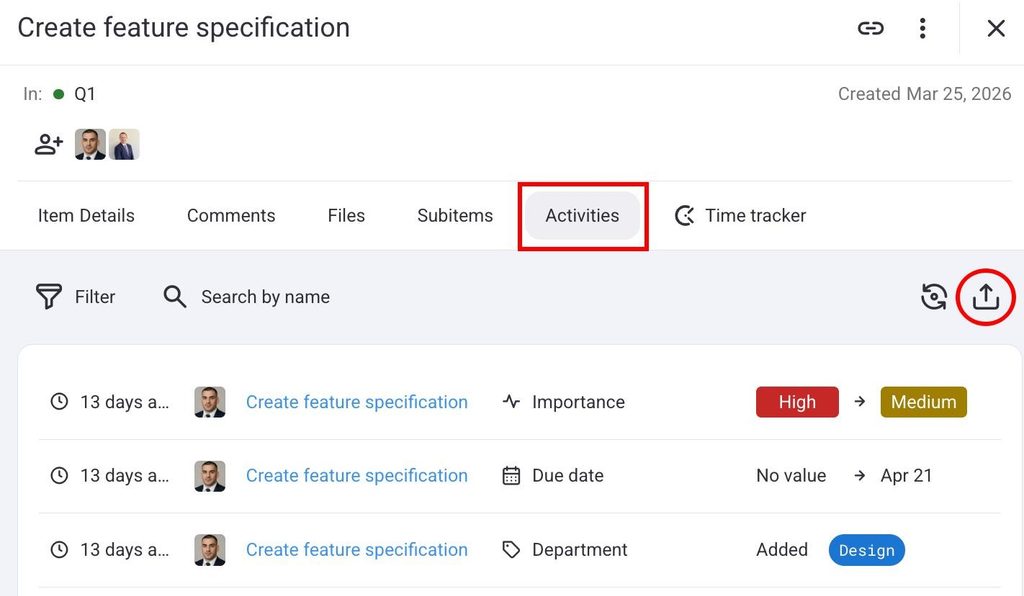
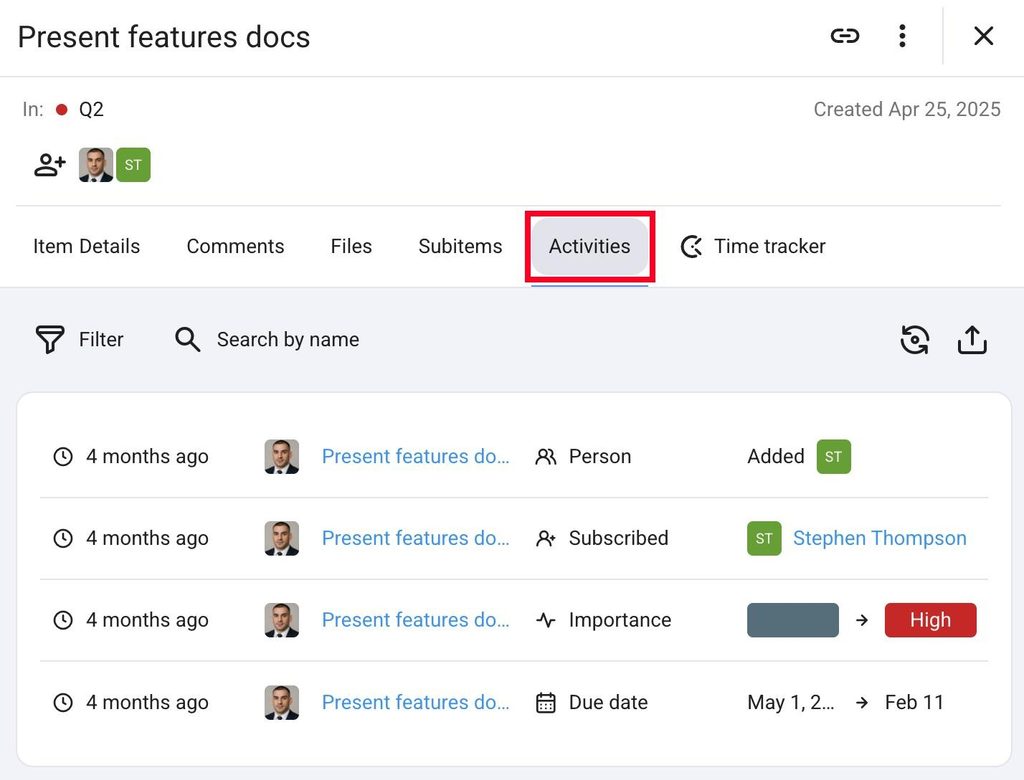
Each Item has its own activity log that tracks every change made to that Item. It tracks field value updates, status changes, comment additions, and more. Entries are ordered with the oldest at the bottom and the newest at the top.
To view the Item activity log, follow these steps:
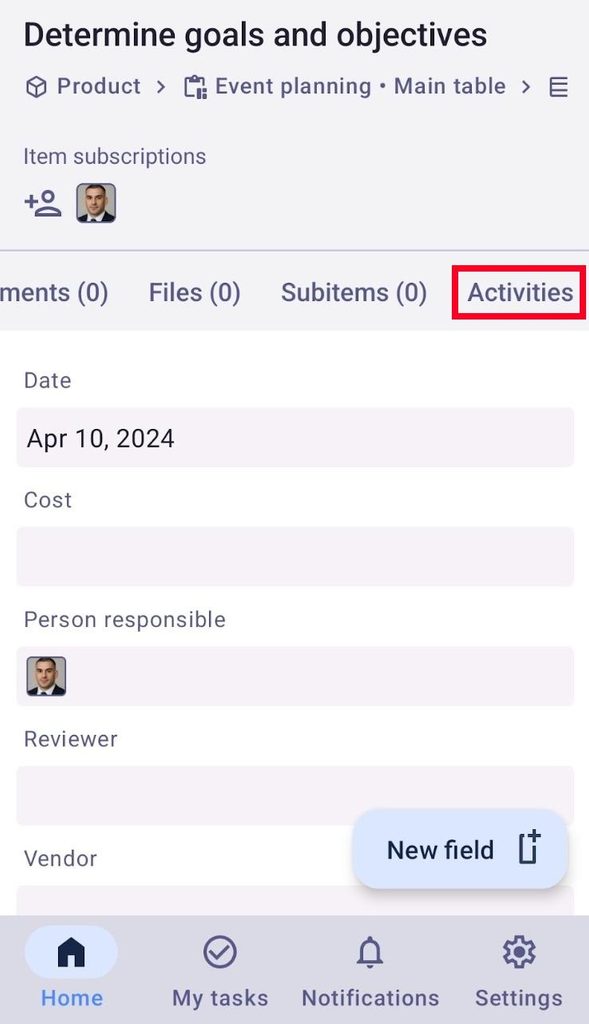
- Öffne ein Element
- Öffne die Registerkarte Aktivitäten
Die Registerkarte öffnet sich mit der Liste aller Elementaktivitäten. Jeder Eintrag enthält die folgenden Informationen:
- Änderungszeit
- Autor der Änderung
- Name des Elements, an dem die Änderung vorgenommen wurde
- Aktivitätsname
- Vorheriger Wert
- Neuer Wert
You can filter out the activities in the Filter log and Filter by name search bar according to the same parameters as those listed in the Board activity log.
- Öffne ein Element
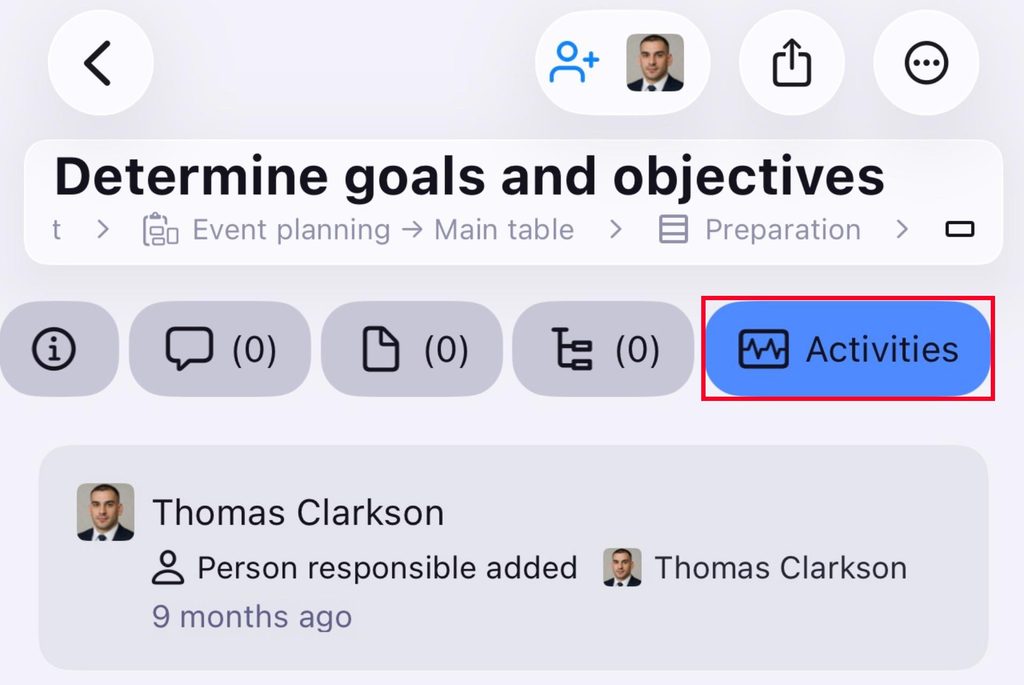
- Tap on the Activities tab
- Öffne ein Element
- Tap on the Activities tab
Zuletzt gesehen #
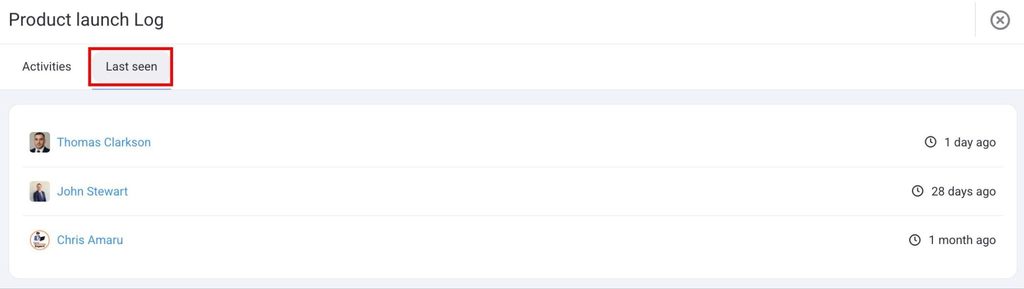
The Last seen tab sits alongside the Activity tab. It shows when each Board member last opened the Board. This is useful for understanding engagement and whether teammates are keeping up with the project updates.
Here’s how to open the Last seen tab:
- Click on the Activity button in the top right corner
- Select the Last seen tab
In Aktivitätsprotokollen angezeigte Ereignisse umfassen Folgendes:
| Board Events | Item Events |
|---|---|
| Board erstellen und löschen | Element erstellen und löschen |
| Create and delete Board View | Elementgruppe erstellen und löschen |
| Board-Ansichtsfilter/-sortierung/-sichtbarkeit/-feld aktualisieren | Elementattribut erstellen und löschen |
| Benutzer/Team von/zu Board abonnieren/abbestellen | Elementattributnamen ändern |
| Board-Berechtigungen ändern | Elementattributwert ändern |
| Titel, Typ ändern, Board-Beschreibung ändern und bearbeiten | Elementtitel ändern |
| Element zu einem anderen Board verschieben | Titel und Farbe der Elementgruppe ändern |
| Inhaberschaft hinzugefügt | Element von und zu Gruppe verschieben |
| Eigentümerschaft hinzugefügt (durch Admin) | Element zu einem anderen Board verschieben |
| Inhaberschaft entfernt | Benutzer/Team von/zu Element abonnieren/abbestellen |
| Eigentümerschaft entfernt (durch Admin) | Inhaberschaft hinzugefügt |
| Inhaberschaft entfernt |
Export Activity log #
Both the Board activity log and the Item activity log can be exported to CSV. If you’ve applied filters, only the entries that match them are included in the export.
Here’s how to export the Activity log:
- Öffne ein Board
- Click on the Activity log
- Click on the Export button
- Öffne ein Element
- Click on the Activities tab
- Click on the Export button