Create and set up a Board
In this article
In this article, we will cover what a Board is and how you can create one from scratch or from a template.
Was ist ein Board? #
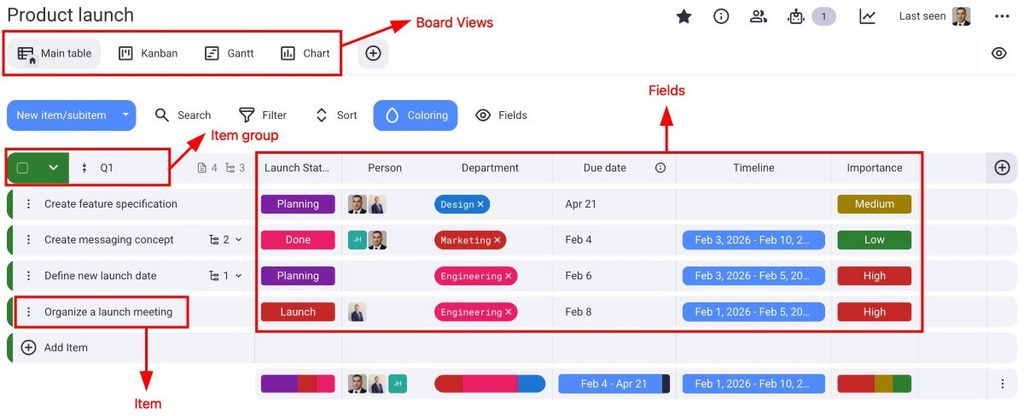
A Board is where work happens in Plaky. It’s a structured list of Items (tasks, requests, projects) organized into Item groups and tracked through fields such as status, assignee, and due date. Every Board lives inside a Space.
Public vs. private Boards #
Every Board is either public or private. You select the Board type when you are creating it, but you can change this later.
| Public Board | Privates Board |
|---|---|
| Visible to all members of the Space it belongs to. | Visible only to the Board Owner and invited members. |
| Owners, members, and viewers can all see Board content. | Does not appear in the Space to non-members. |
| Available on all plans. | Available only on paid plans. |
Private Boards are available only on Pro and Enterprise plans.
Create a Board from scratch #
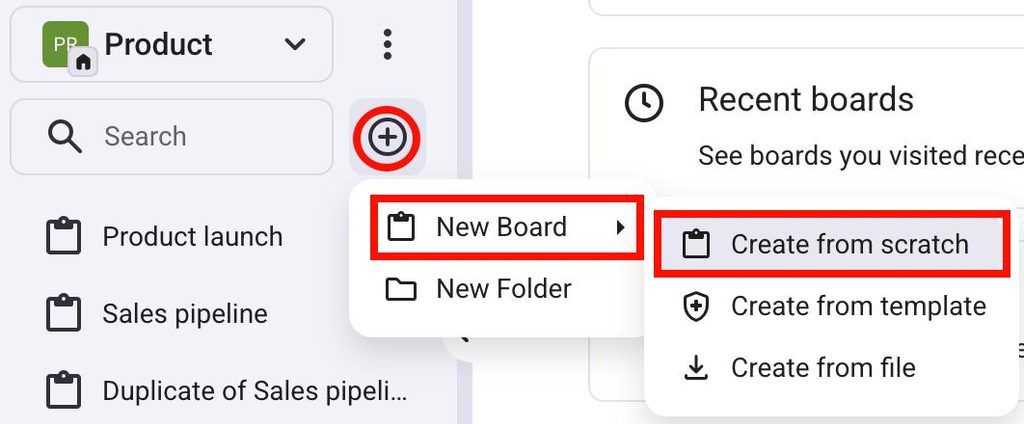
You can create a Board from scratch and add Item groups and Items to it as you prefer. Here’s how:
- Click on the + icon in the left sidebar
- Hover over New Board
- Select Create from scratch
- Gib den Board-Namen ein
- Gib eine Beschreibung ein (optional)
- Select the Space
- Toggle if you want the Board to be private
- Click Create Board to complete the action
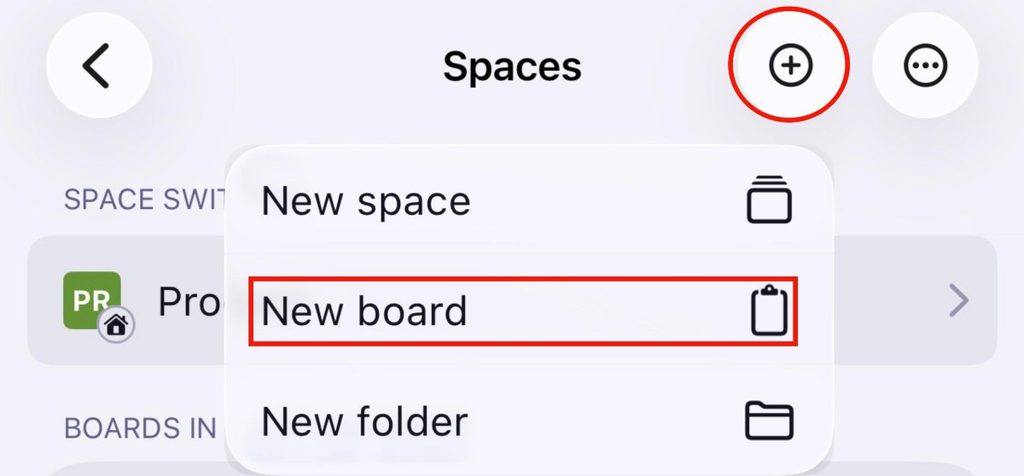
- Open a Space
- Tippe auf die Schaltfläche + in der oberen rechten Ecke
- Tap on New board
- Select Start from scratch
- Open a Space
- Tap on the + button in the bottom right corner
- Select New board from scratch
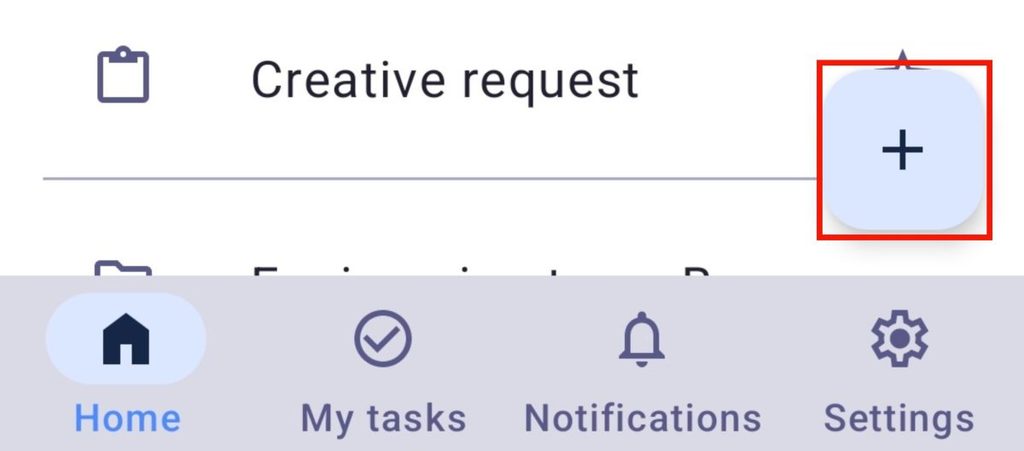
The Board will open immediately after the creation. It starts with two default Item groups and several sample Items, which can be edited later. From here, you can add Items, configure Fields, invite Members, and add Views.
Create a Board from a template #
Templates give you a pre-built Board structure with Item groups, Fields, and sample Items already set up.
Here’s how to create a Board from a template:
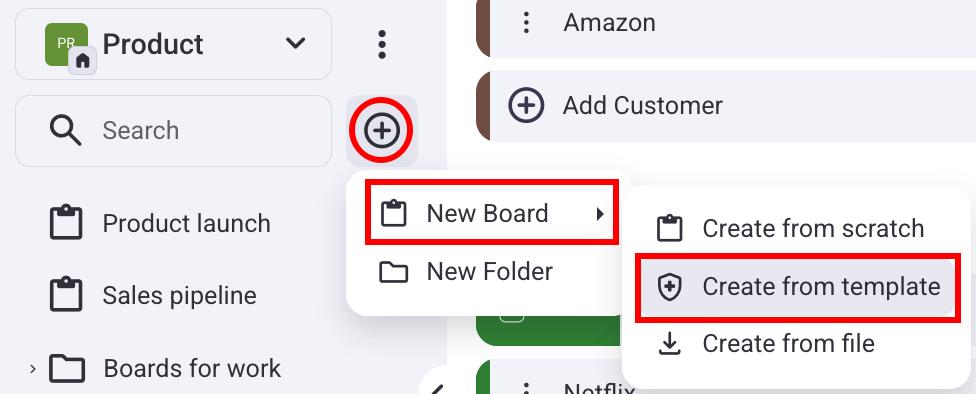
- Click on the + icon on the left side
- Hover over New Board
- Click on Create from template
- Open a Space
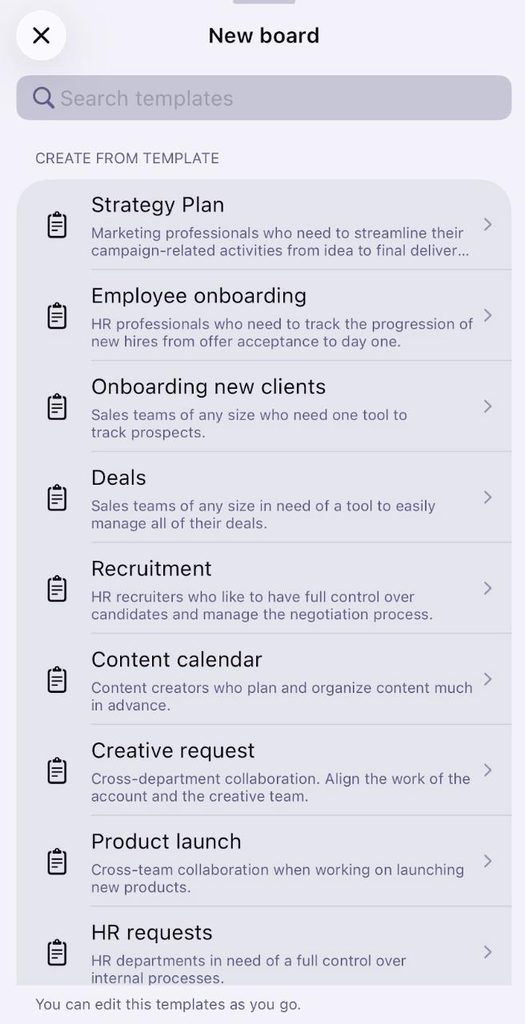
- Tippe auf das + Symbol oben rechts
- Tap on New board
- Select a template from the list
- Open a Space
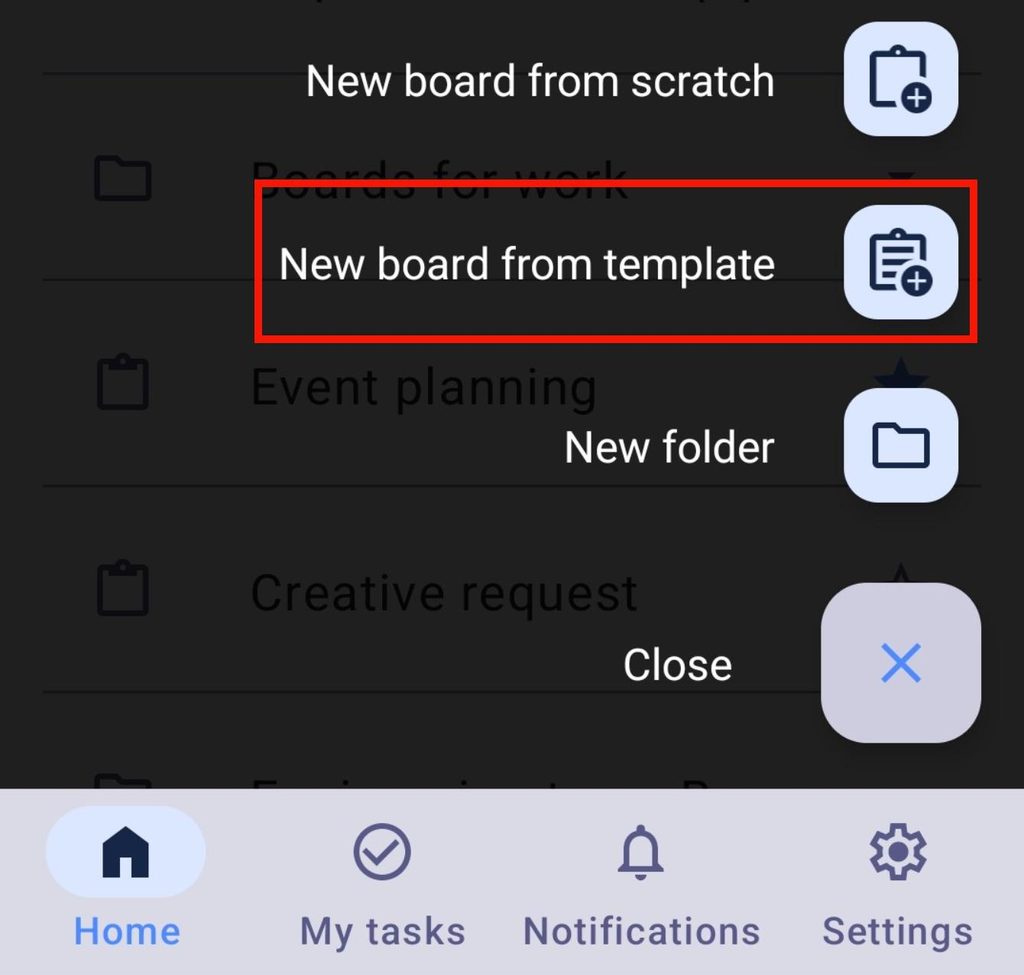
- Tap on the + button in the bottom right corner
- Select New board from template
- Choose a template
There are various templates you can choose from, such as:
- Nonprofit campaign
- Personal goals
- Social media calendar
- Recruitment
- Product launch
- Personal tasks
Board als Favorit markieren #
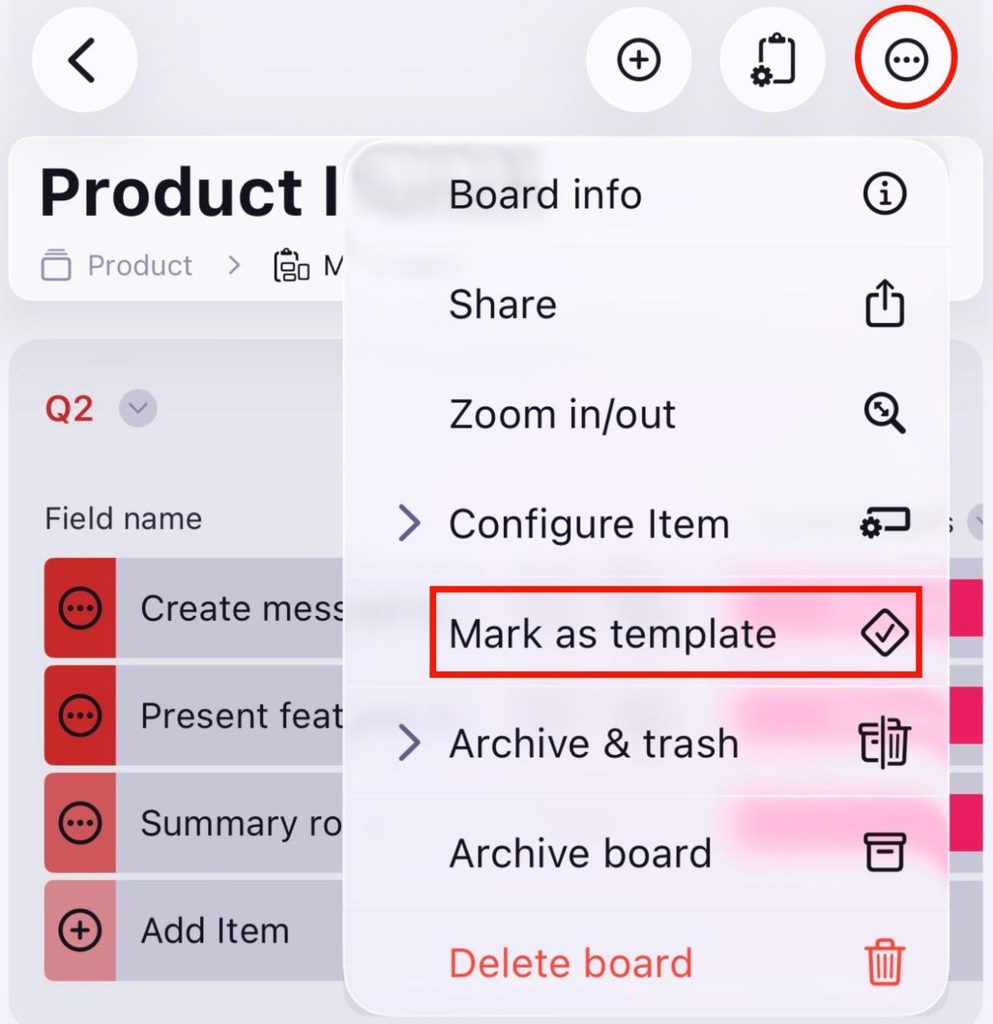
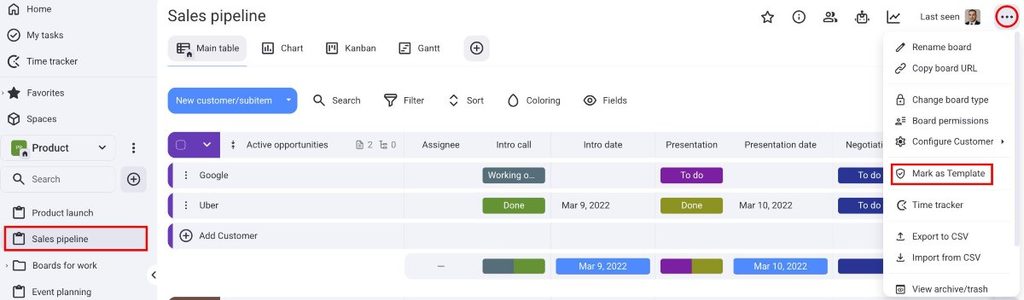
You can mark one of your Boards as a template and save it for later. Here’s how:
- Open a Board
- Click on the three dots in the top right corner
- Select Mark as Template
- Öffne ein Board
- Tippe auf die drei Punkte oben rechts
- Tap on Mark as template