Element in der iOS-App erstellen und verwalten
Plaky iOS app enables you to create Item groups and Items, just like on the Web version of the app, and to further edit and manage them.
Add Item group #
Item Groups are color-coded sections by which Items are grouped and organized on a Board. This way, each Item Group can represent some notion related to the project, process or activity in question.
Add Item Group by navigating to the Board you’d like to add the Group to and tapping on the + button at the top of the screen. Choose New Item Group, enter Item group name and tap Add to complete the process.
ODER
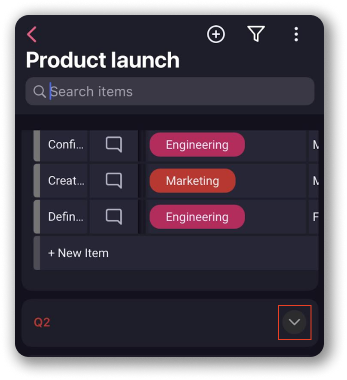
On the Board, scroll down to the bottom on the screen. Tap on +New Group label, enter Item Group name and tap Add to complete the process.
Sobald du eine neue Elementgruppe erstellt hast, wird sie auf dem Board in der iOS- und Web-App angezeigt.
Element hinzufügen #
If you’re away from the keyboard and need to add new task on the go, you can do that from the iOS app. Apart from an overview of all the Boards and Workspaces you have access to, you can also add Item in a few easy steps.
- Wähle den Arbeitsbereich und dann das Board, dem du ein Element hinzufügen möchtest
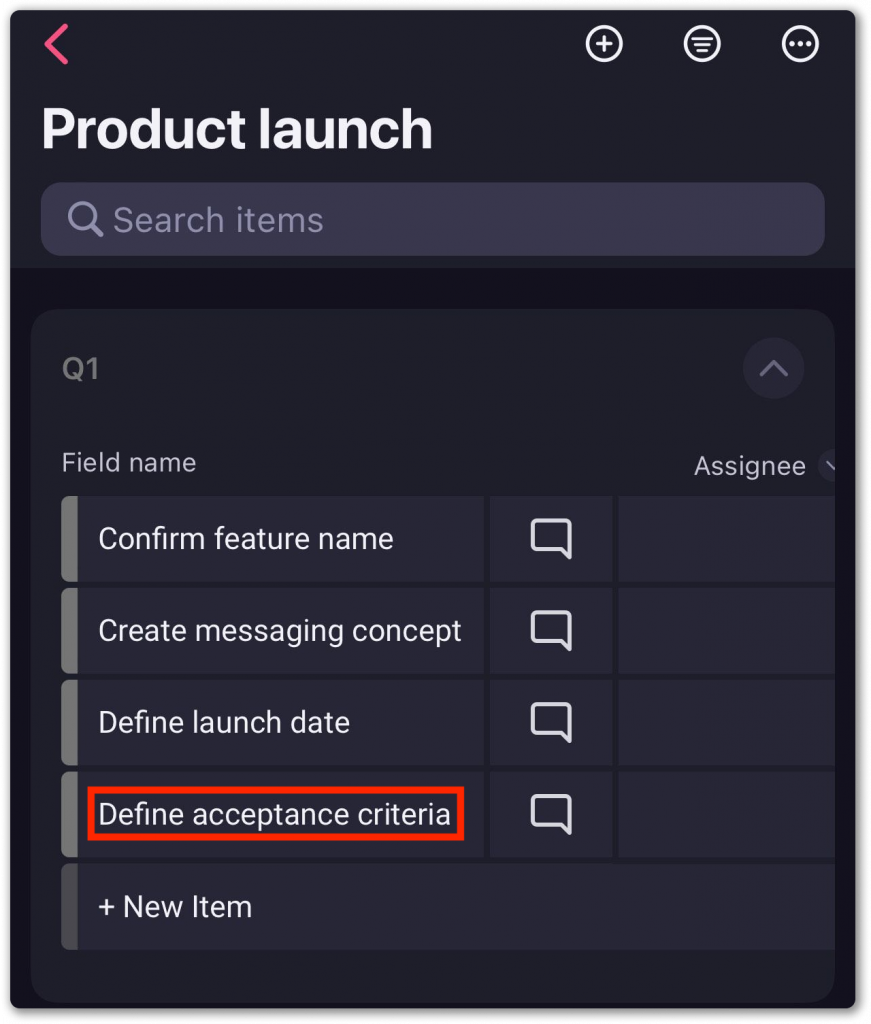
- Tap on +New Item on the Board
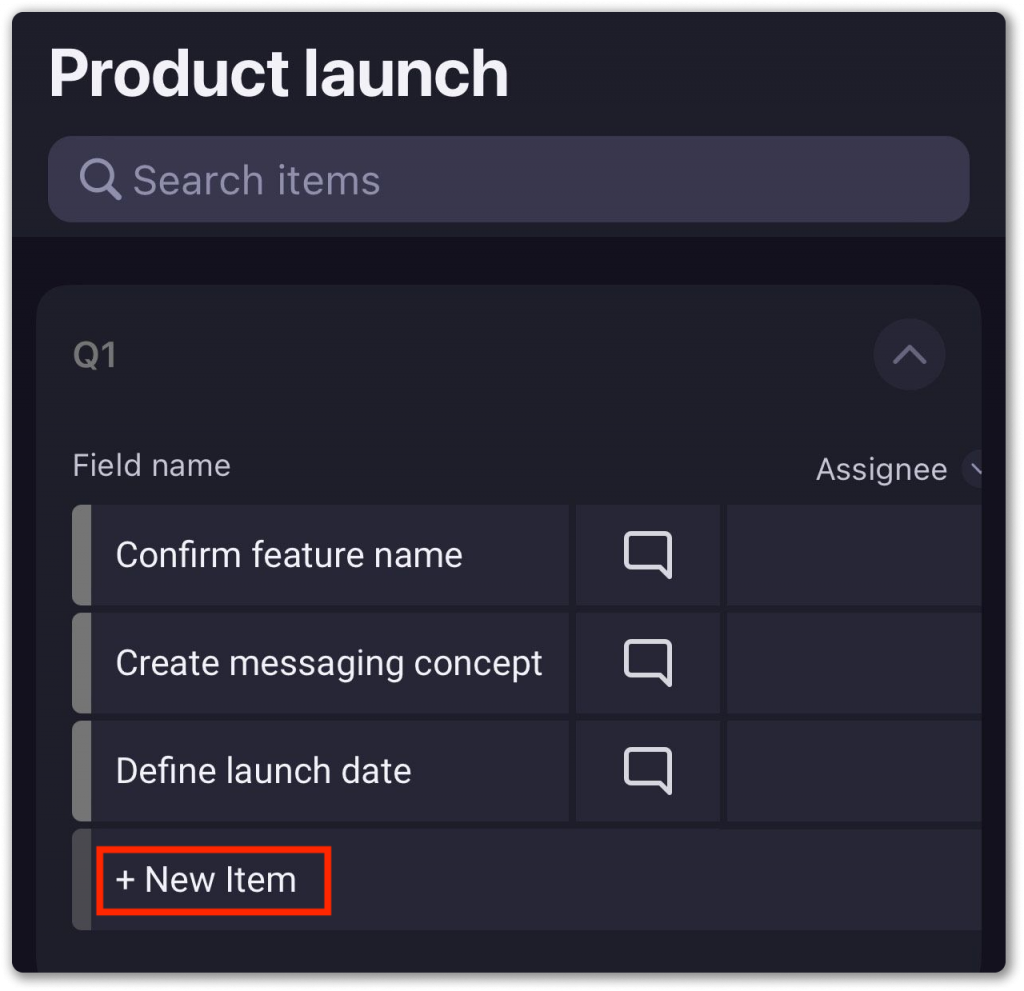
Now you need to enter Item name and tap Add in Add Item modal.
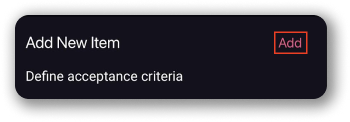
You can also add Item by navigating to the Board you’d like to add Item to and tapping on the + button at the top of the screen. Choose New Item, enter Item name and tap Add to complete the process.
Sobald du ein neues Element erstellt hast, wird es auf dem Board in der iOS- und Web-App angezeigt.
Element umbenennen #
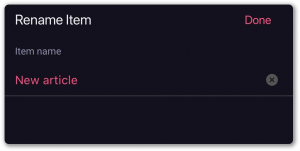
To rename an Item:
- Klicke auf die drei Punkte auf der linken Seite des Elements, um das Elementmenü zu öffnen
- Wähle Umbenennen
- Gib einen neuen Elementnamen ein
- Tippe auf Fertig, um die Änderungen zu speichern
Element duplizieren #
- Klicke auf die drei Punkte auf der linken Seite des Elements, um das Elementmenü zu öffnen
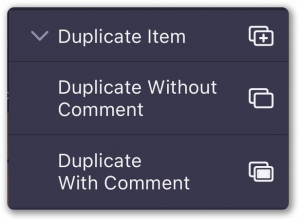
- Tippe auf Element duplizieren
- Tippe auf Ohne Kommentar duplizieren oder Mit Kommentar duplizieren, um die Aktion abzuschließen
Move Item to group #
To move Item to another group:
- Klicke auf die drei Punkte auf der linken Seite des Elements, um das Elementmenü zu öffnen
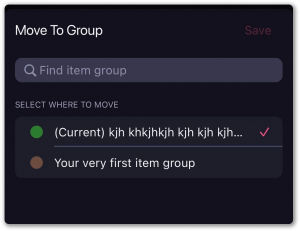
- Wähle In Gruppe verschieben
- Wähle die Zielgruppe
- Tippe auf Speichern, um die Aktion abzuschließen