
Invite or remove Space users
Whether you’re a Space Owner or not, with Admin and Member roles, you can add/remove users. However, on paid plans, Admins can control user invitations. For more detailed information on customizing user invitation permissions, check out this article.
When inviting users, you can choose if the new user will have a Member or a Viewer role. Their role can also be changed to Admin once the invitation is sent.
The Viewer user role is available only on Pro and Enterprise plans.
Add users #
To add users:
- Navegue e clique no botão Usuários no canto superior direito da tela
- In Invite new members modal enter user(s) email(s) and select the role (Member/Viewer)
- Clique em Convidar
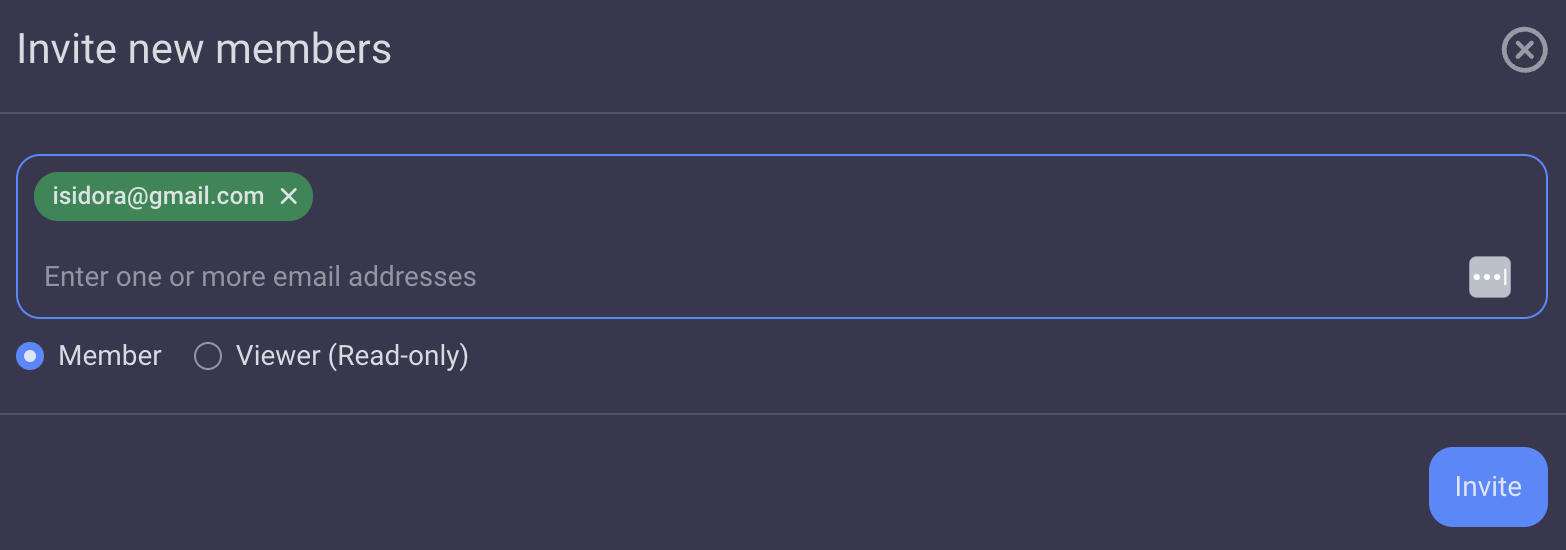
You can also add users by clicking the Invite members button in the User management screen or the Invite new members button at the bottom of the Home page screen.
- Toque no menu de três linhas
- Choose the Invite users screen
- Toque em Convidar por e-mail (*A opção Convidar por link será implementada em breve)
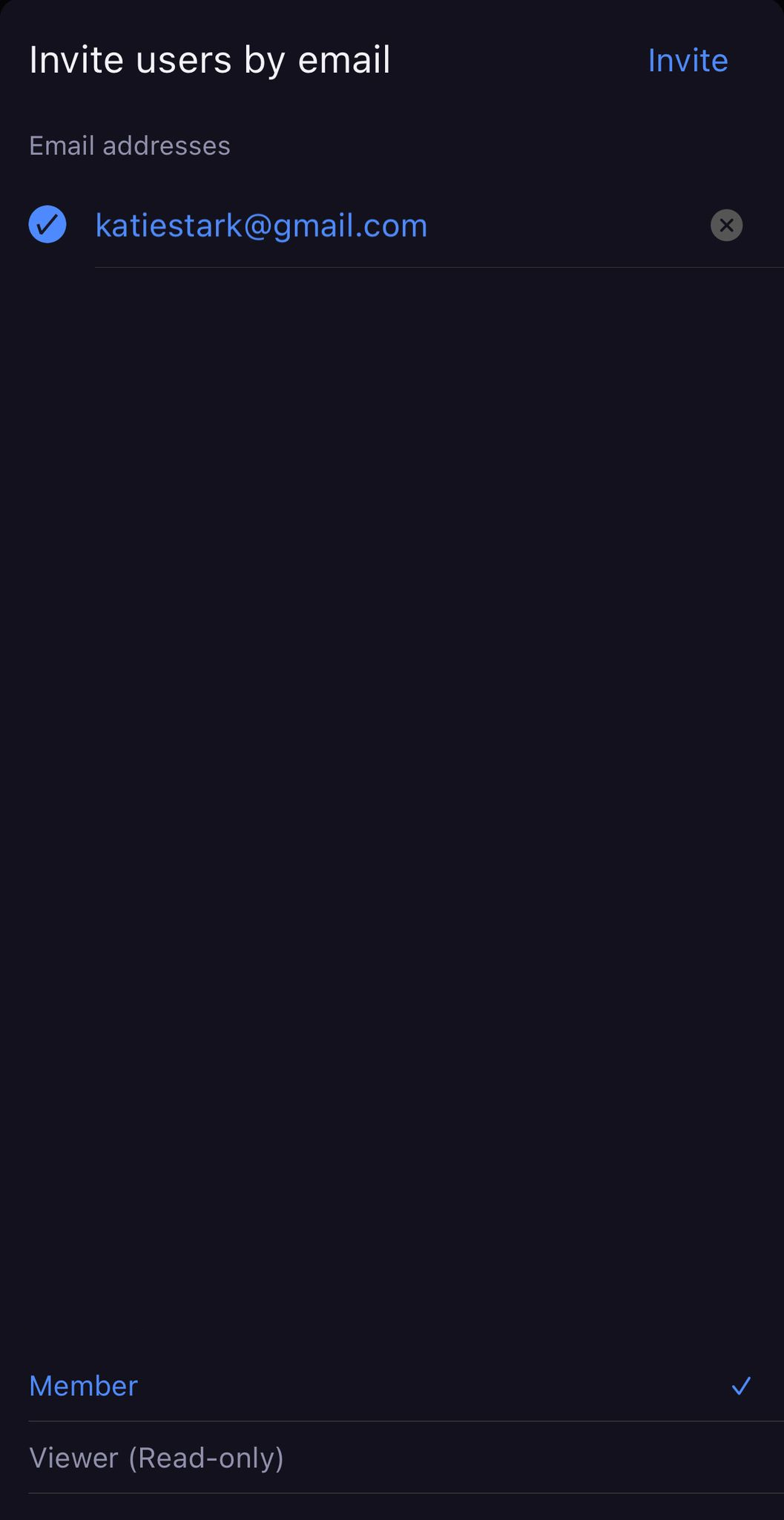
If you choose to invite users by email, the dialog box prompts you to enter the user’s email. Then choose the user type – Member or Viewer (available on paid plans only). Tap Invite to complete the action. Invitees will receive an email invitation with a link to the workspace they are invited to.
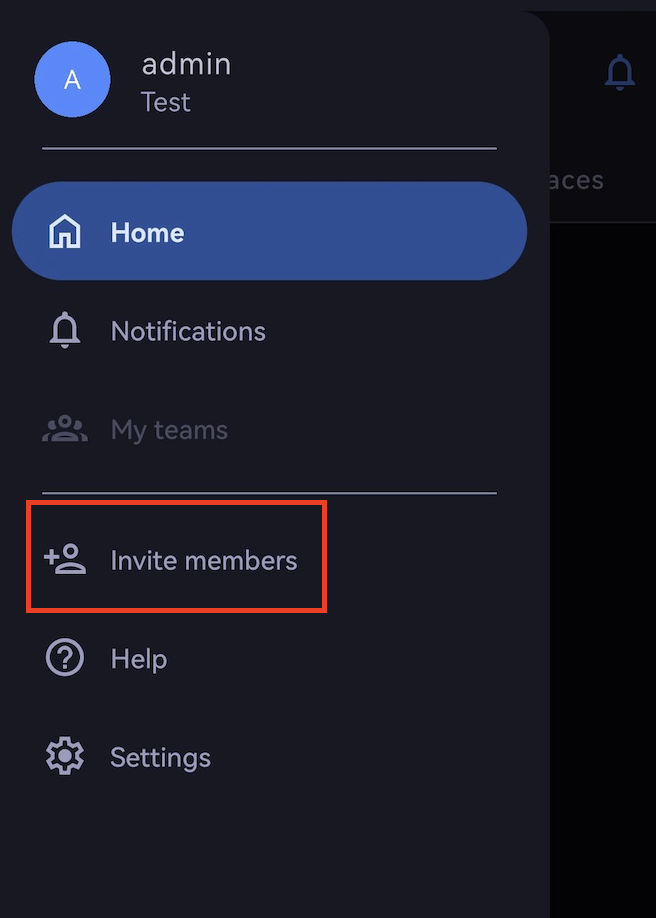
- Toque no menu de três linhas
- Choose Invite members option
- Digite os endereços de e-mail dos colegas de equipe que você deseja convidar
- Toque em Convidar
The user will receive the invitation via email. Once they accept and click on the link, they will be redirected to the Space home page. The link expires after seven days.
To invite multiple users via email, just copy and paste their email addresses. Before copying, make sure that the email addresses are separated by a comma, semicolon (;), space, pipe (|), new line, or tab.
A verificação do seu endereço de e-mail é uma etapa obrigatória antes de poder convidar usuários para o seu espaço.
Pending status #
Invited users who haven’t logged in yet have a pending status. You can resend or cancel their invitation.
- Click on the three dots in the top left corner
- Selecione Administração
- Abra a guia Usuários
To resend/cancel the invitation, click on the three dots button in the pending User’s label and select Resend/Cancel invitation.

- Toque para abrir o menu de três linhas no canto superior esquerdo
- Selecione Usuários e equipes
- Toque no nome de usuário desejado
- Toque em Reenviar convite para concluir a ação
EM BREVE
Users in a pending status are visible across all lists and can be assigned, mentioned, and included in teams as if they were already active. A “Pending” label appears next to their username. If a user invitation is cancelled, the user will be treated as a deleted user.
Pending users count toward user seat usage.
Pending users count toward user seat usage.
Remove users #
Removing users from Space is only available in the web app. To remove a user from mobile apps, you need to deactivate them.
To remove a user:
- Vá para a página inicial do espaço (primeira opção no menu suspenso – ou seja, três pontos)
- Click X next to the users name in the Members section
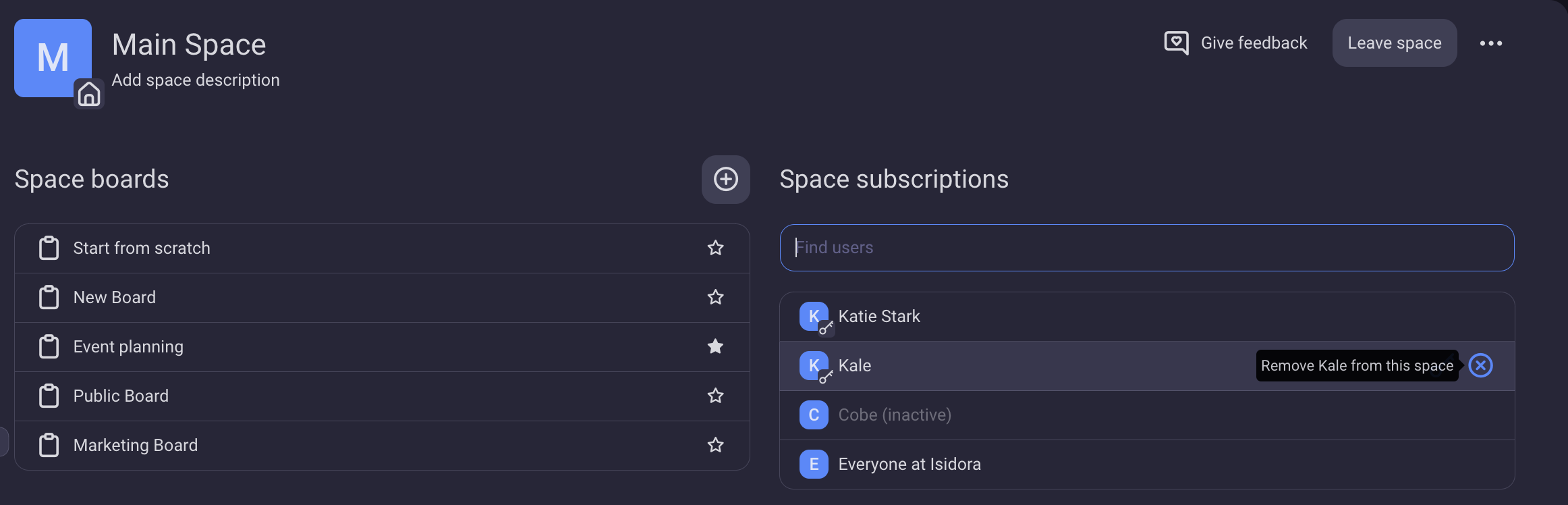
You’ll get a confirmation message in the bottom-right corner of the screen indicating that you’ve successfully removed the user from the Space.
Main Space users cannot be removed.