Sign up and log in
In this article
There are multiple ways to create a Plaky account and log in. This depends on whether you’re starting a new Workspace from scratch, joining an existing one via invitation, or returning as an existing user. Plaky accounts are always tied to a Workspace, so the method you use to sign up depends on whether you’re creating one or joining one.
Create an account #
There are two ways to create a Plaky account:
- Sign up and create a Workspace at plaky.com/register
- Join via an invitation link
Let’s look at both methods in more detail.
Registrieren und einen Arbeitsbereich erstellen #
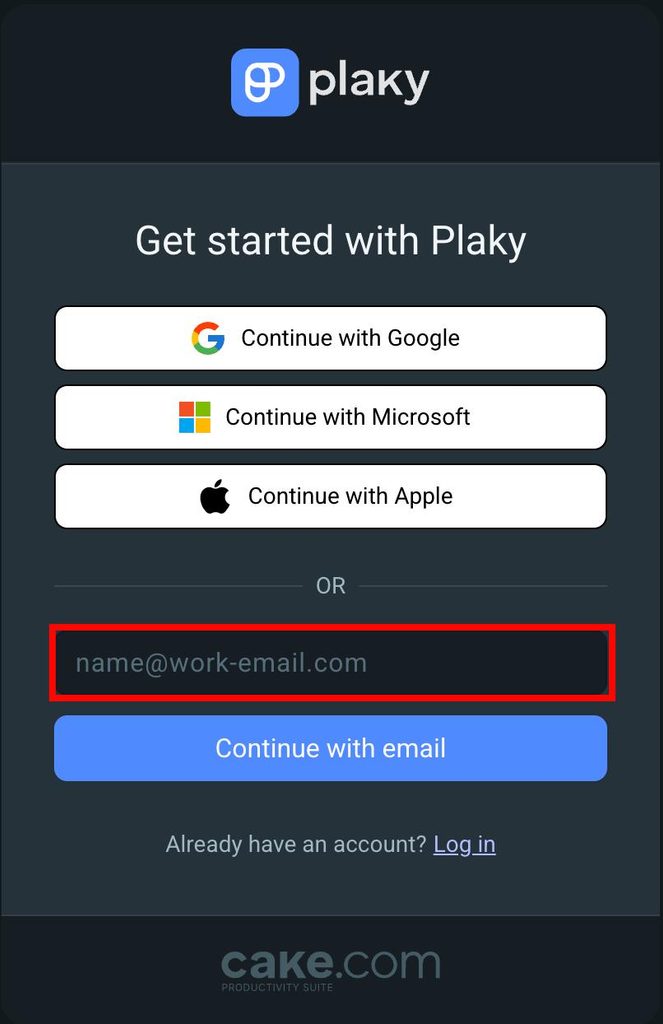
If you would like to create a new Workspace, go to the Plaky sign up page. There, you can register using an email address or sign up with a Google, Microsoft, or Apple account.
- Go to Plaky Sign up page
- Gib deine E-Mail-Adresse ein
- Klicke auf Mit E-Mail fortfahren
- Gib den Sicherheitscode ein, den du per E-Mail erhalten hast
- Fülle die Informationen aus
- Klicke auf Weiter, um die Aktion abzuschließen
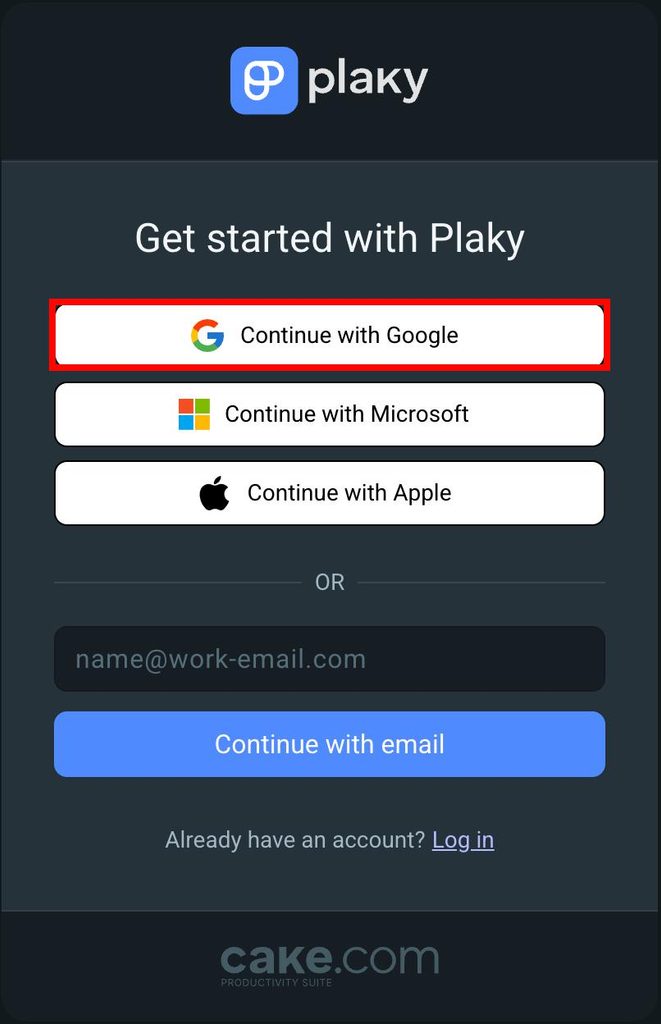
- Gehe zur Plaky-Anmeldeseite
- Click on Continue with Google
- Choose the Google account to sign up with
- Gib deinen Namen ein
- Gib den Namen des Arbeitsbereichs ein
- Agree to the Terms of Use
- Klicke auf Weiter, um die Aktion abzuschließen
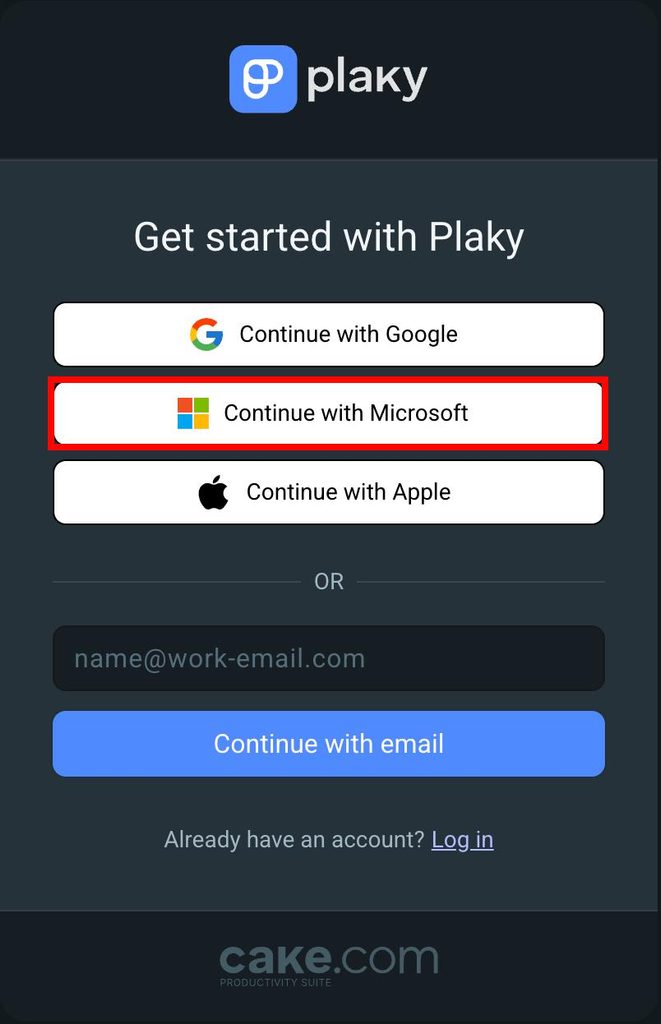
- Open the Plaky Sign up page
- Klicke auf Mit Microsoft fortfahren
- Choose the Microsoft account to sign up with
- Gib deinen Namen ein
- Gib den Namen des Arbeitsbereichs ein
- Agree to the Terms of Use
- Klicke auf Weiter, um die Aktion abzuschließen
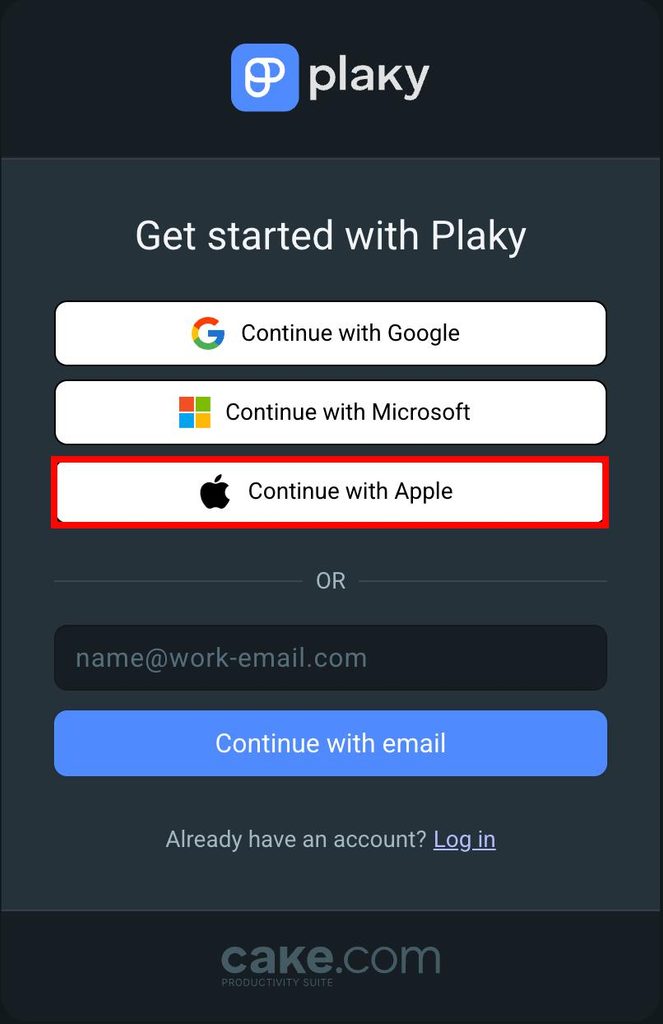
- Gehe zur Plaky-Anmeldeseite
- Click on Continue with Apple
- Enter your Apple ID
- Gib deinen Namen ein
- Gib den Namen des Arbeitsbereichs ein
- Agree to the Terms of Use
- Klicke auf Weiter, um die Aktion abzuschließen
Join via an invitation link #
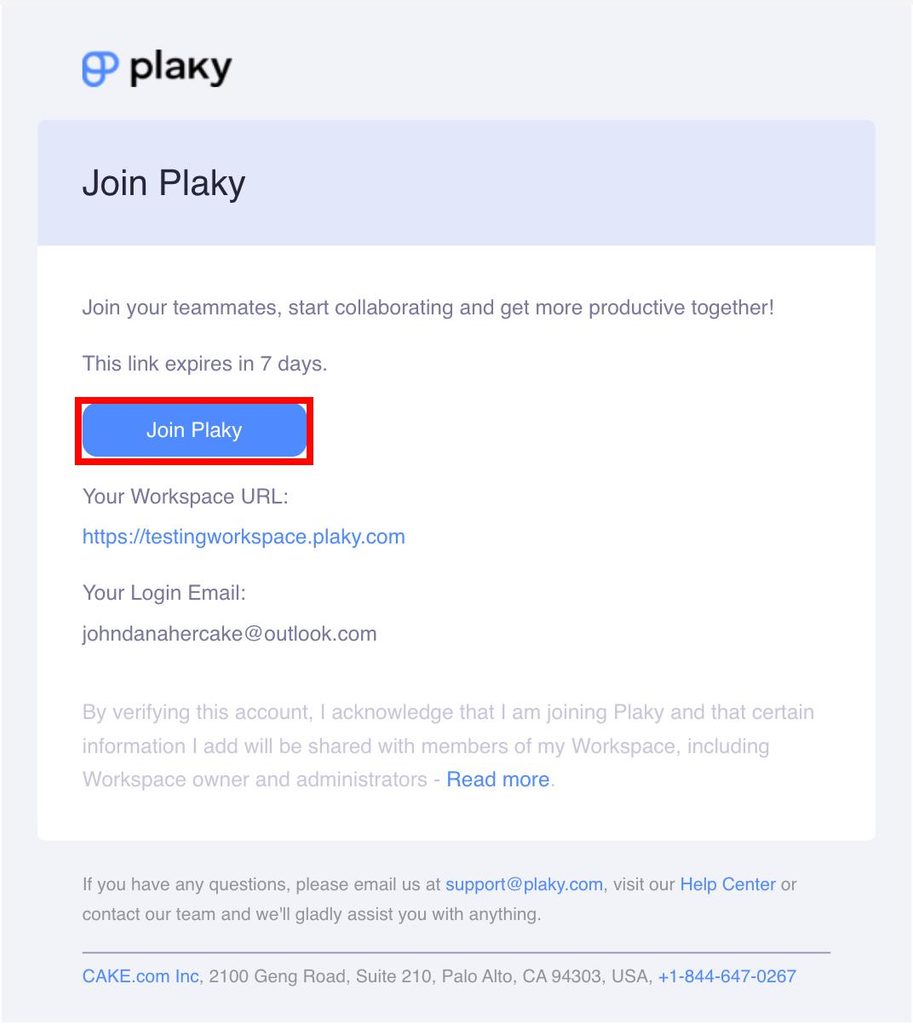
In case you received an invitation to join Plaky:
- Open your invitation email
- Click on the Join Plaky button
- Gib deinen Namen ein
- Agree to the Terms of Use
- Click on Sign up to complete the action
Wenn der Arbeitsbereich eine benutzerdefinierte SSO-Konfiguration mit automatischer Beitrittsberechtigung hat:
- Füge den Link zum Arbeitsbereich im Browser ein
- Click Login with [Custom_SSO_name] account
- Gib deinen Namen ein
- Stimme den Nutzungsbedingungen zu
- Klicke auf Registrieren, um die Aktion abzuschließen
After creating an account at Plaky, whether you’ve initiated a Workspace or joined an existing one, be sure to record and save your Workspace subdomain from the URL (you may want to bookmark it). The Workspace URL will be required every time you log in to access your Workspace.
Passwordless login in Plaky #
Passwordless login is an authentication method that completely removes the need for passwords. Instead of entering a password, you need to authenticate yourself by using an OTP (one-time password) code sent to your email address.
So funktioniert die passwortlose Anmeldung in Plaky #
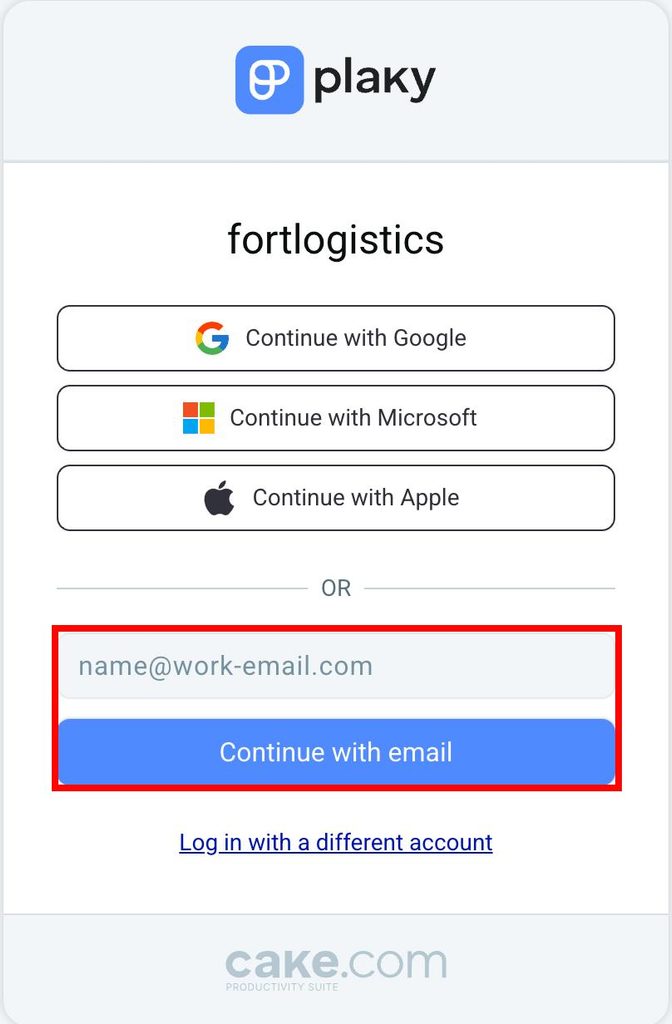
- Enter your email address on the Plaky login page
- Der OTP-Code wird an deine E-Mail-Adresse gesendet
- Enter the OTP code in the designated fields on the login page
- Nach der Authentifizierung wirst du automatisch in deinen Plaky-Arbeitsbereich eingeloggt
If you’re not receiving verification emails, it might be due to too many unused OTP codes. To fix this, simply open the last verification email and click the click here button to start receiving emails again. Always use your login code within 30 minutes to avoid this issue in the future.