Board members, permissions, and activity logs
In this article
This article covers how you can add members to your Board, how you can set Board permissions, and what you can see in the activity log.
Add or remove members from a Board #
If your Project requires you to grant or revoke access to your Team Members on your Board, you can do so by making your Board Private (available on paid plans only) and adding or removing Users. When someone is added to a Board, they are subscribed to it and will receive notifications about activity on Items they’re watching, and those Items will appear in assignment fields.
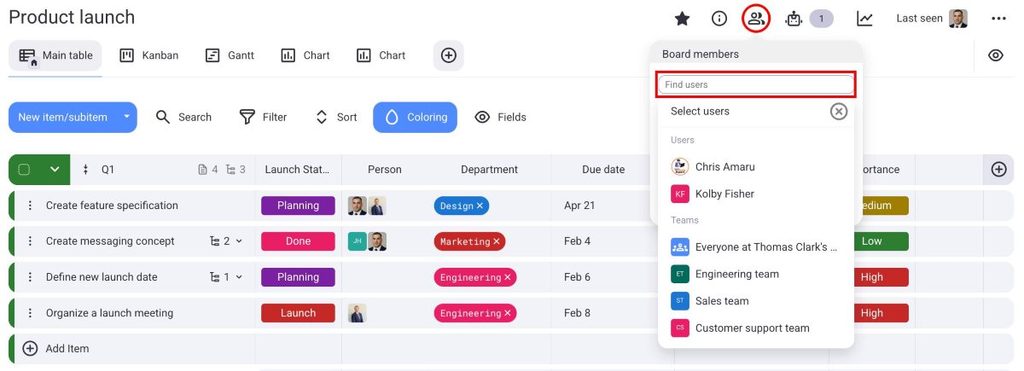
To add members to a Board:
- Navigate to the Board members button at the top
- Search for members in the Board members dialog box
- Choose the member you’d like to add
To remove members from a Board:
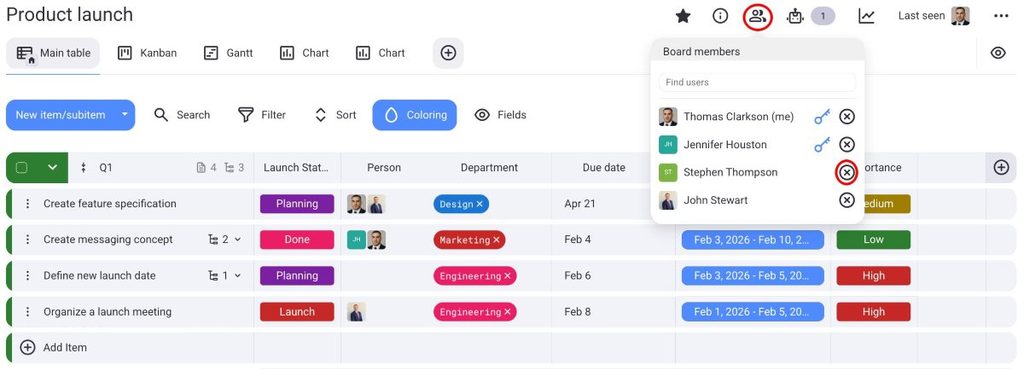
- Navigate to the Board members button at the top
- Click X next to the member you’d like to remove
Permissões do quadro #
The default Board Permission (Edit everything) applies to all Boards. To change to another type of Permission, you need an Enterprise subscription plan.
Board Permissions in Plaky allow Board Owners to control the level of access and editing rights granted to individuals or user groups for a specific Board. Changing Board permissions is a paid feature available only on the Enterprise plan.
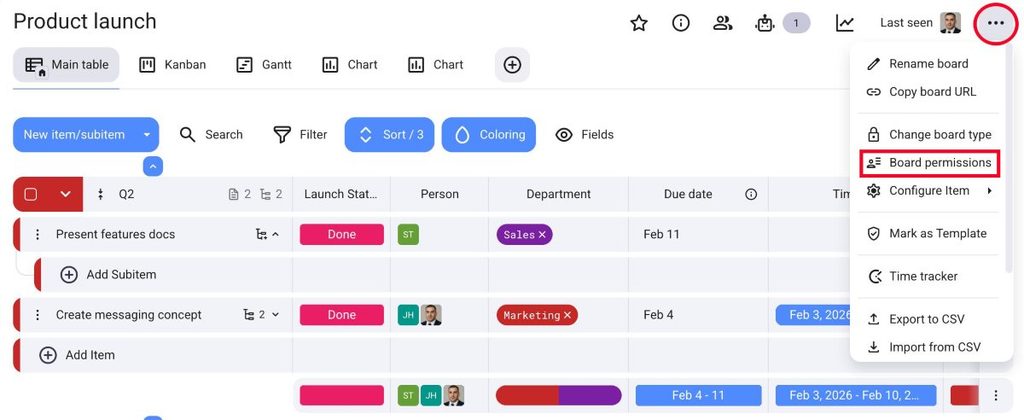
If you want to change Board permissions, follow these steps:
- Click on the three dots in the top-right corner to open the Board menu
- Select Board permissions
- Escolha uma das opções
- Clique em Salvar para concluir a ação
- Toque nos três pontos no canto superior direito
- Tap on Board info
- Select Permission
- Choose Permission type
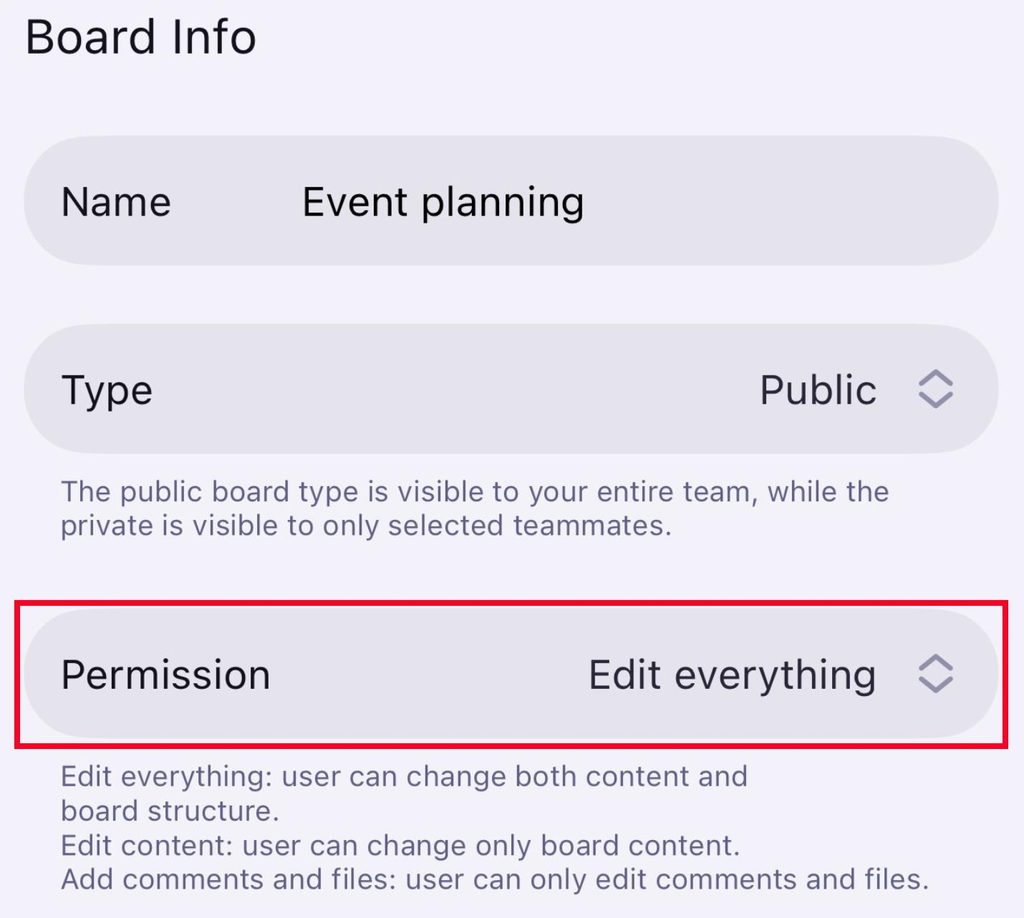
- Toque nos três pontos no canto superior direito
- Tap on Change board permissions
- Choose which Permissions apply
- Toque em Salvar para concluir a ação
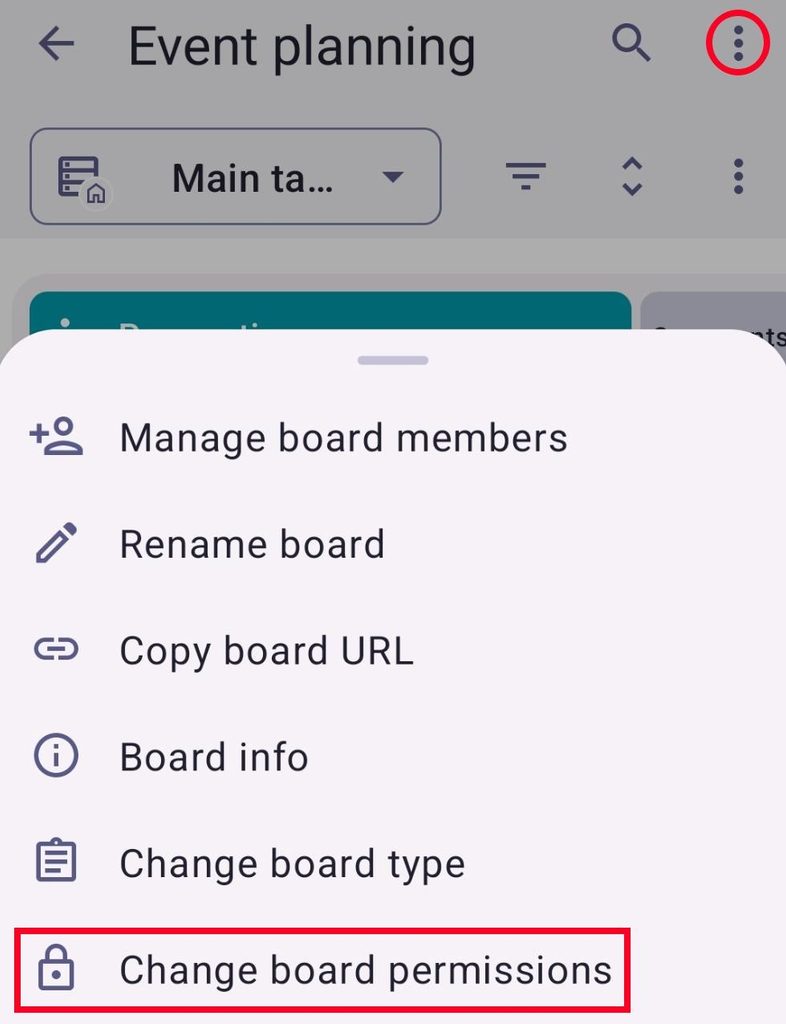
In Plaky, there are three distinct types of Board permissions:
Editar tudo #
Edit everything permission is the default Board permission, and it grants users the highest level of access and editing rights on a Board. Users can change both content and Board structure, and they can add, edit, and delete the following:
- Itens
- Subitems
- Campos do quadro
- Visualizadores
- Comentários
- Arquivos
- Groups
- Valores de "campo"
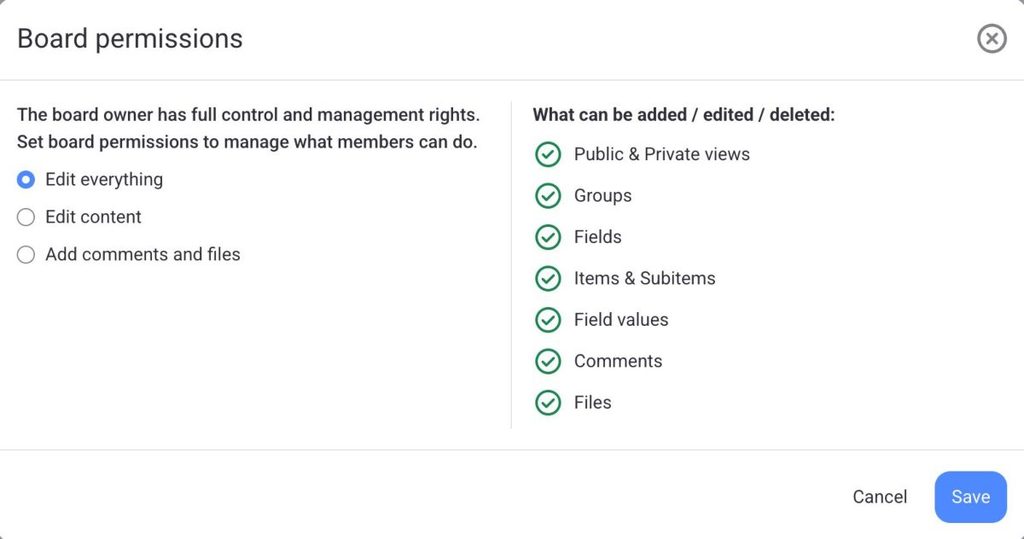
Além disso, os usuários podem organizar o quadro usando Filtro, Linha de Resumo, Renomear Quadro, Classificar e outras funcionalidades.
Editar conteúdo apenas #
Edit content permission allows users (Admins and Members who are not Board owners) to change Board content and lets them add, edit, and delete the following:
- Itens
- Subitems
- Comentários
- Arquivos
- Visualizações privadas
- Valores de "campo"
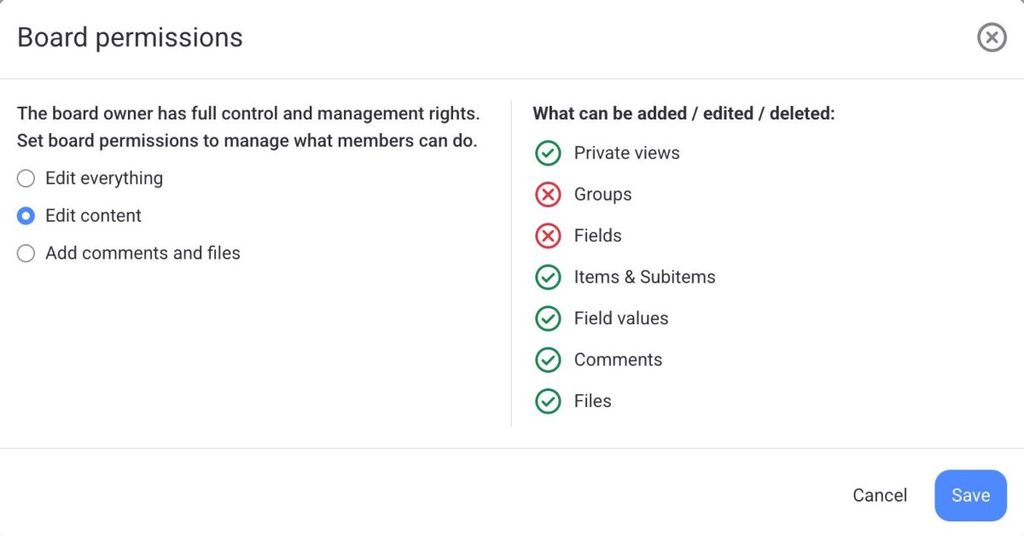
No entanto, usuários com essa permissão não podem modificar a estrutura, as visualizações ou as configurações do Conselho.
Adicionar comentários e arquivos #
Add comments and files permission limits users’ editing rights to adding comments and files only. With this permission set, users (Admins and Members) can view all of the Board’s content but can only add, edit, or delete their own:
- Comentários
- Arquivos
- Visualizações privadas
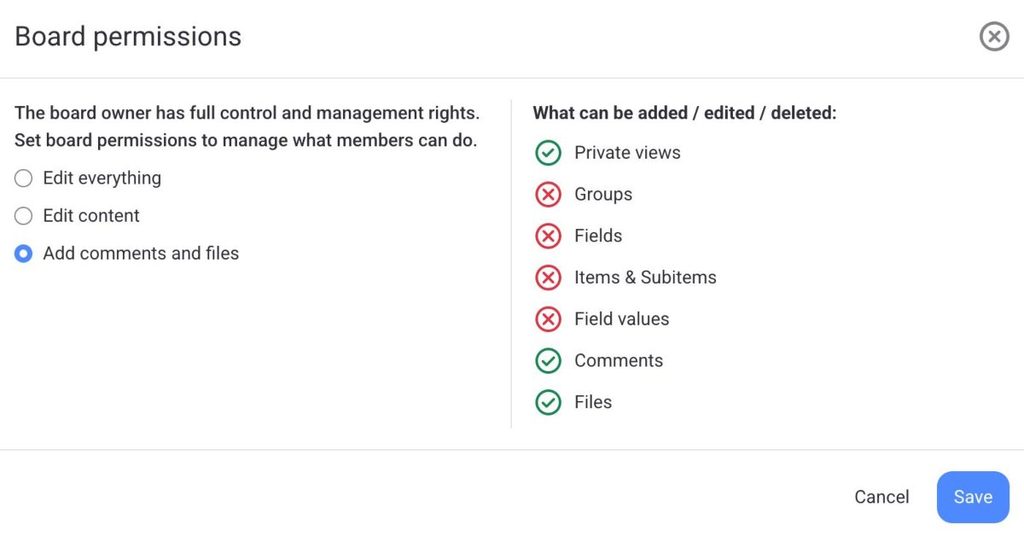
This type of permission is particularly useful for fostering collaborative discussions and resource sharing while maintaining control over the Board’s core content.
Activity log #
With Activity Log, you can track your Team’s tasks and keep up with the activities on the Board or Item.
There are 2 types of activity logs available in Plaky:
- Registro de atividades do quadro
- Registro de atividades do item
Você pode acessar o histórico dependendo do seu plano. O plano gratuito permite acessar o histórico dos últimos 7 dias, o plano Pro dos últimos 6 meses e o plano Enterprise oferece um registro ilimitado de todas as atividades anteriores.
Board activity log #
The Board Activity Log displays all past activities on the Board, including status changes and updates, Item deletions, and Team Member assignments.
To check the Activity log for Boards, click the Activity log button at the top of the Board.

O painel abre com a lista de todas as atividades anteriores do Quadro. Cada entrada contém as seguintes informações: data e hora da alteração, autor da alteração, nome do Quadro/Visualização/Campo/Grupo ou Item em que a alteração foi feita e como estava antes e depois da alteração.
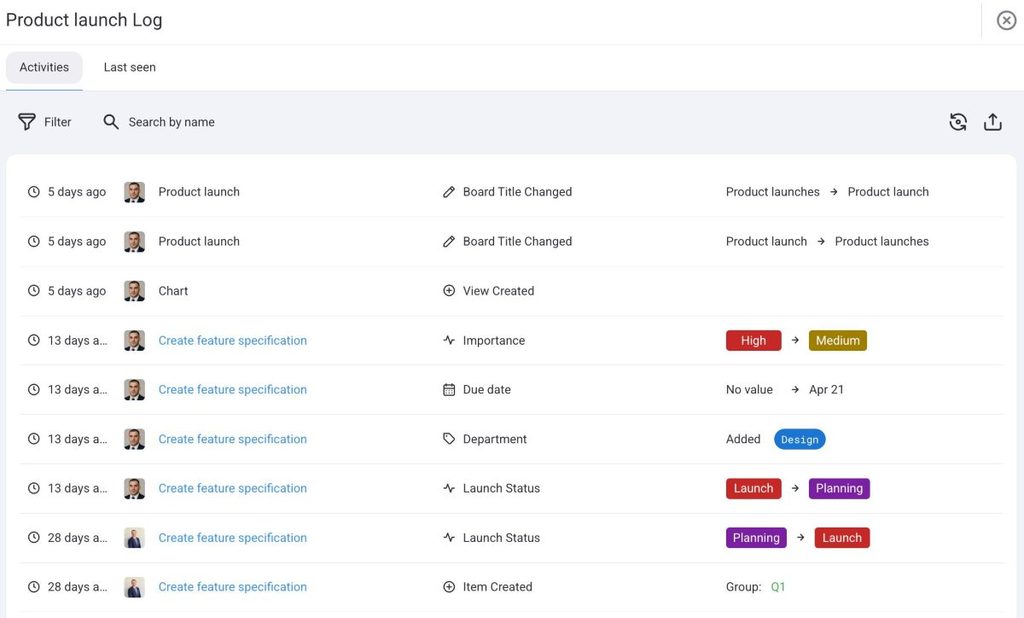
Use the Filter button to narrow entries by time period, Item group, Field type, person, or event type. Use Search by name to find all changes made by a specific useItem activity log
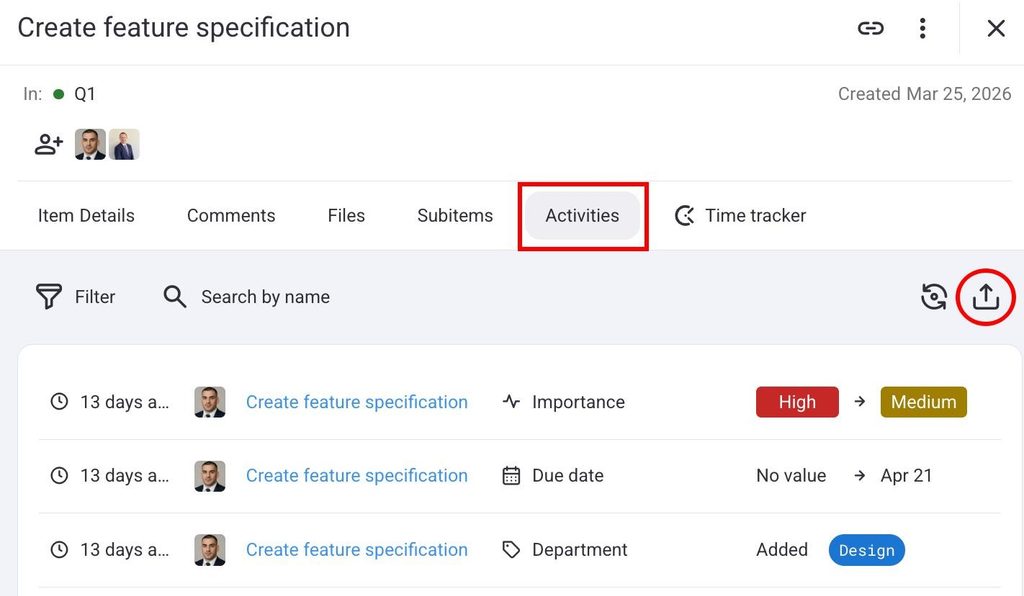
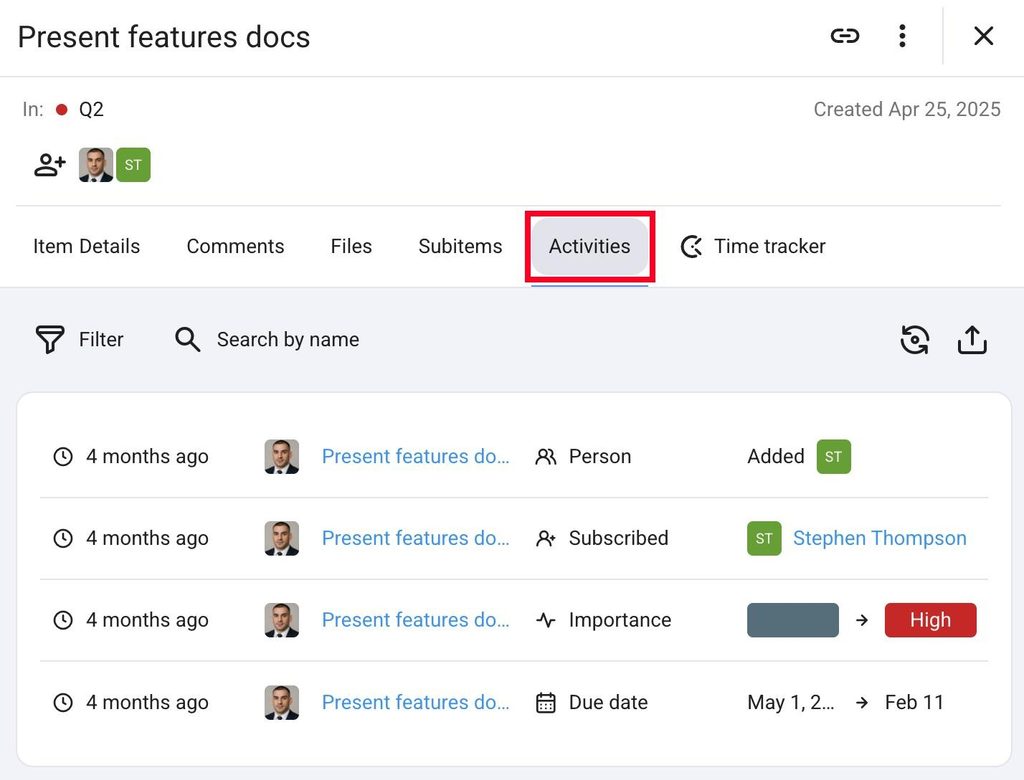
Each Item has its own activity log that tracks every change made to that Item. It tracks field value updates, status changes, comment additions, and more. Entries are ordered with the oldest at the bottom and the newest at the top.
To view the Item activity log, follow these steps:
- Abra um item
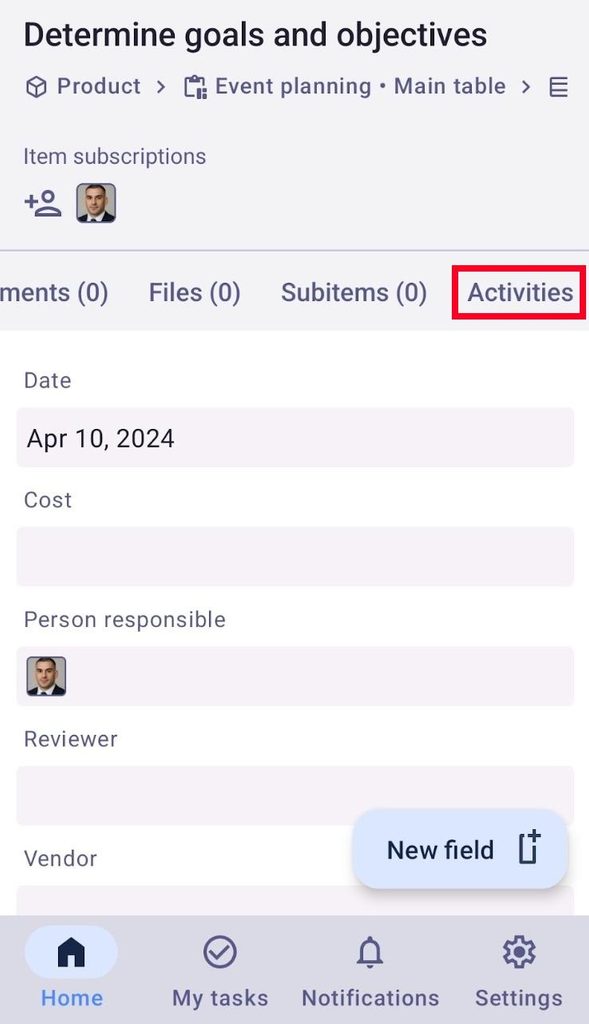
- Abra a aba Atividades
A guia é aberta com a lista de todas as atividades do Item. Cada entrada contém as seguintes informações:
- Data da alteração
- Autor da mudança
- Nome do Item onde ocorreu a alteração
- Nome da atividade
- Valor anterior
- Novo valor
You can filter out the activities in the Filter log and Filter by name search bar according to the same parameters as those listed in the Board activity log.
- Abra um item
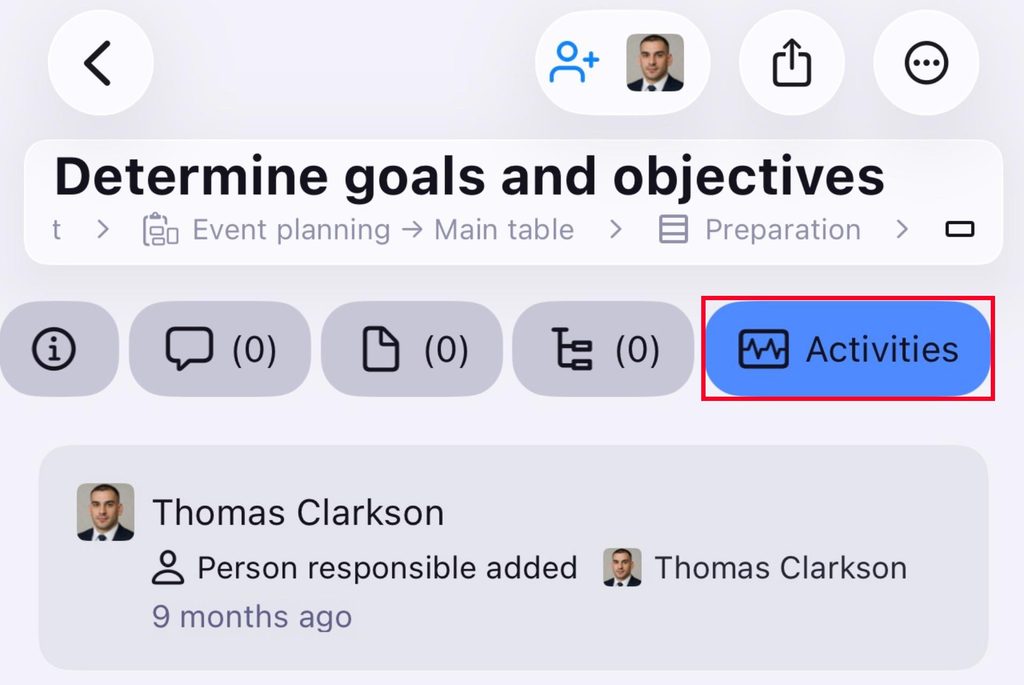
- Tap on the Activities tab
- Abra um item
- Tap on the Activities tab
Visto pela última vez #
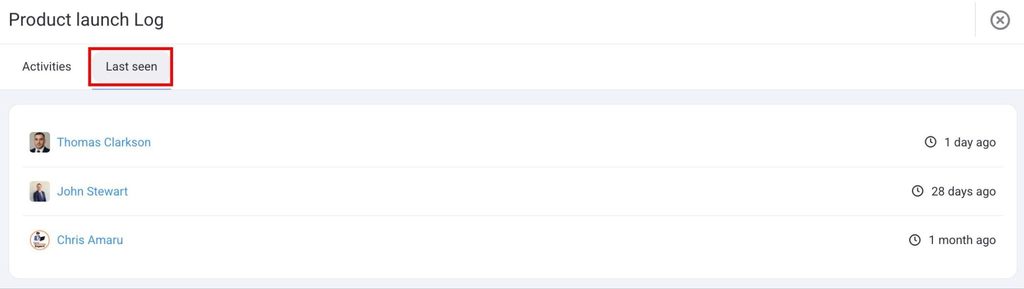
The Last seen tab sits alongside the Activity tab. It shows when each Board member last opened the Board. This is useful for understanding engagement and whether teammates are keeping up with the project updates.
Here’s how to open the Last seen tab:
- Click on the Activity button in the top right corner
- Select the Last seen tab
Os eventos exibidos nos registros de atividades incluem o seguinte:
| Board Events | Item Events |
|---|---|
| Criar e excluir quadros | Criar e excluir item |
| Create and delete Board View | Criar e excluir grupo de itens |
| Atualizar filtro/classificação/visibilidade/campo da visualização do quadro | Criar e excluir atributo de item |
| Inscrever/cancelar inscrição de usuário/equipe de/para quadro | Alterar nome do atributo do item |
| Alterar permissões do quadro | Alterar valor do atributo do item |
| Alterar o título, digitar, alterar e editar a descrição do quadro | Alterar título do item |
| Mover Item para outro Quadro | Alterar título e cor do grupo de itens |
| Adicionar Proprietário | Mover item de e para grupo |
| Adicionar Proprietário (por administrador) | Mover Item para outro Quadro |
| Remover Proprietário | Inscrever/cancelar inscrição de usuário/equipe de/para Item |
| Remover Proprietário (por administrador) | Adicionar Proprietário |
| Remover Proprietário |
Export Activity log #
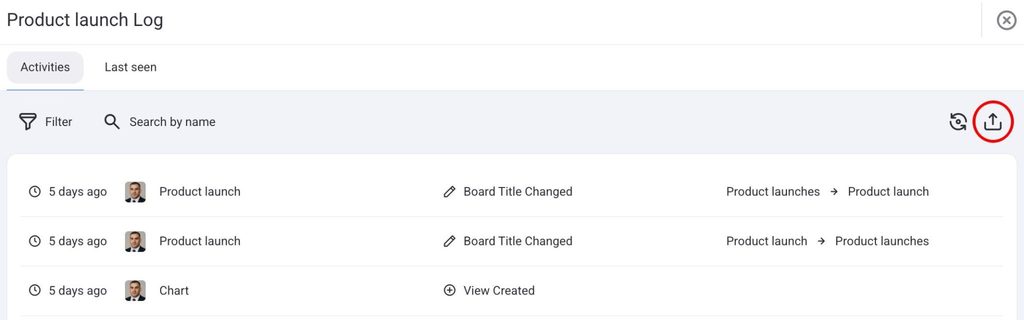
Both the Board activity log and the Item activity log can be exported to CSV. If you’ve applied filters, only the entries that match them are included in the export.
Here’s how to export the Activity log:
- Abra um quadro
- Click on the Activity log
- Click on the Export button
- Abra um item
- Click on the Activities tab
- Click on the Export button