Manage, move, and duplicate Boards
In this article
Once you’ve created a Board, you can edit and customize it to your exact specifications, adjusting parameters and settings to align it perfectly with your needs. Moreover, you can move the Board to another Space or duplicate it.
Manage your Board #
Once you have created a Board, you can manage it however it fits your preferences. You can change the Board’s name, description, permissions, and much more. Let’s look at these in more detail.
Rename a Board #
Here’s how you can rename a Board:
- Click on the Board name when you open a Board
- Digite o novo nome
- Press Enter/return or click outside the name box

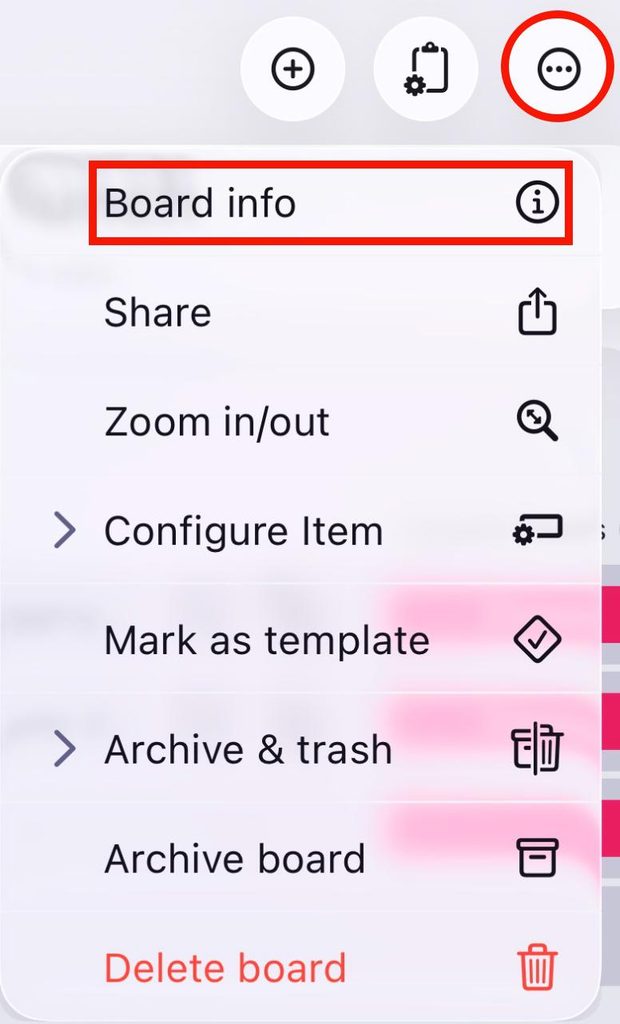
- Tap on the three dots in the top right corner of a Board
- Tap on Board info
- Enter the new name in the Name field
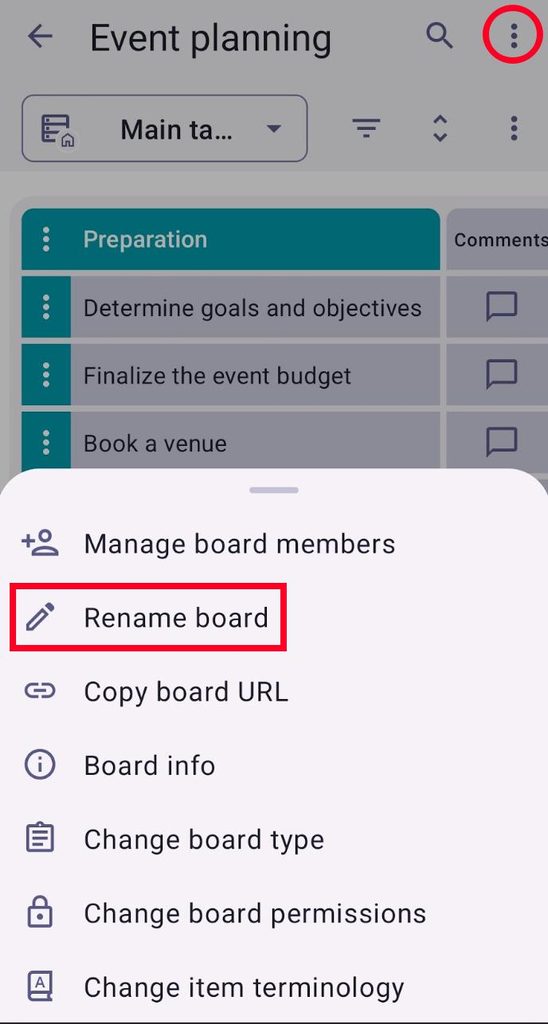
- Toque nos três pontos no canto superior direito
- Tap on Rename board
- Enter new Board name
- Toque em Renomear para concluir a ação
Copiar URL do quadro #
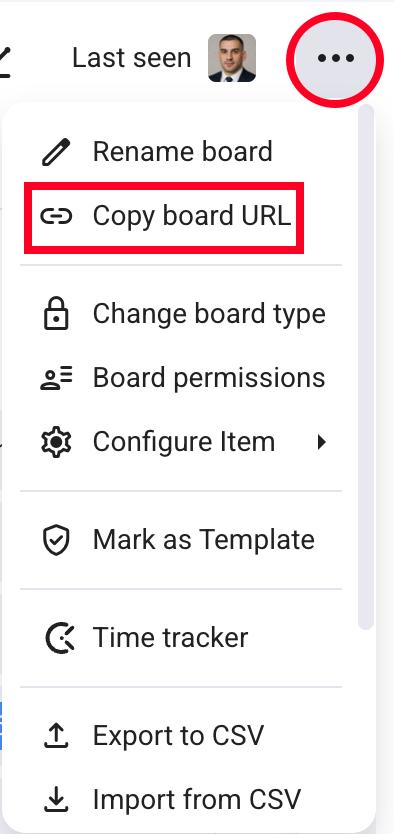
- Click on the three dots in the top right corner
- Click on Copy board URL
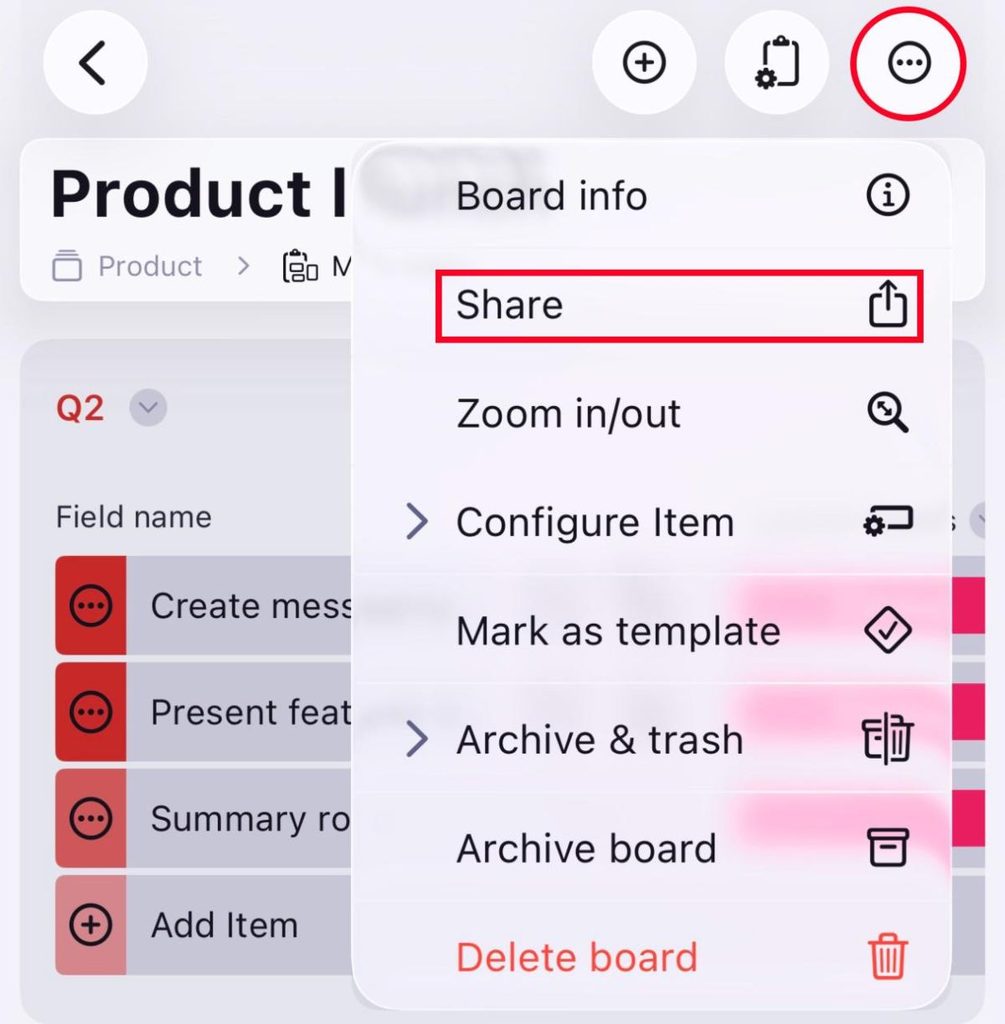
- Toque nos três pontos no canto superior direito
- Tap on Share
- Select Copy at the bottom of your screen
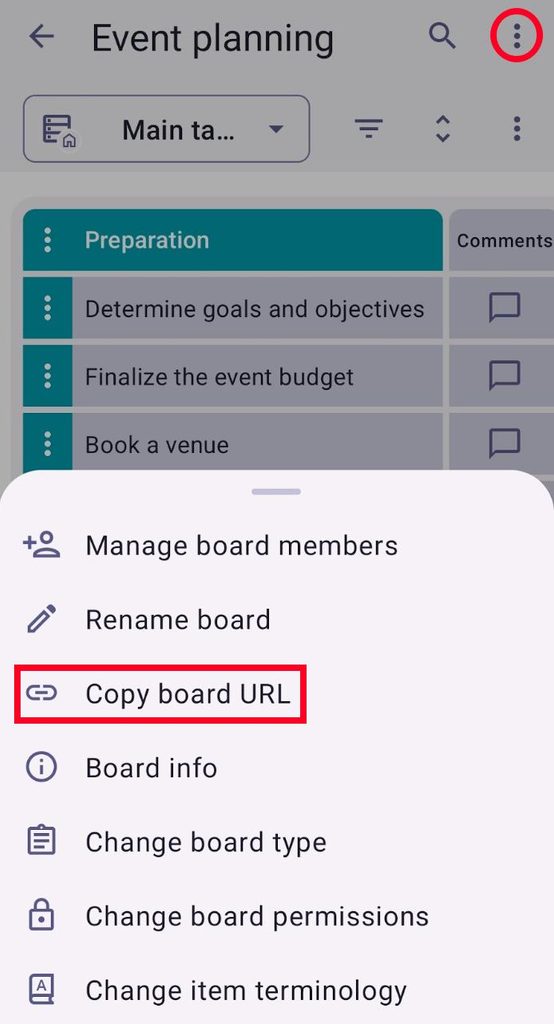
- Toque nos três pontos no canto superior direito
- Tap on Copy board URL
Change Board type #
Private Boards are available only on paid plans.
In Plaky, you can have both Private and Public Boards. Public Boards can be accessed by any user who can access the Space where the Board is located, while Private Boards are accessible only to Board members.
Here’s how you can switch between Board types:
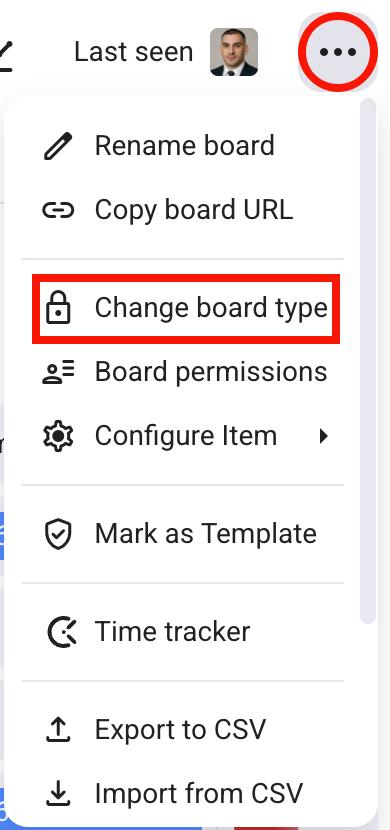
- Click on the three dots in the top right corner
- Click on Change board type
- Select Private or Public
- Clique em Salvar para concluir a ação
- Toque nos três pontos no canto superior direito
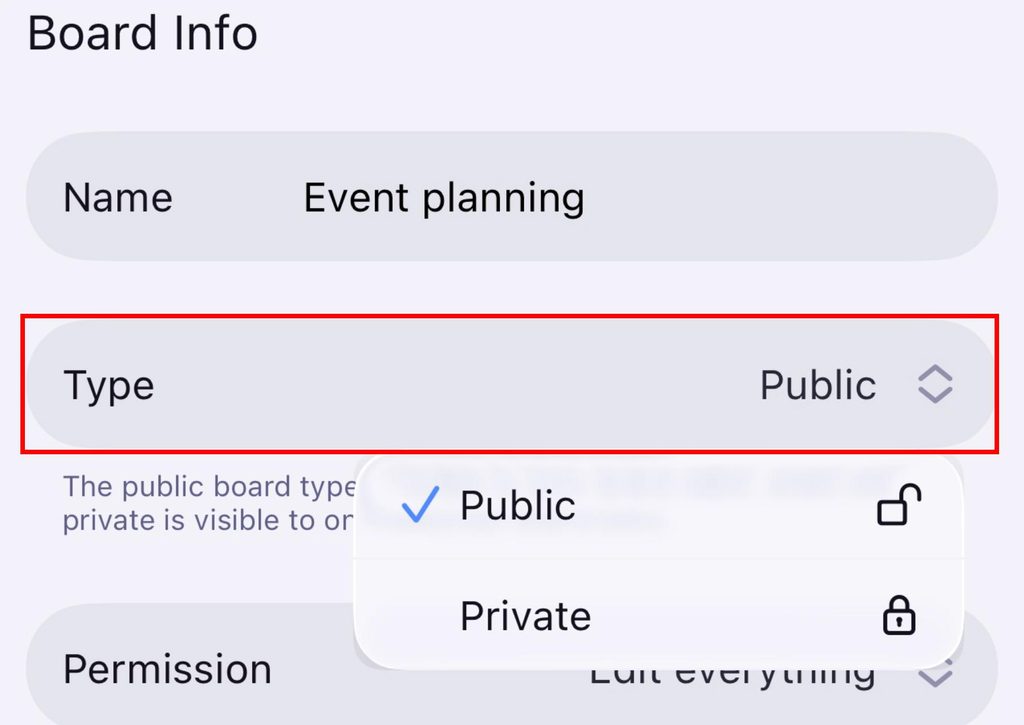
- Select Board info
- Tap on Type
- Choose Public or Private
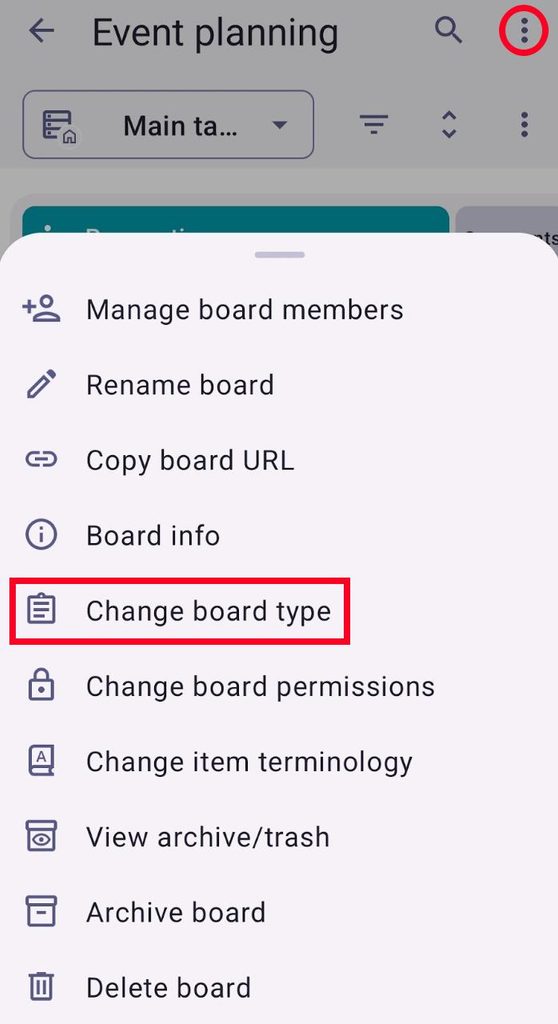
- Toque nos três pontos no canto superior direito
- Select Change board type
- Choose Private or Public
- Toque em Salvar para concluir a ação
Set Board description #
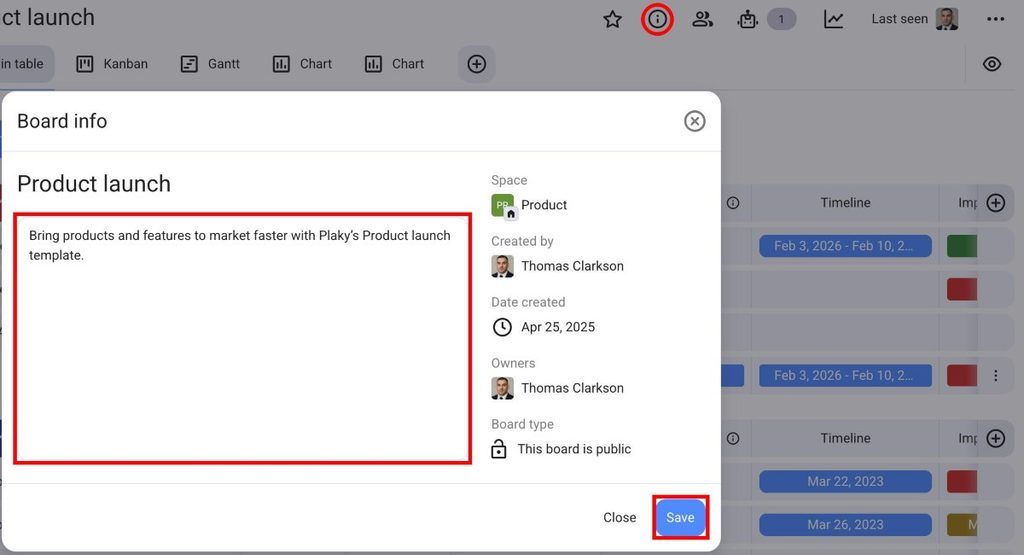
The Board description describes the Board to users and lets them know what it is about. To change the Board description:
- Click on the Board info icon
- Write the Board description
- Clique em Salvar para concluir a ação
- Toque nos três pontos no canto superior direito
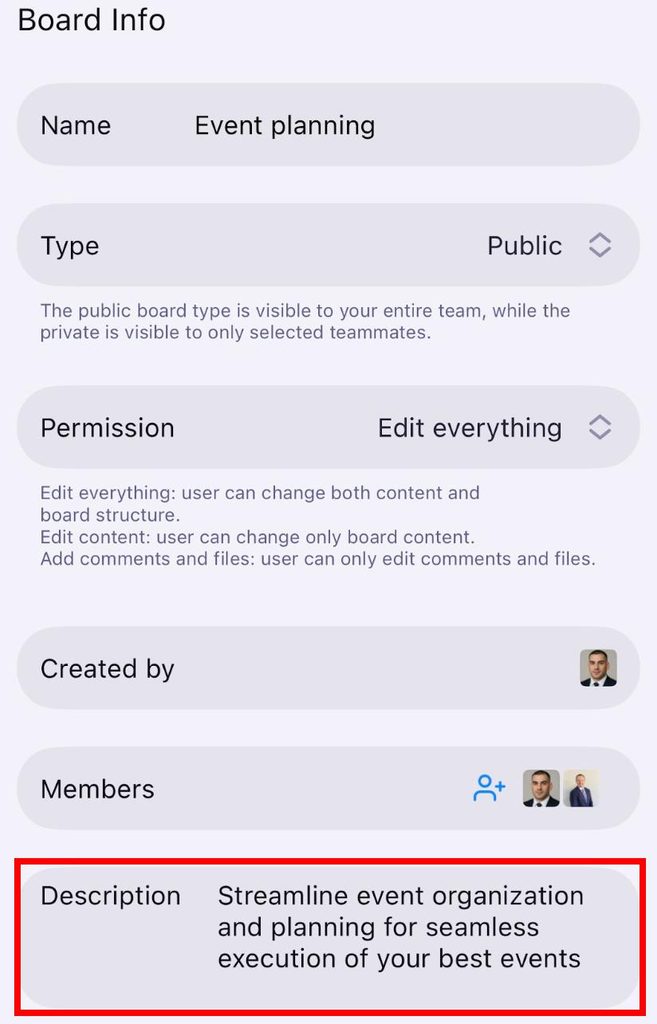
- Select Board info
- Toque em Descrição
- Escreva a descrição
- Toque nos três pontos no canto superior direito
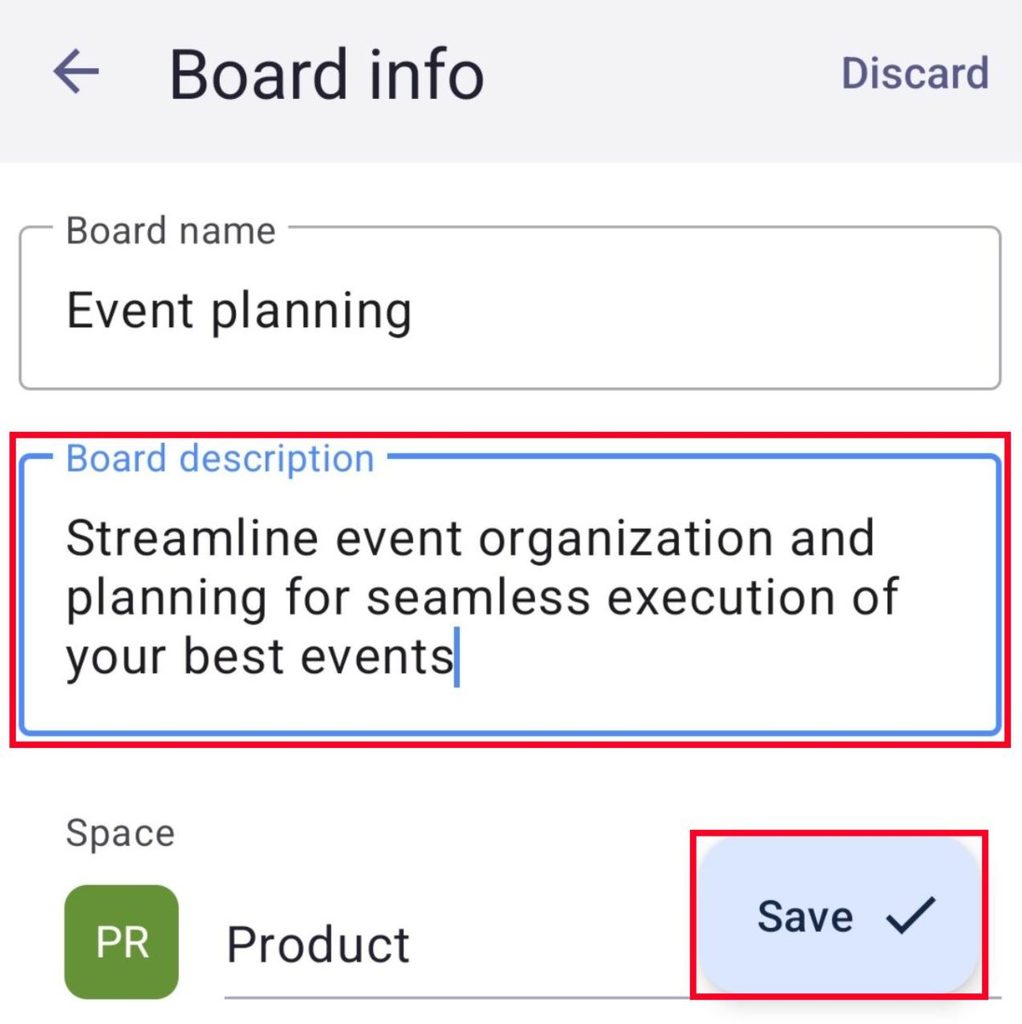
- Tap on Board info
- Escreva a descrição do quadro
- Toque em Salvar para concluir a ação
Mark Board as favorite #
To access a Board more easily from the sidebar, you can mark it as a favorite. To do this, simply click on the star button when you open a Board. To remove a Board from favorites, click on the star button again.

Add Board Views #
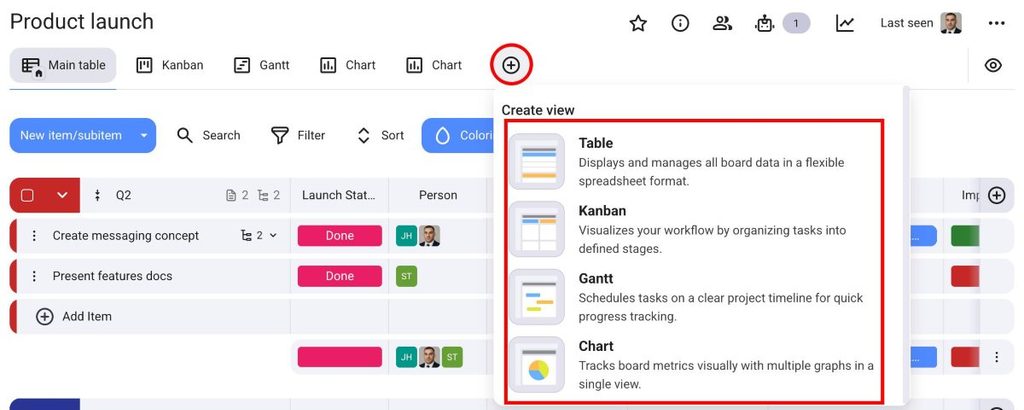
Board Views let you visualize information on a Board in different ways. To add a Board View, follow these steps:
- Clique no botão +
- Select Board View (Table, Kanban, Gantt, Chart)
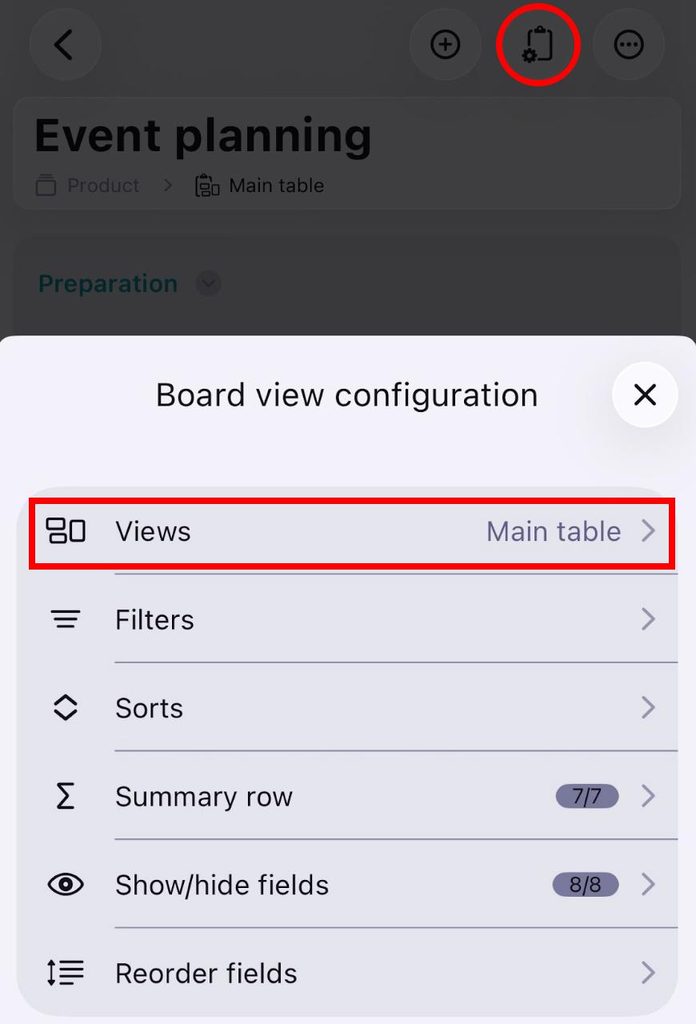
- Toque em Configuração da visualização do quadro no canto superior direito
- Selecione Visualizações
- Tap on + New view in the bottom left corner
- Write View title
- Toggle if you want the View to be private or public
- Choose View type
- Tap on ✔️ to complete the process
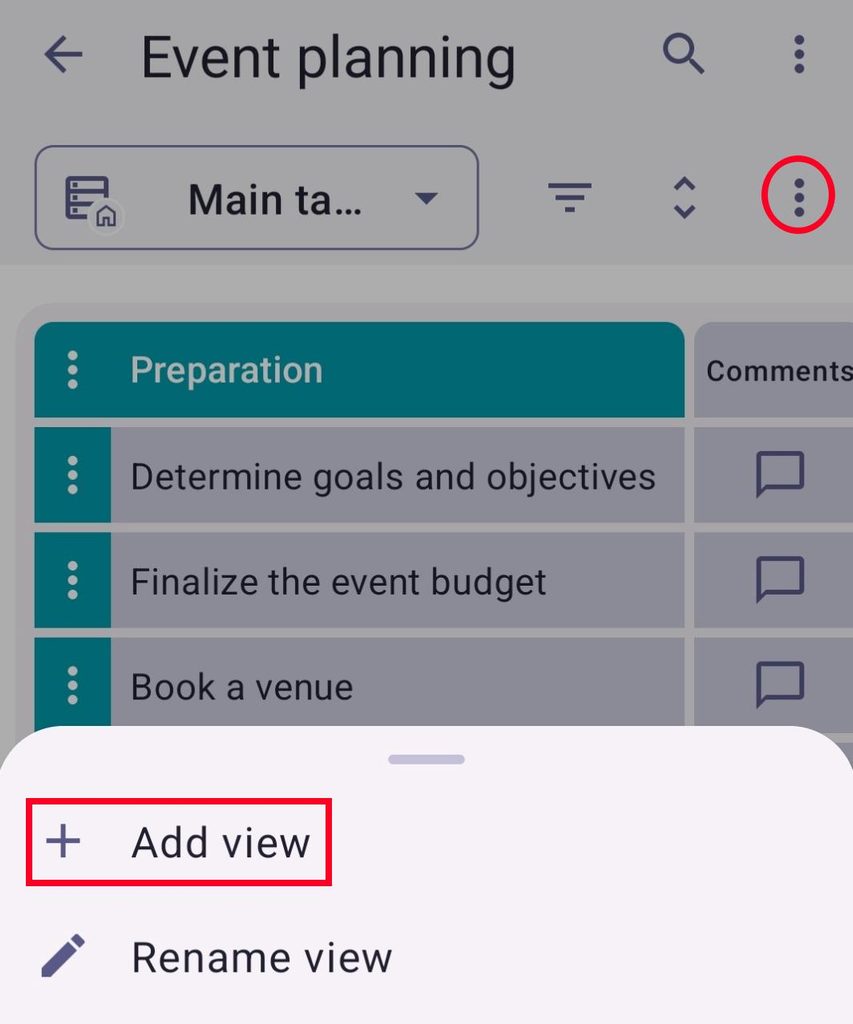
- Toque nos três pontos no canto superior direito
- Tap on + Add view
- Enter View name
- Selecione o tipo de visualização
- Tick the box if you want the View to be private
- Toque em Criar para concluir a ação
Sort the Board #
You can sort each Field by certain criteria. This can help you better organize your Board and provide a clearer overview of all the Items on it.
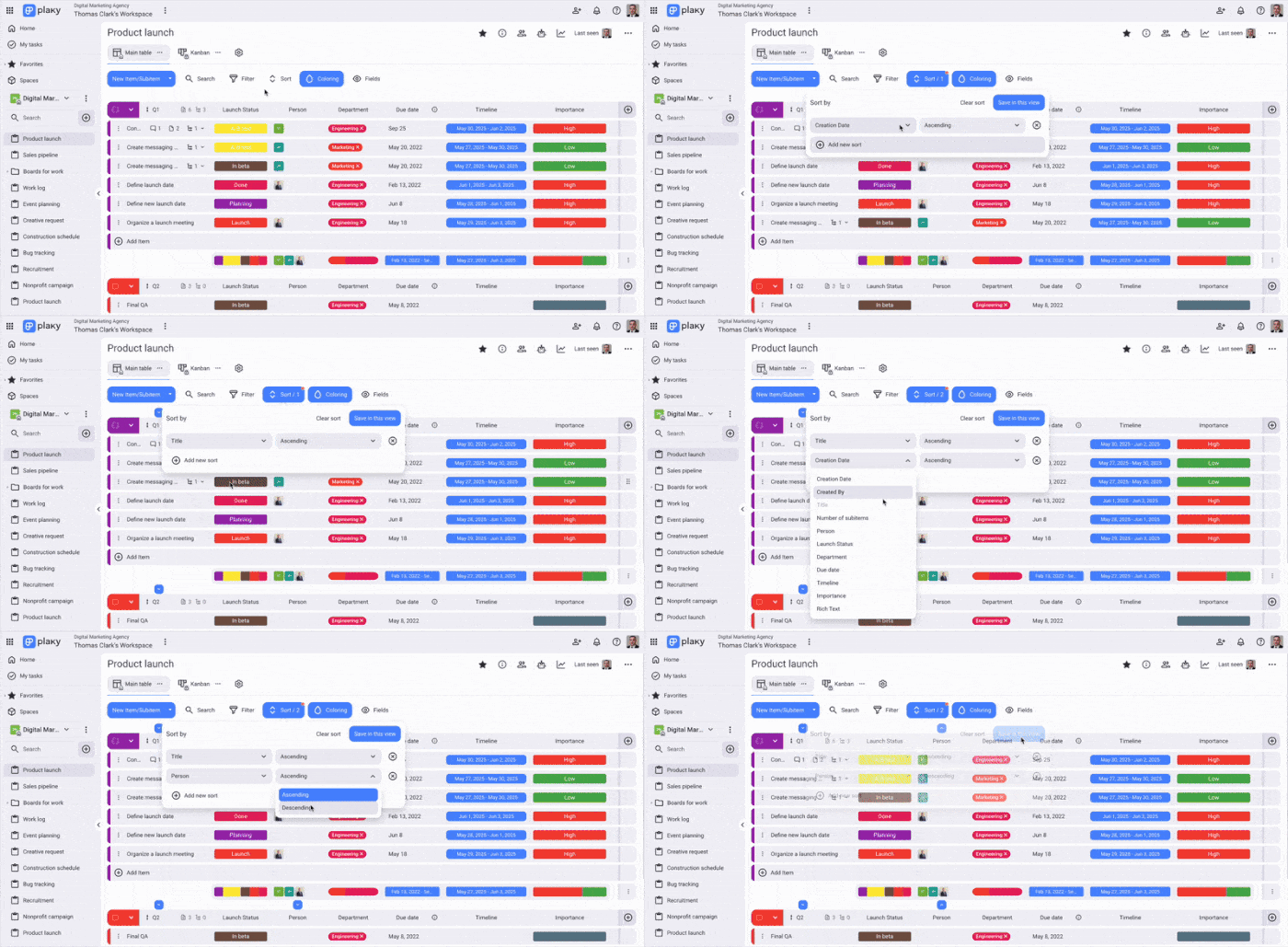
- Clique no botão Classificar na parte superior do quadro
- With + Add new sort add the criteria by which you’d like to sort
- Escolha os critérios na lista suspensa que aparece quando você clica no rótulo de critérios
- Escolha a ordem Crescente/Decrescente
- Click Save in this view to complete the process
Gerenciar visibilidade do campo #
Essa ferramenta permite que você controle sem esforço a visibilidade dos campos em sua tabela, adaptando sua tabela para focar nas informações mais relevantes.
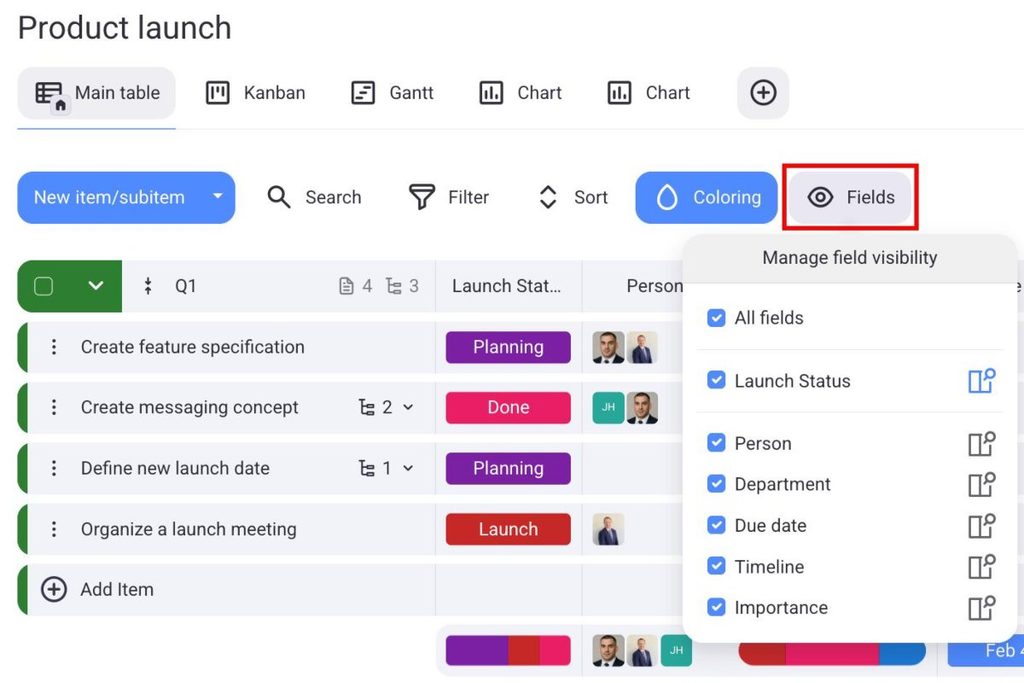
- Click on the Fields visibility icon
- Selecione os campos a serem exibidas
- Click on the pin/unpin icon to pin/unpin them
- Arraste e solte os campos para reordená-los
- Clique fora da área designada para concluir a ação
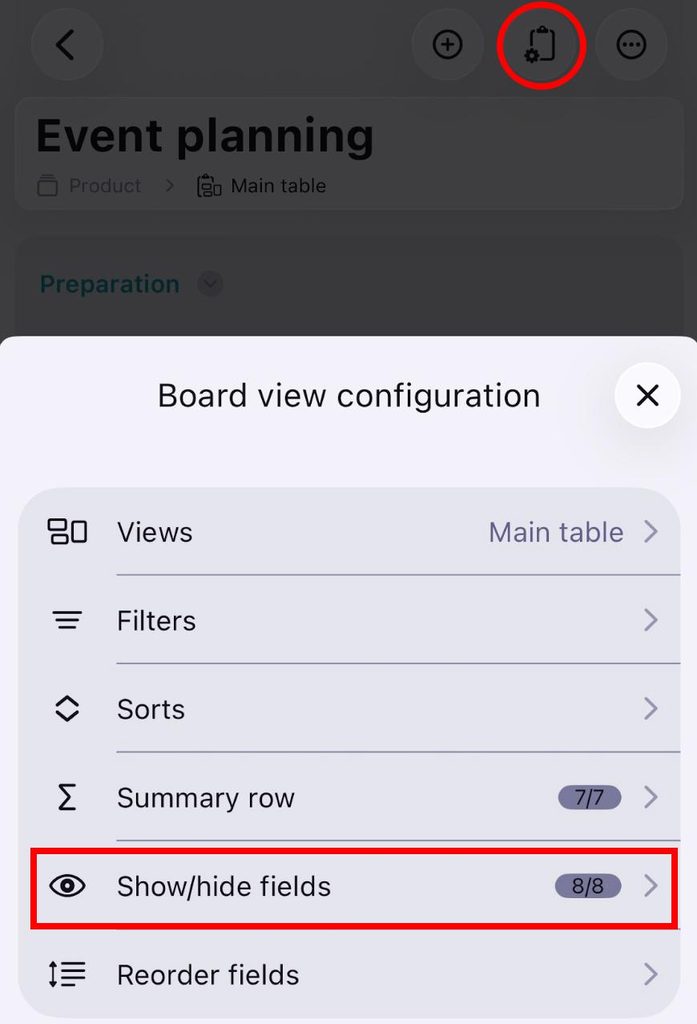
- Toque em Configuração da visualização do quadro no canto superior direito
- Toque em Mostrar/ocultar campos
- Select the field you want to show
- Tap on ✔️ to complete the process
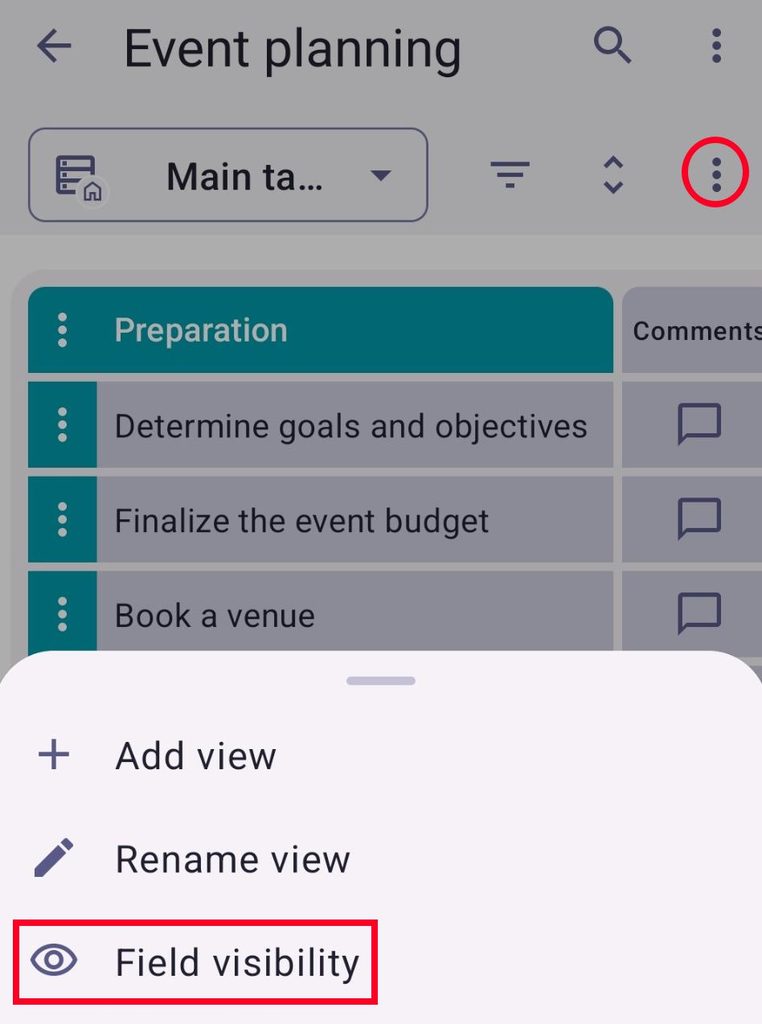
- Tap on the three dots
- Tap on Field visibility
- Select fields
- Toque em Salvar para concluir a ação
Mover o quadro #
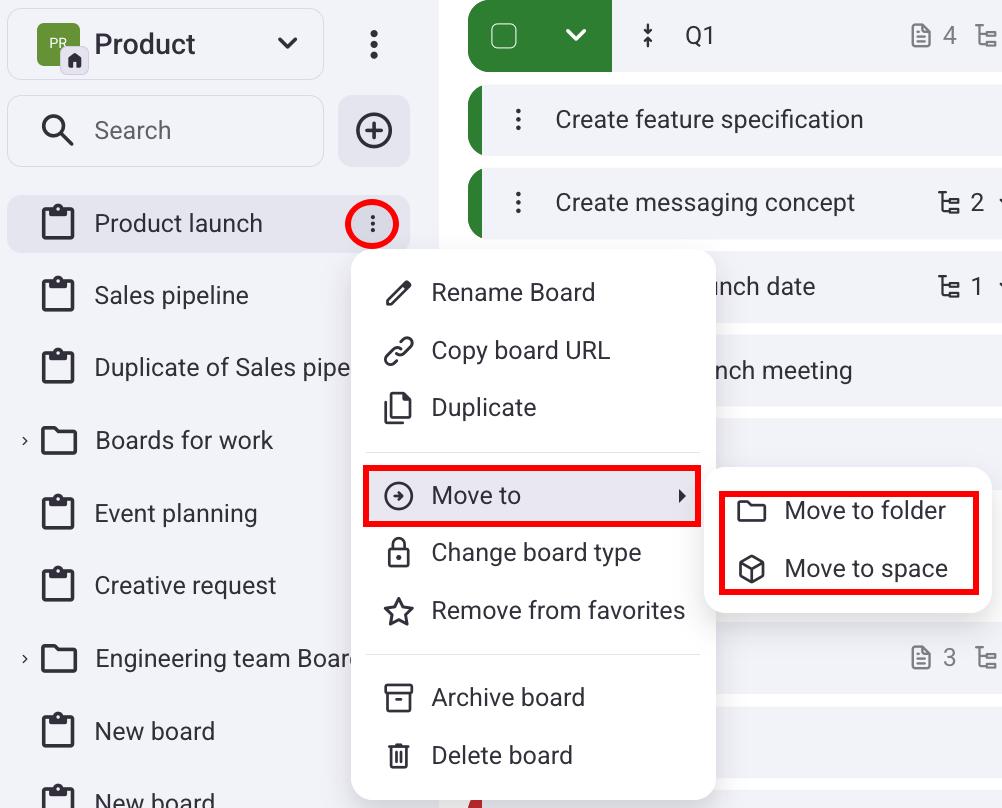
A Board can be moved to a different Folder or a different Space. Both work through the same steps, which are:
- Navigate to the Board you’d like to move
- Click the three dots to open the menu
- Hover over Move to
- Select Move to space or Move to folder
- Enter the destination name in the search box
Copiar quadro #
Existem três maneiras de duplicar um quadro:
- Apenas estrutura (estrutura do quadro)
- Structure and items (structure, Fields, and Items)
- Structure, items, and updates (structure, Fields, Items, added comments, files, and any other updates that have been made)
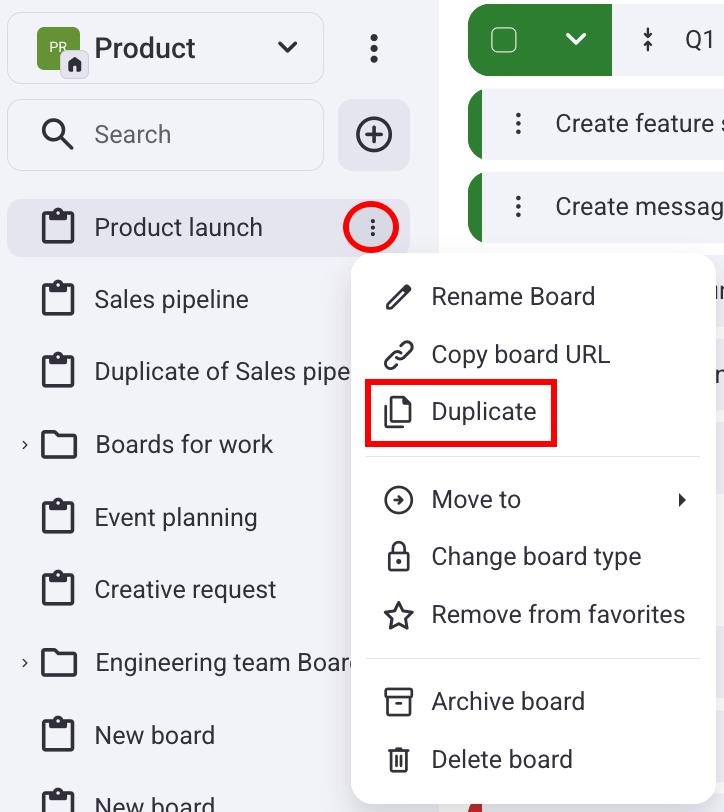
Here’s how you can duplicate a Board:
- Navegue até o quadro que deseja duplicar
- Click the three dots to open the menu
- Escolha Duplicar
- Enter new Board title
- Select what you want to duplicate
- Check if you want to keep Board subscribers
- Click Duplicate board to complete the auction
The duplicated Board will appear in the left sidebar.
Delete Board #
Para excluir um quadro:
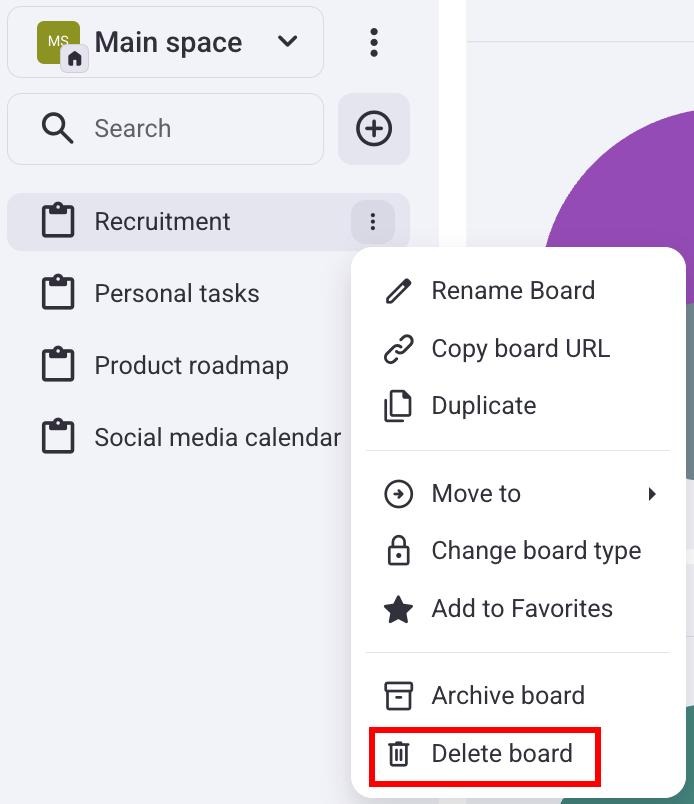
- Navigate to the Board name on the left
- Click the three dots to open the menu
- Selecione Excluir quadro
- Confirme a ação
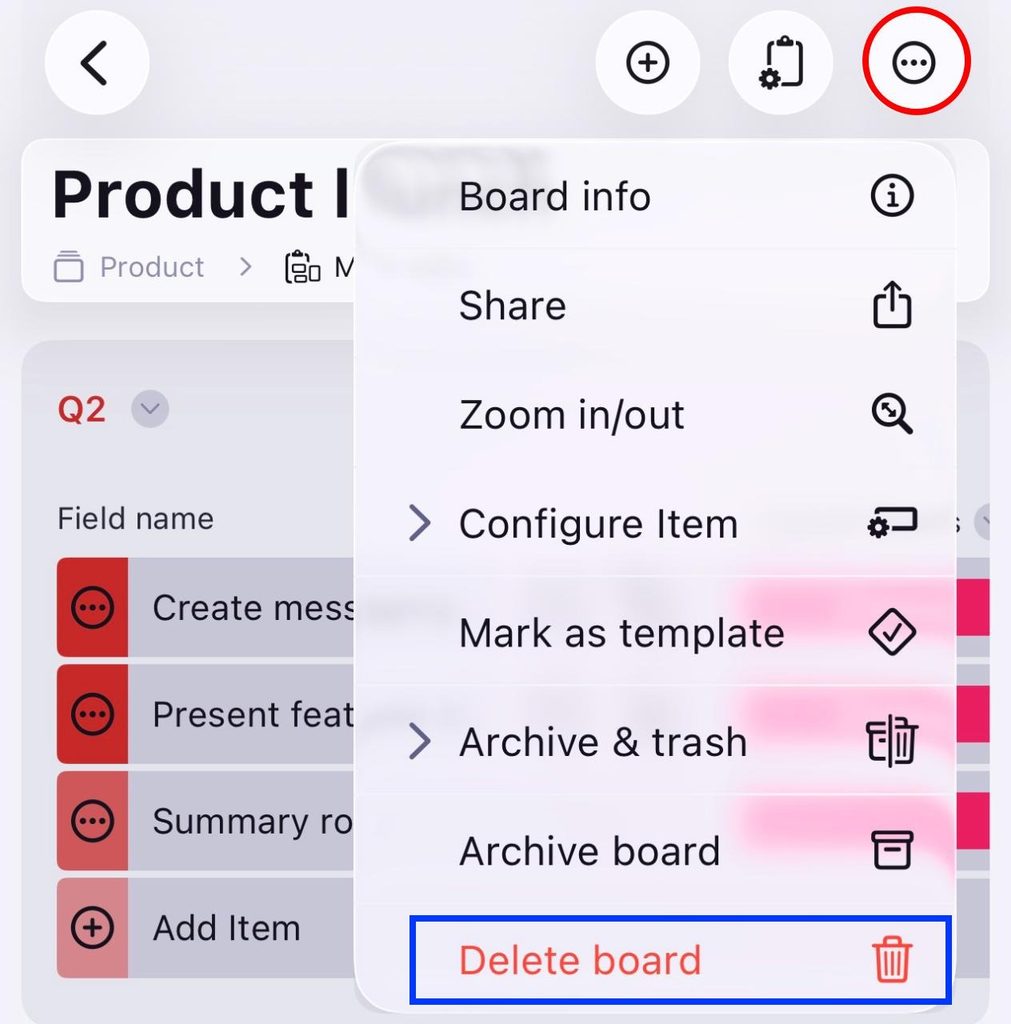
- Toque nos três pontos no canto superior direito
- Tap on Delete board
- Confirme a ação
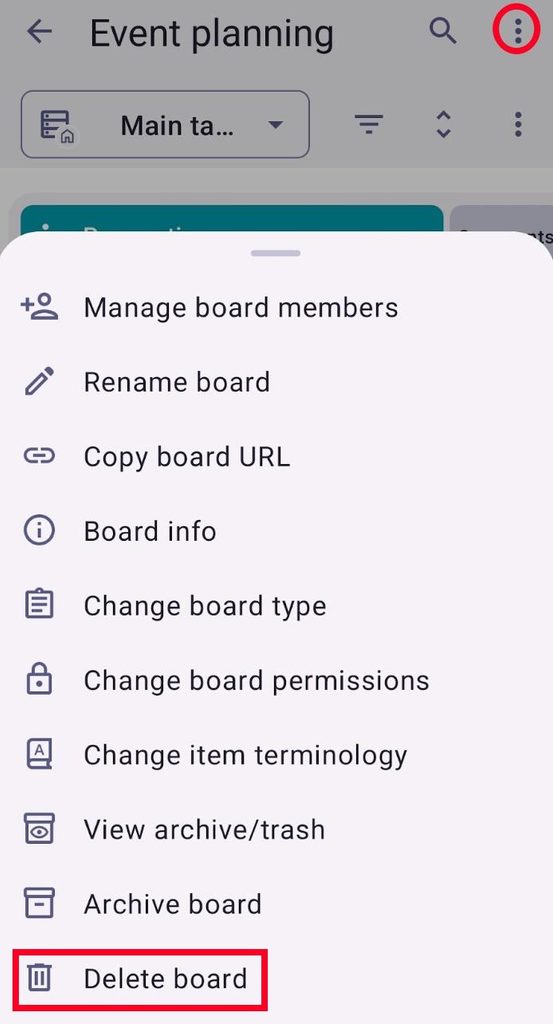
- Toque nos três pontos no canto superior direito
- Tap on Delete board
- Confirme a ação
Deleted Boards are moved to Trash, where they can be restored for up to 30 days. After that, the Board and all its content are permanently deleted.