Notificaciones
In this article
Plaky sends Notifications whenever something relevant happens. This includes comments, assignments, status changes, or mentions.
Plaky can send you Notifications via 3 different channels. These include:
- Notificaciones por correo electrónico
- Bell (in-app) Notifications
- Desktop and push (mobile) Notifications
Notificaciones por correo electrónico #
Email Notifications are sent directly to your email, and you will receive them for the following situations:
- You’re subscribed to a Board/Item/Team (user invites you to a Board/Item/Team)
- You’re unsubscribed from a Board/Team (user removes you from a Board/Team)
- You’re assigned to an Item (user adds you in the Person Field)
- Someone mentions you in a comment or a reply
- Someone updates an Item you are an Owner of
- Someone comments on an Item you are subscribed to
- Someone signs up/doesn’t sign up after you invite them
Here’s an example of what an email Notification will look like.
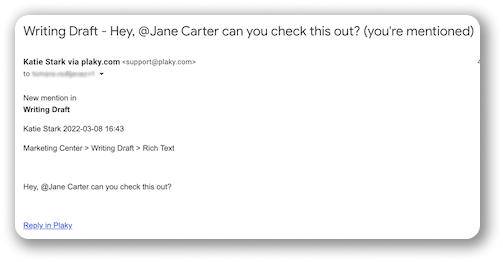
If you click on the link in the email, you’ll jump to the relevant section in Plaky (Board/Group/Item/Field) where the action you were notified of occurred. After you’ve opened the Notification received via email, that action will be reflected in the Bell Notifications as well, and the Notification will be marked as read.
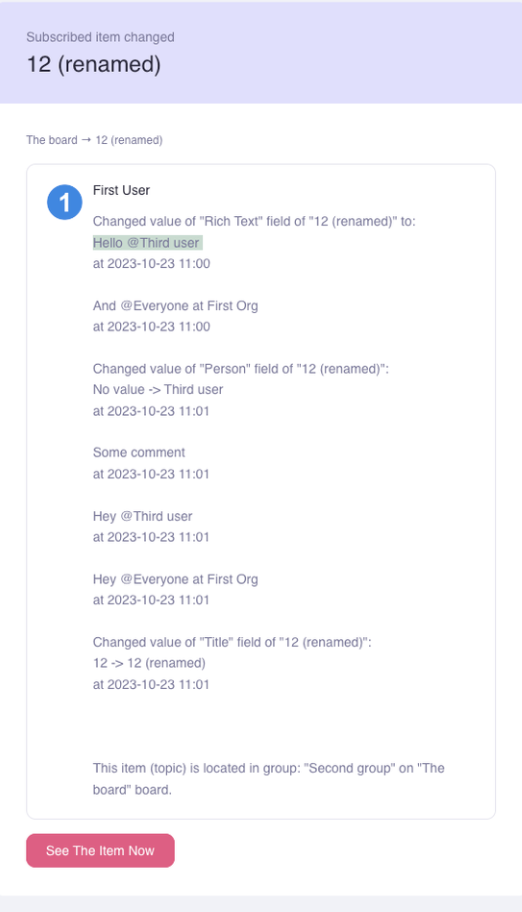
To avoid a large number of emails for changes made to an Item, you can activate aggregated Item updates for the Items you are subscribed to in Notification settings. For multiple actions performed on one Item in a short time period, only one Email Notification is sent for each Item, with the list of changes on that Item (instead of a number of separate emails).
Bell (in-app) Notifications #
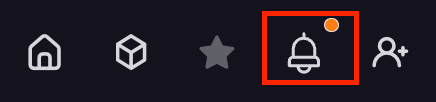
Bell notifications appear directly on Plaky as a bright orange dot on the bell icon in the top-right corner. This type of notification will be sent in the following situations:
- You’re subscribed to Board/Item/Team (user invites you to the Board/Item/Team)
- You’re unsubscribed from Board/Team (user removes you from Board/Team)
- You’ve deleted Board/Item
- Te asignan a un elemento (un usuario te añade a la columna de Persona)
- Someone mentions you in a comment or reply
- Alguien te promueve al rol de administrador
- Someone changes a Field for an Item you’re subscribed to
Here’s how bell notification will be displayed depending on whether you’re using web/iOS/Android applications:
When you receive a Bell Notification, you’ll be able to see an indicator on the bell icon (bright orange dot) and the number of new notifications in the browser tab.
Bell Notifications slightly differ based on the types of events they’re informing the user of; however, they typically contain the following information:
- Type of event (subscribed, assigned, mentioned, changed)
- Name of User that triggered the event that includes you (e.g., assigned you to Item)
- Algunos detalles adicionales sobre el tipo de evento
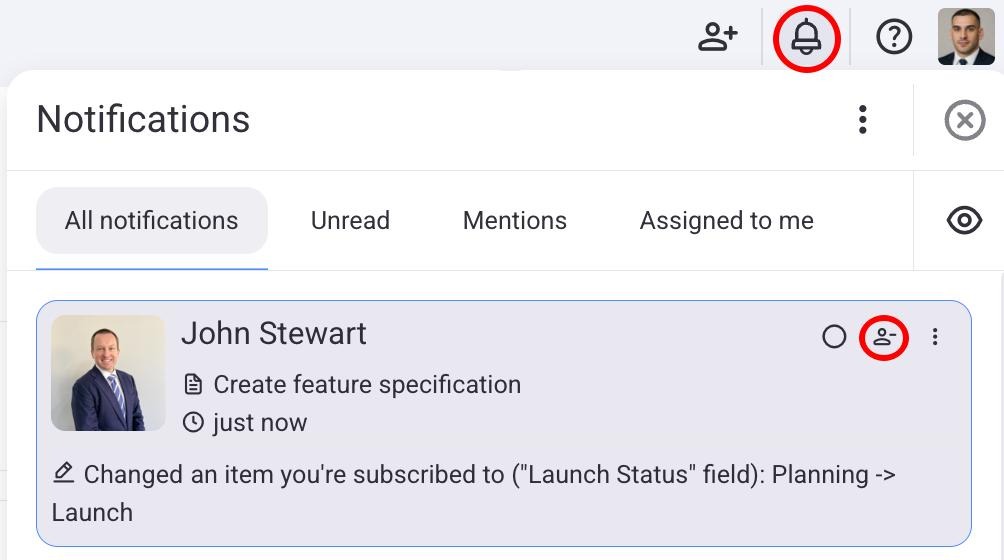
Para ver los detalles de la notificación:
- Click the bell icon
- Click the Notification tile in the Notifications form to check details
All Notifications include the appropriate icon indicating the type of event you are notified about. Notifications you checked or read won’t have a pink border and will be marked as read if you hover over the notification tile.
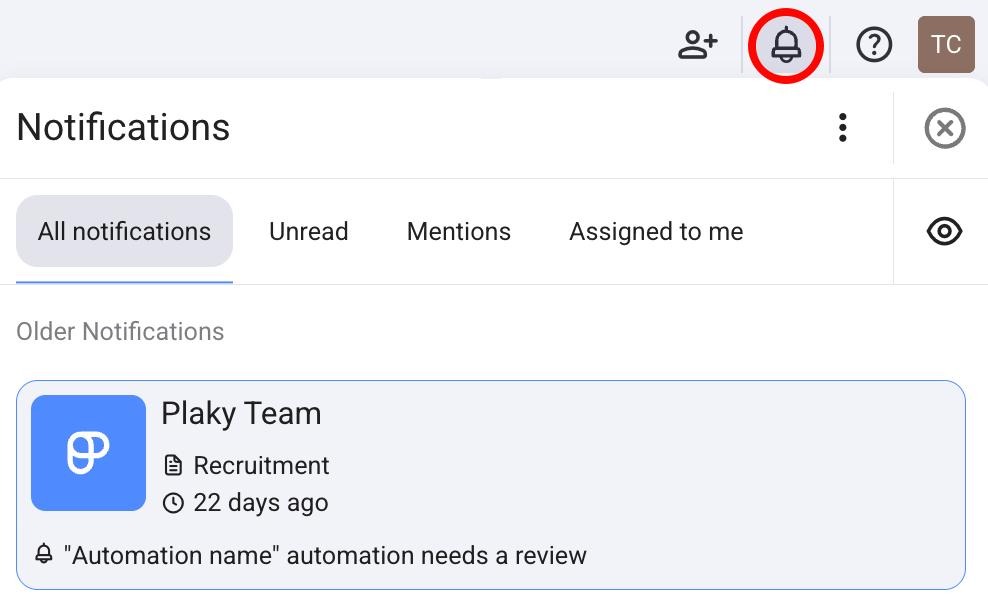
The Notifications screen provides you with an overview of the following:
- Todas las actividades que te afectan
- Marcar notificaciones como leídas y eliminarlas
- Lista de elementos que se mencionan en las notificaciones
They are grouped in different tabs:
- Todo (notificaciones enumeradas)
- No leído (notificaciones no leídas)
- Menciones (notificaciones en las que se te mencionó)
- Asignaciones (notificaciones que te informan sobre los elementos, tableros, o alguna otra entidad a la que fuiste asignado)
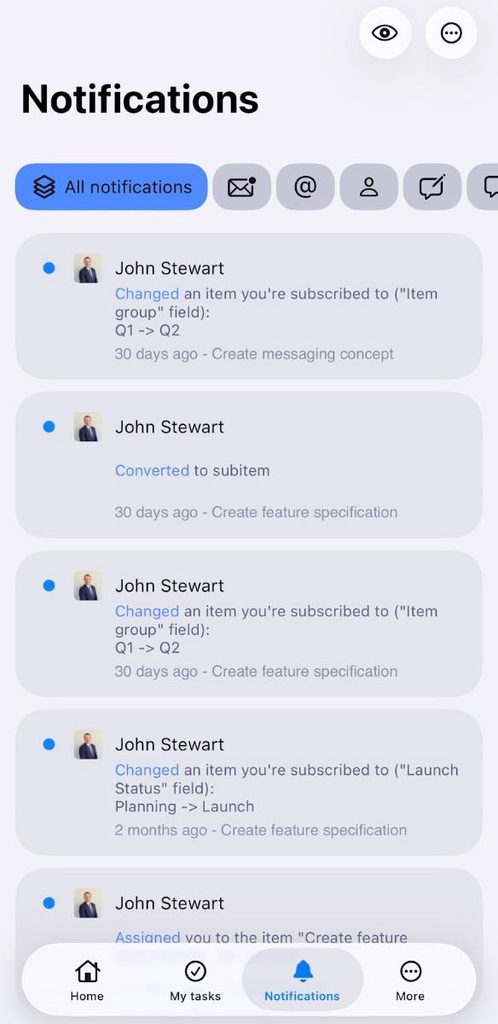
To check the details of the Notification, tap the Notification tile in the Notifications screen.
Notifications you have checked or read will no longer be listed in the Unread tab.
The Notifications screen provides you with an overview of the following:
- Todas las actividades que te afectan
- Marcar notificaciones como leídas y eliminarlas
- Lista de elementos que se mencionan en las notificaciones
Se agrupan en cuatro pestañas diferentes:
- Todo (notificaciones enumeradas)
- No leído (notificaciones no leídas)
- Menciones (notificaciones en las que se te mencionó)
- Asignaciones (notificaciones que te informan sobre los elementos, tableros, o alguna otra entidad a la que fuiste asignado)
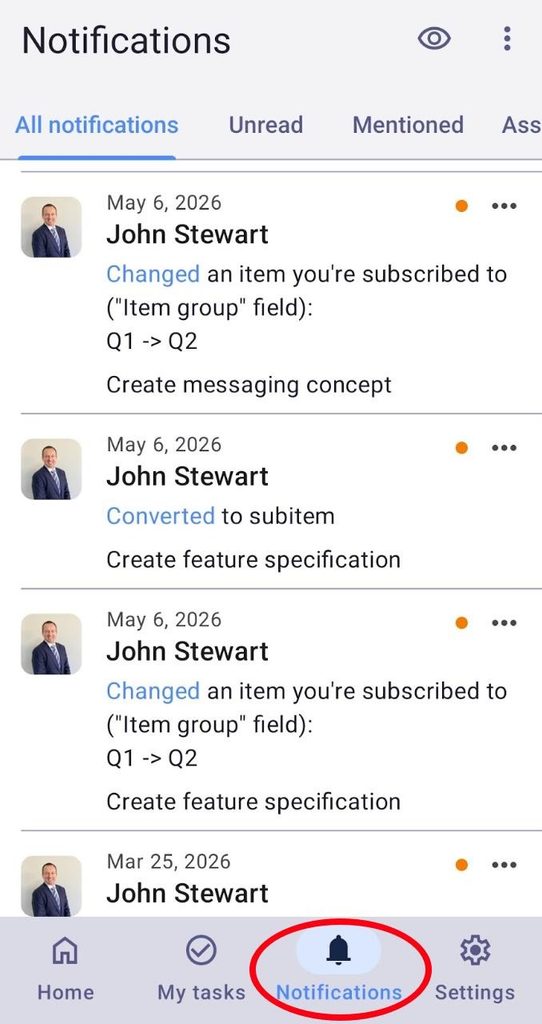
To check the details of the Notification, tap the Notification tile in the Notifications screen.
Notifications you have checked or read will no longer appear in the Unread tab.
Las notificaciones de campana se pueden:
- Ver
- Configurar
- Eliminar
Notificaciones antiguas #
Bell Notifications that were received more than a week ago are placed in the Older Notifications section. This section contains all notifications received in the past 6 months. Notifications in this section behave the same way as the newer ones, meaning you can click them to be redirected to the place where the event was triggered in Plaky.
What’s more, Bell Notifications in all tabs (All, Unread, I was mentioned, Assigned to me) in the Notifications canvas go into this section after a week.
Desktop and push Notifications #
Las notificaciones push para teléfonos móviles y las notificaciones de escritorio brindan actualizaciones de eventos en tiempo real y brindan información sobre los mismos eventos que las notificaciones de campana. Si están habilitadas, recibirás notificaciones push y de escritorio sobre eventos que corresponden a los que se encuentran en las notificaciones de campana.
System Notifications #
System notifications inform users about new features, updates, and important app changes. These notifications ensure that users are always aware of enhancements and improvements that enhance their experience. By keeping users informed about the latest developments, Plaky ensures a seamless experience and helps users make the most of the new functionalities.
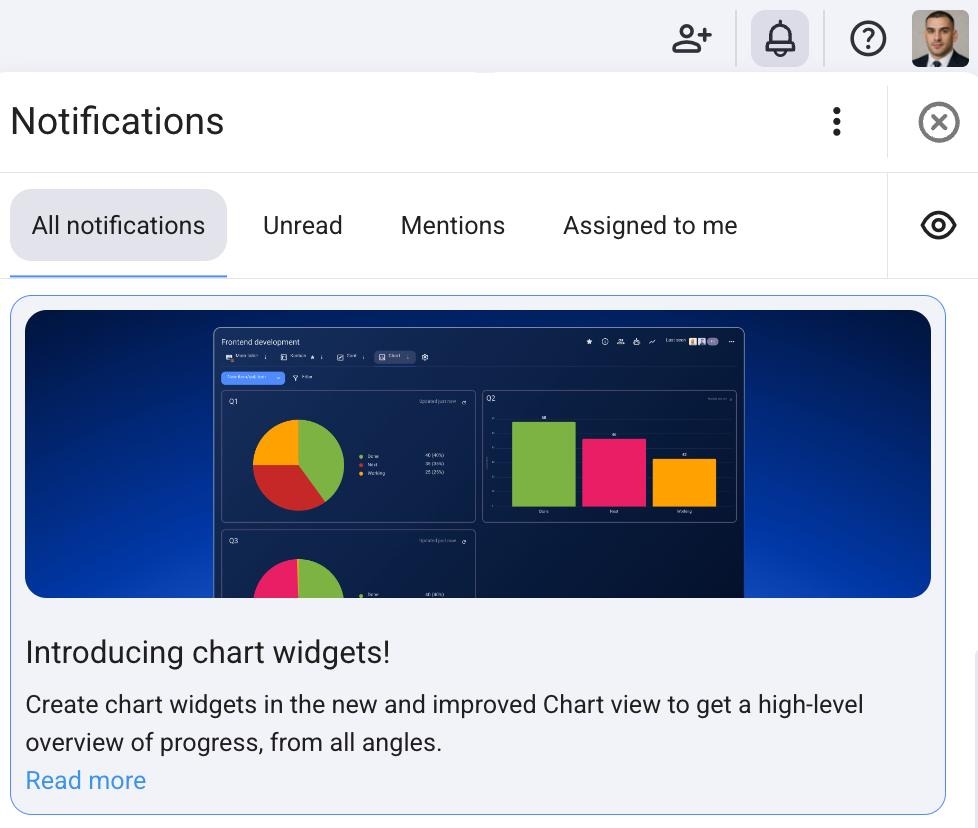
System Notifications can’t be turned off.
Configurar notificaciones #
You can choose the types of events for which you’d like to receive Email and Bell Notifications. Initially, Notifications for all events available in the system are enabled by default, but you can adjust them as needed.
Para configurar tus notificaciones:
- Click on the Bell icon in the top right corner
- Haz clic en los tres puntos
- Choose Settings from the dropdown
- Click on In Plaky/Email Notifications, depending on which you want to configure
- Tick the Notifications you want to receive
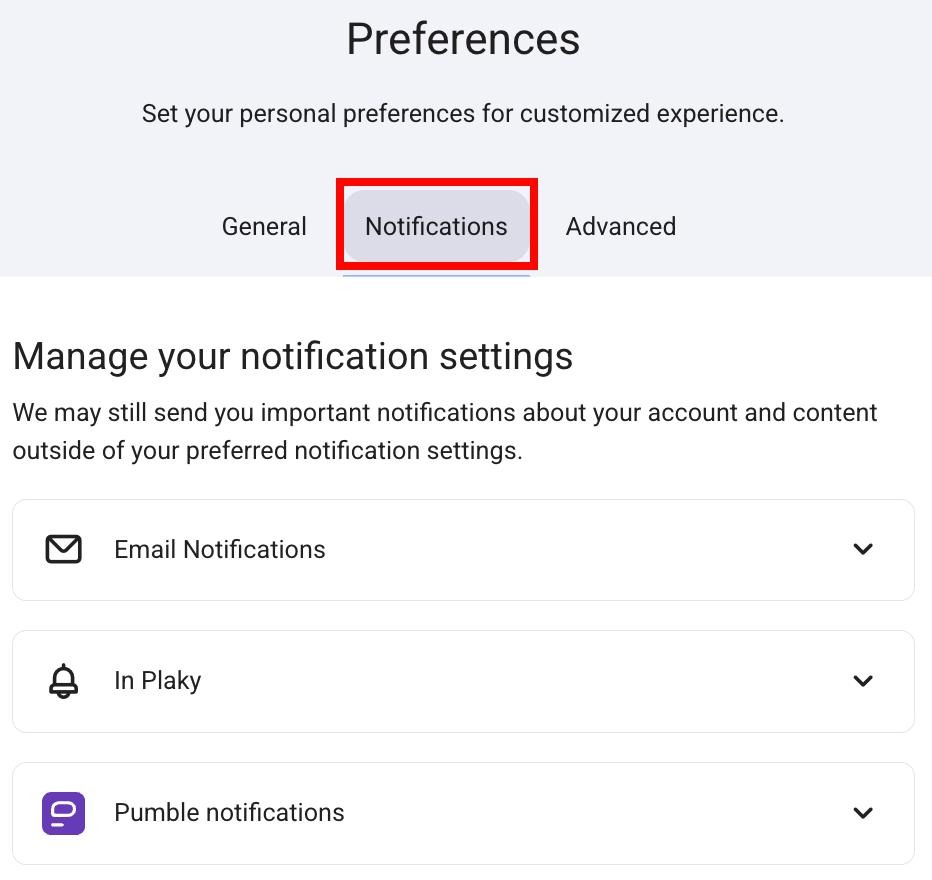
Receive one email for bulk actions setting is available on paid plans only.
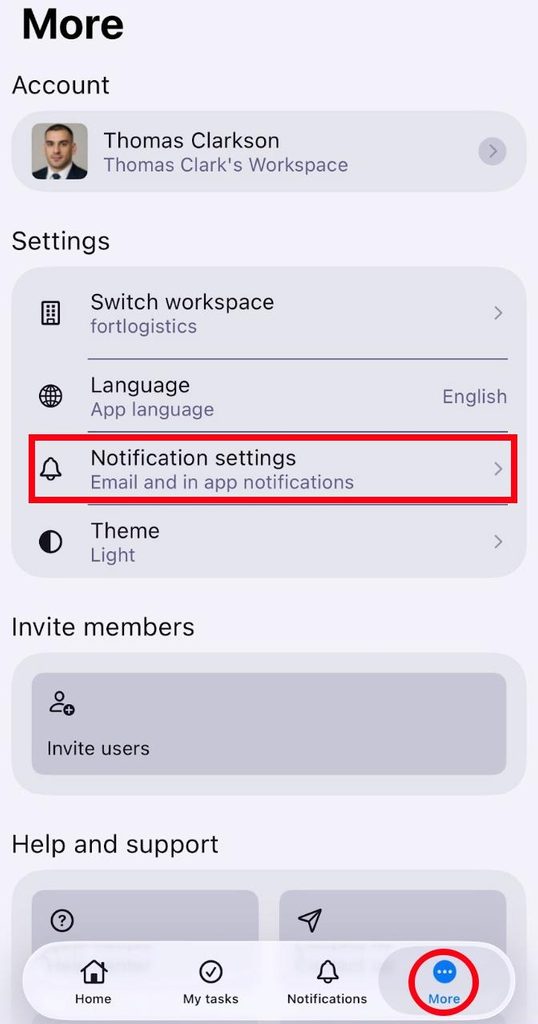
When it comes to mobile apps, you can enable/disable push notifications in the following way:
- Tap on More at the bottom sidebar
- Choose Notification settings
- Tap on the Notifications you want to configure
- Toggle the Notifications you want to receive
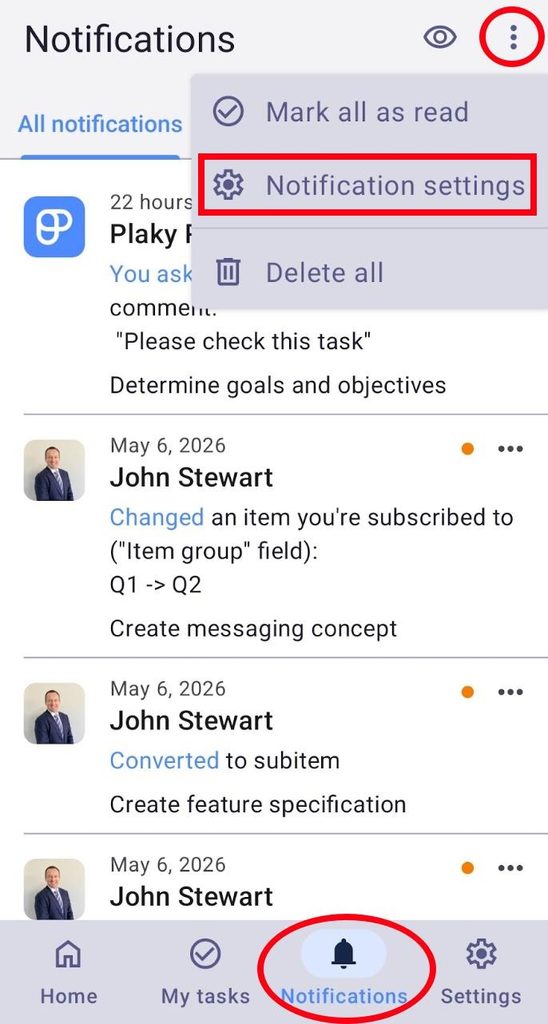
- Abre las Notificaciones
- Toca los tres puntos en la esquina superior derecha
- Choose Notification settings
- Tap on the Notifications you want to configure
- Toggle the switch on/off
Please be aware that you may still receive some important and system Notifications regardless of how you configure your settings.
Al habilitar el interruptor de notificación de escritorio, recibirás una ventana emergente en el navegador solicitando permiso para permitir notificaciones. Haz clic en Permitir para habilitar las notificaciones de escritorio.
La configuración de las notificaciones de escritorio se administra a nivel del navegador. Habilitar o deshabilitar estas notificaciones debe configurarse por separado para cualquier otro navegador web que utilices.
Manage Notifications tab visibility #
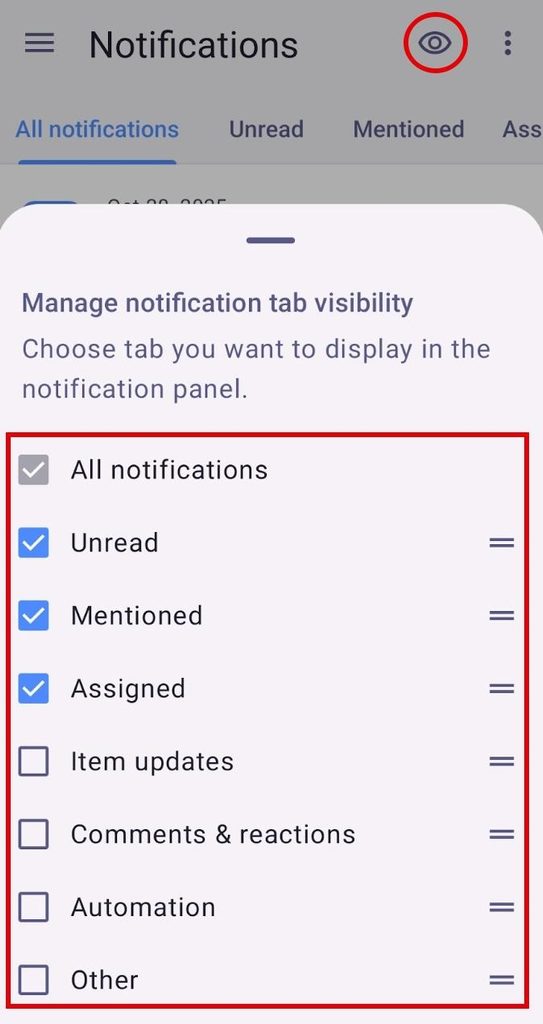
Plaky lets you control which Notifications are displayed in the notification tab. This can be used to reduce notification overload and prioritize important tasks.
- Open the Notifications tab
- Click on the eye icon
- Select which Notifications you want to receive
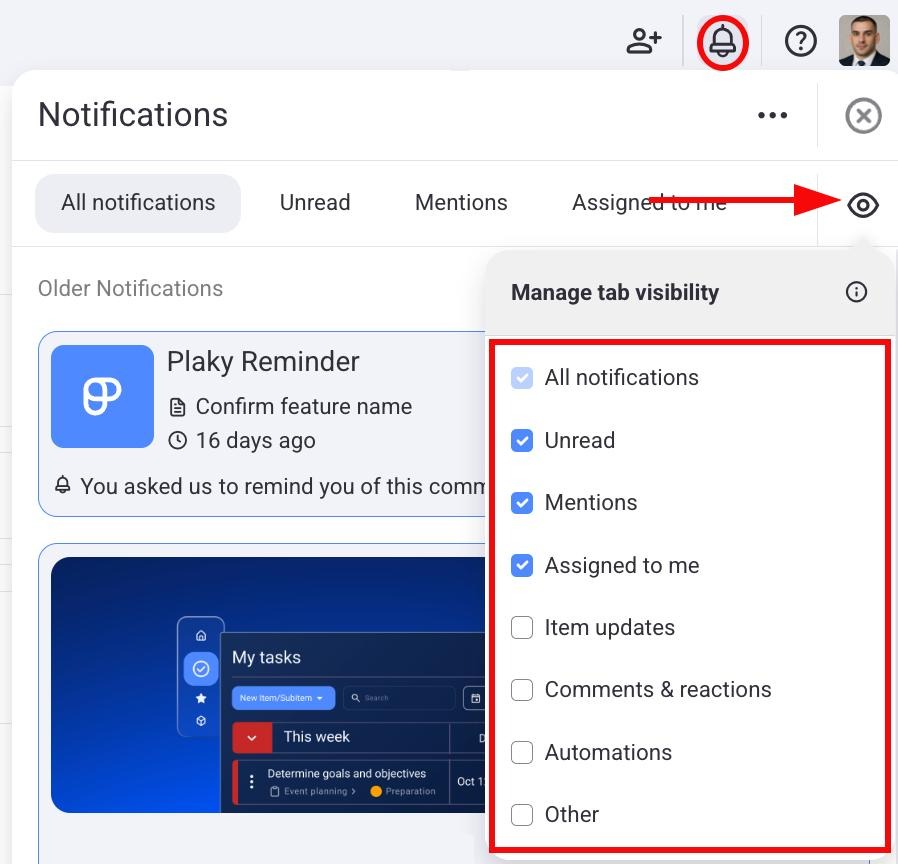
- Abre las Notificaciones
- Toca el ícono de ojo en la esquina superior derecha
- Select which Notifications you want to receive
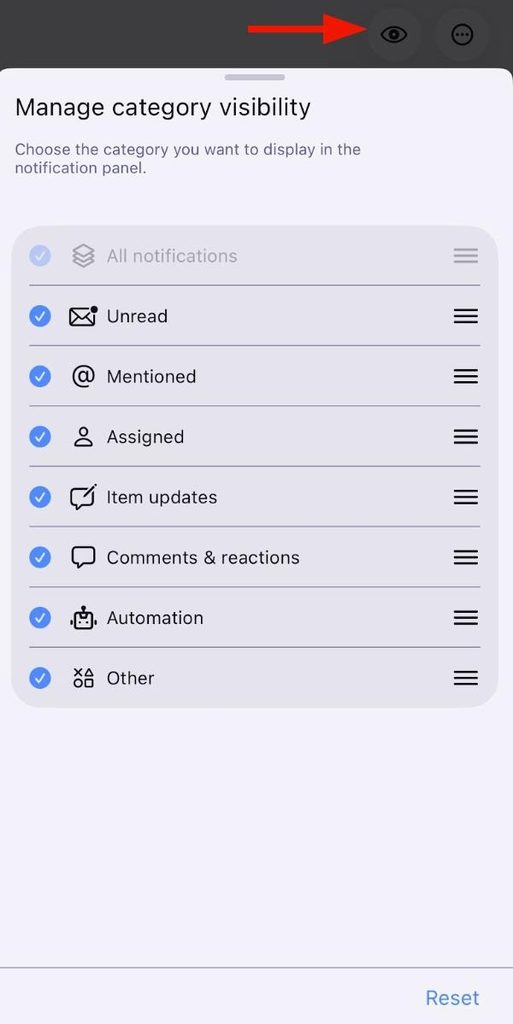
- Abre las Notificaciones
- Toca el ícono de ojo en la esquina superior derecha
- Select which Notifications you want to receive
Unsubscribe and stop receiving Notifications #
If you want to stop receiving Notifications for a certain Board/Item/Subitem, you can unsubscribe from it directly from your Notifications. This will help you reduce clutter and prioritize important Notifications. Here’s how you can unsubscribe:
- Abre las Notificaciones
- Pasa el cursor sobre la notificación
- Haz clic en el botón Darse de baja de Tablero/Elemento/Subelemento