Set Recurring Tasks
You can use Board Automations in Plaky to create recurring tasks and send notifications to team members. Also, you don’t have to make items/subitems manually; instead, Plaky can do it for you.
Let’s look at how you can do this.
1º Passo: Crie uma nova automação #
To set up automations you have two options:
- Click on the Automation icon in the top right corner
- Click on New Automation
Ou
- Clique nos três pontos ao lado do nome do seu espaço de trabalho
- Clique em Automações
- Click on New Automation

Step #2: Set the recurrence trigger #
A recurrence trigger is an event that triggers the recurring automation. This trigger can be activated on a scheduled day at a particular time. For example, the trigger can run on every Monday or on the 15th of every month.
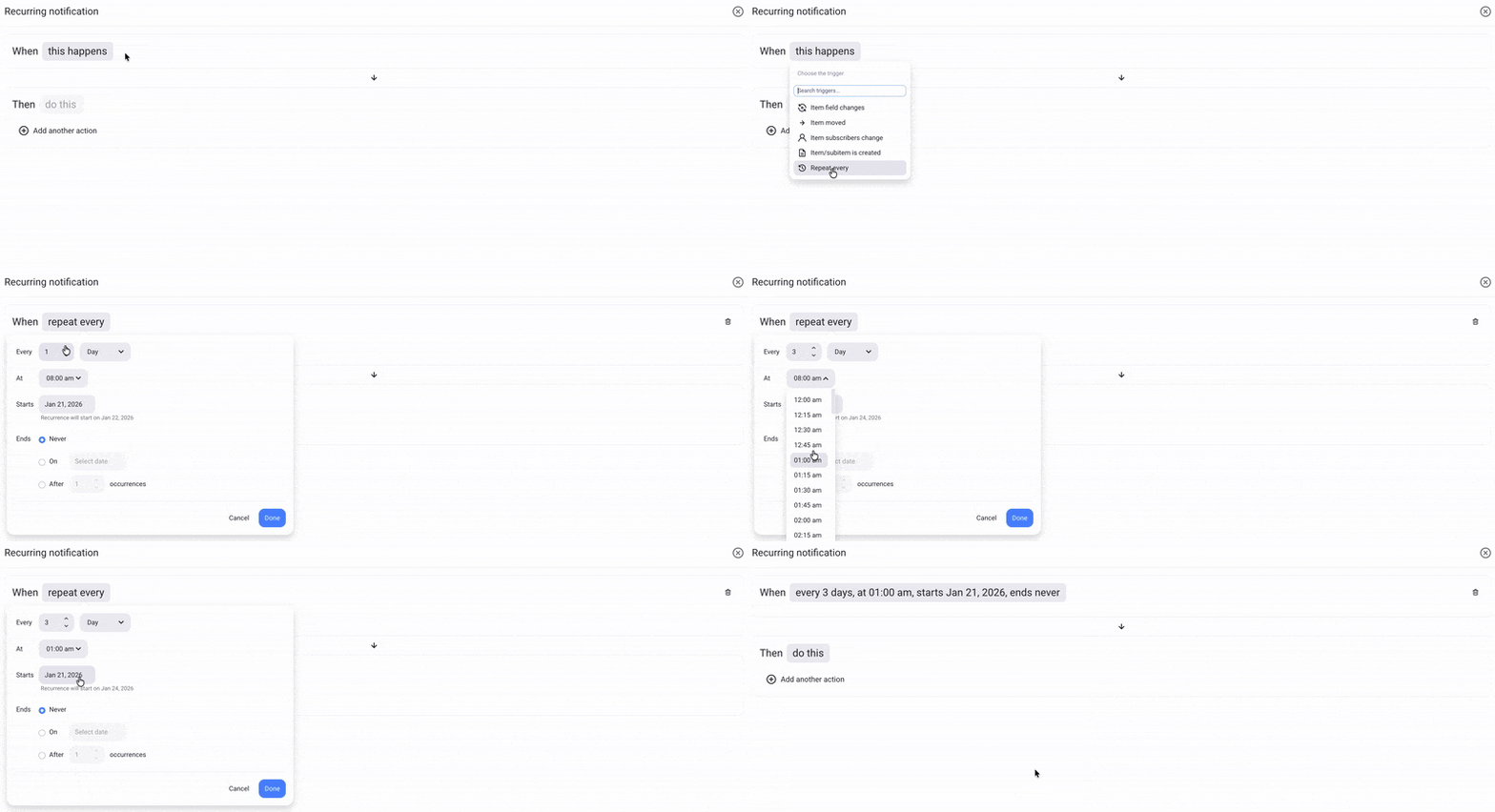
Here’s how to set the recurrence trigger:
- Click on this happens
- Select Repeat every
- Configure the recurring frequency
- Click Done to complete the action
Step #3: Set the recurring action #
Once you have set the recurring trigger, you can proceed to set the recurring action. The recurring action will run whenever the trigger is activated.
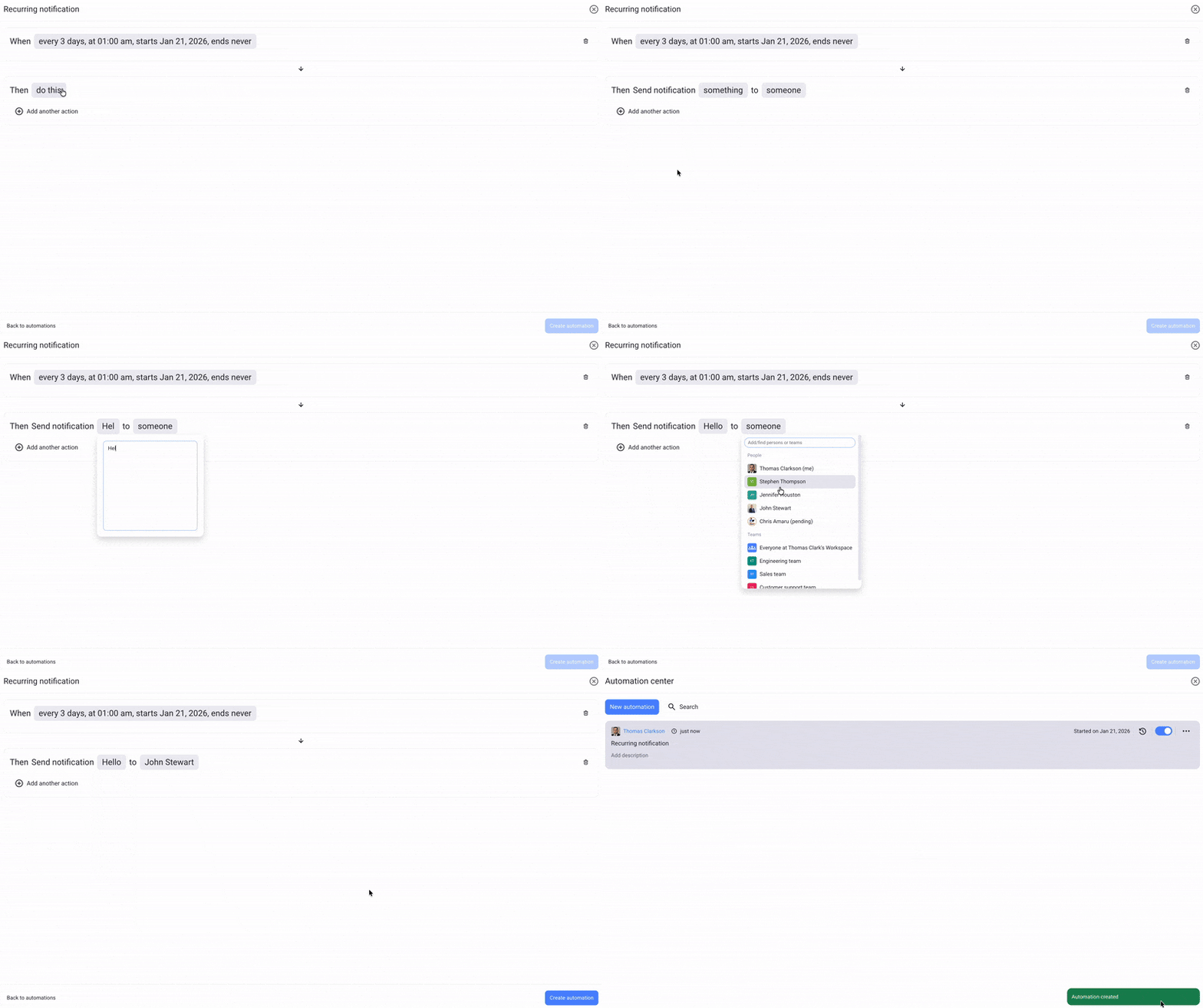
Here’s how to set the recurrence action:
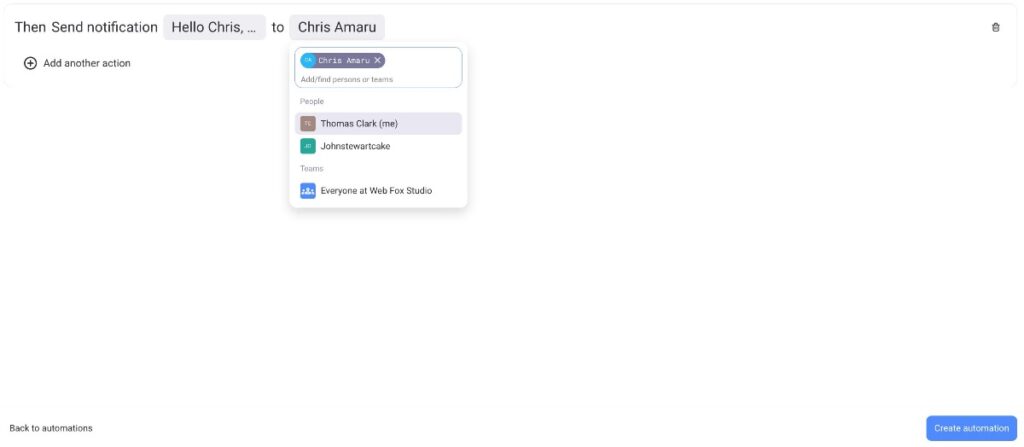
- Click on do this
- Select an action from the dropdown
- Configure the highlighted fields
- Click on Create automation to complete the process
Use case: How to use Recurring Tasks #
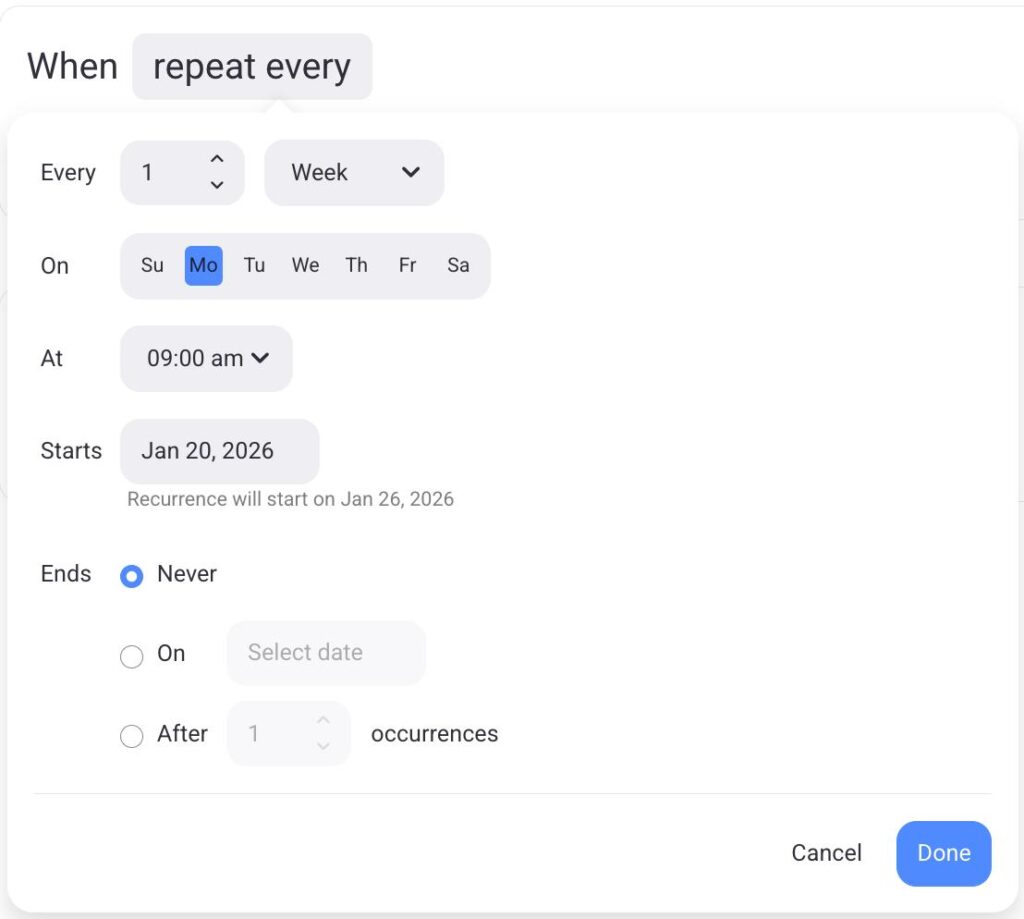
Now, let’s look at a practical example of how you can set a recurring task. We will create a recurring task that sends notifications to a certain user every Monday at 09:00.
First, let’s create a recurring trigger:
- Click on this happens
- Select Repeat every
- Select Week under the Every section
- Select Monday in the On section
- Click Done to finish the action
Now that we have a trigger, let’s create a recurring action that sends notifications.
- Click on do this
- Select send notification
- Write a message in the something field
- Select the person in the someone field
- Click on Create automation to complete the action