Board automation use cases
In this article
This article includes a set of ready-to-use Board automations for your Plaky Workspace. Each example will show you how to structure an Automation and build it from the Automation Center.
Move Items when done #
This automation moves Items to a different Item group when their status is changed to done.
Here’s how to set the automation:
- When Item field changes (Status) from any to Done
- Then Move item to Item group (e.g., finished projects)
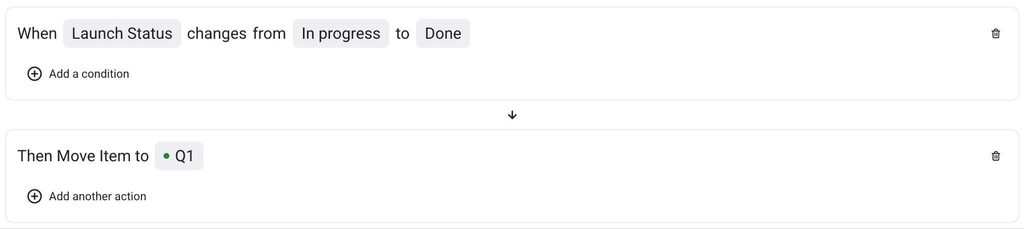
For example, developers in a software company can automate their workflow by changing an Item’s Status. Let’s say they change an Item from In progress to Done; with this automation, the Item will automatically move to a separate Item group with all Done Items. There is no need to do this manually.
Change status when the due date changes #
This automation lets you reset Item status when its due date changes.
- When Item field changes (Due date) is updated to something
- Then Change Item field (Status) to In progress
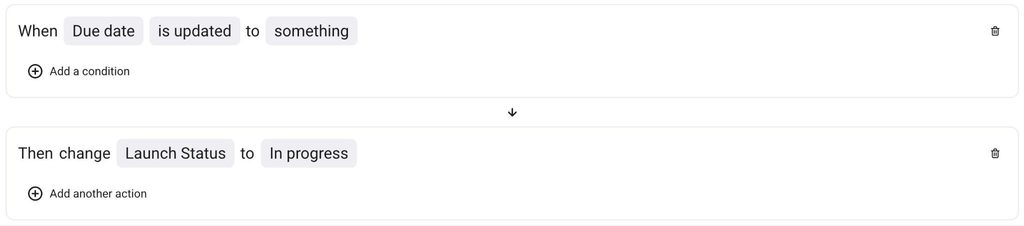
Let’s say a task was scheduled to be finished on the 15th of October, but problems occurred during development, and the due date has to be moved to the 30th of October. With this automation, the Item’s Status will automatically change to In progress, and users will know that development is continuing.
When the status is changed, assign the item to a certain member/team #
This automation will automatically assign a certain user or team to an Item when it’s status changes to In progress.
- When Item field (Status) changes from any to In progress
- Then Change Item field (Person) add someone (e.g., Engineering team) to Assignee
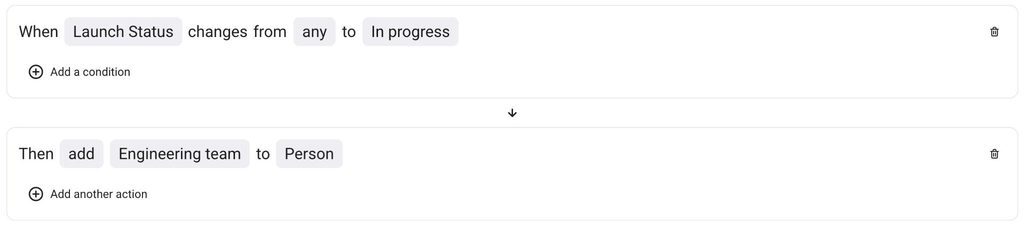
Let’s say a new task is underway, and its Status is set to In progress. This automation will automatically add a certain team or user as an assignee to that Item. This way, developers will know when to start working on a task.
When a new Item is created, add an assignee #
If you want to add a certain team member as an assignee when an Item is created, you can do it with this automation.
- When Item/subitem is created
- Check if Item field (Tag) contains Marketing
- Then add User to Person
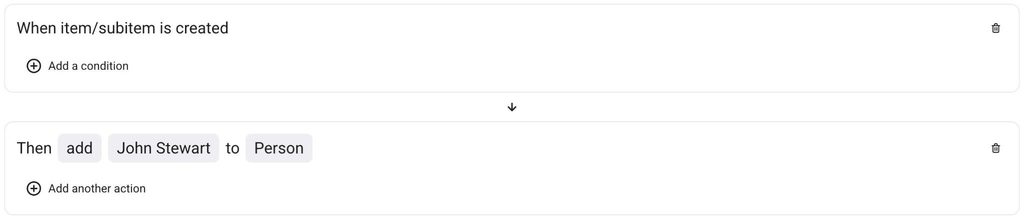
For example, a new Item is created for the marketing team, and it contains the Marketing tag. This automation will instantly add the responsible person from the marketing team to the Item.
Create a new Item every Monday #
This automation will create a new Item every Monday. For example, you can use this to create a new task for your team members at the start of each week.
- When repeat every (select Monday)
- Then Create Item/Subitem (enter Item details)
You can use this template for any other recurrence type you need (e.g., monthly, quarterly, yearly, etc.).

Let’s say you need your employees to contact a certain client every Monday. With this automation, the task will be there every Monday, and no one will miss it.
Change relative date #
With this automation, you can reset the date when a status changes from To do to In progress.
- When Item field changes (Status) from To do to In progress
- Then Change Item field (Start date) to current date
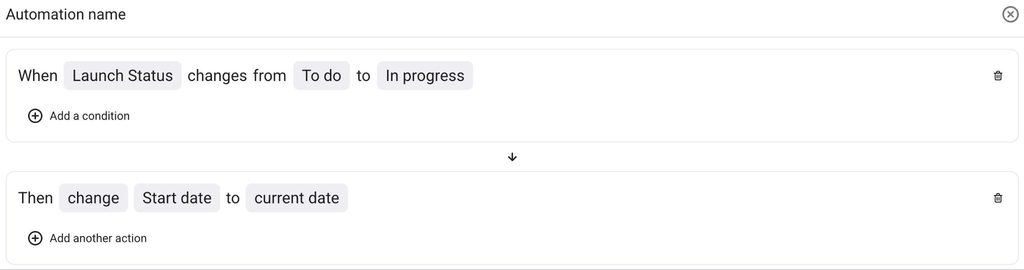
For example, you might have an Item being labeled as “To do” for some time. Once you change the Item’s Status to “In progress” this automation will automatically add the current date as the start date.