Import and export data
In this article
Plaky supports CSV import and export, allowing you to bring in data from spreadsheets, migrate from other tools, and export your Board data for reporting.
Import CSV data #
CSV import works the same way whether you’re creating a brand new Board from your file or adding data into an existing one. There are two steps when importing a CSV file: file setup and column mapping. The only difference is where you start.
Create a new Board from CSV #
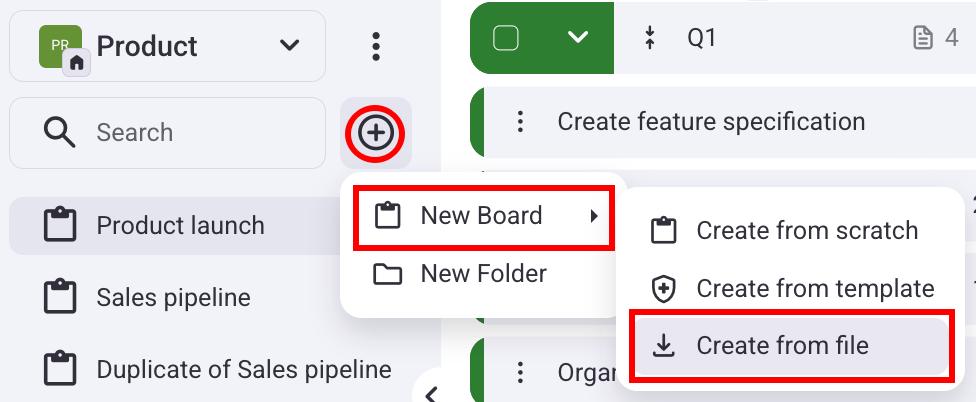
Pour créer un nouveau tableau à partir d'un fichier CSV :
- Cliquez sur le bouton + dans la barre latérale gauche
- Survolez Nouveau tableau
- Select Create from file
- Upload a CSV file
- Choose a delimiter
- Toggle if your file has headers or not
- Click Proceed
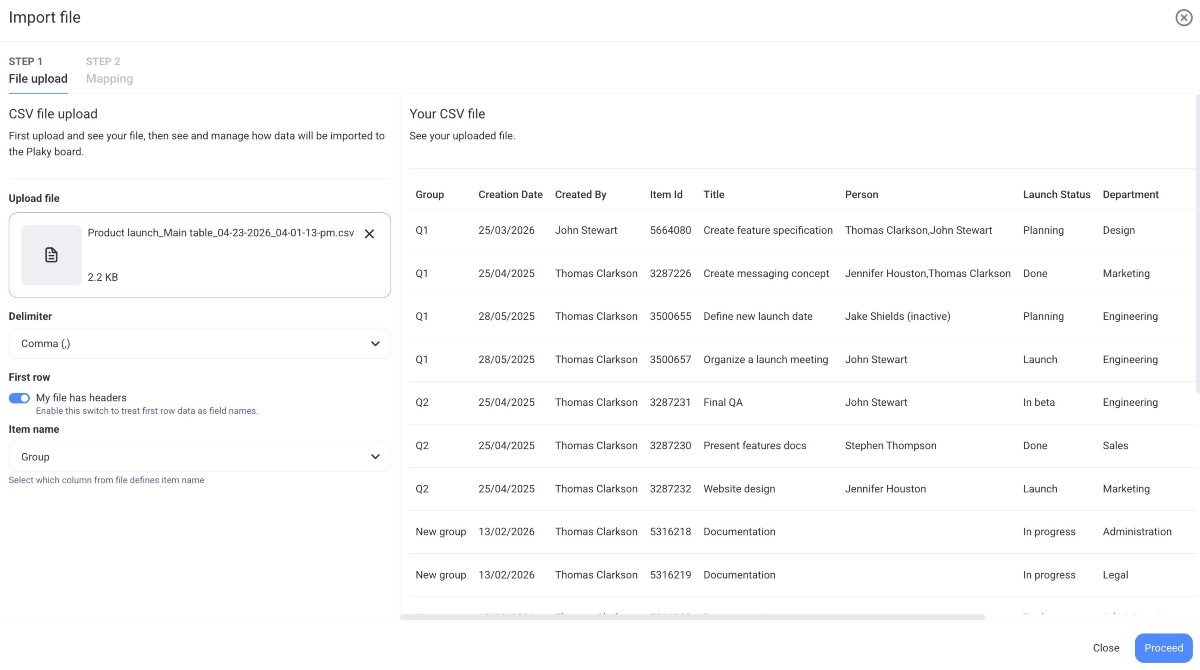
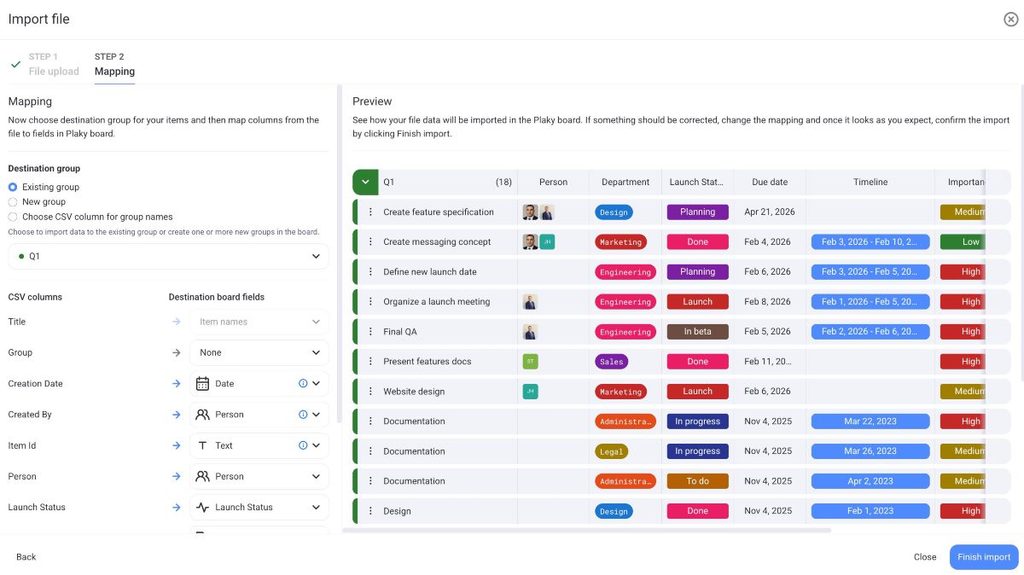
Now that you have imported your file, you can move on to mapping.
- Select the destination group
- Create a new Item group
- Select a CSV column for group name
- Map to which Board Fields you want to import the data from the CSV
- Cliquez sur Terminer l'importation pour achever l'action
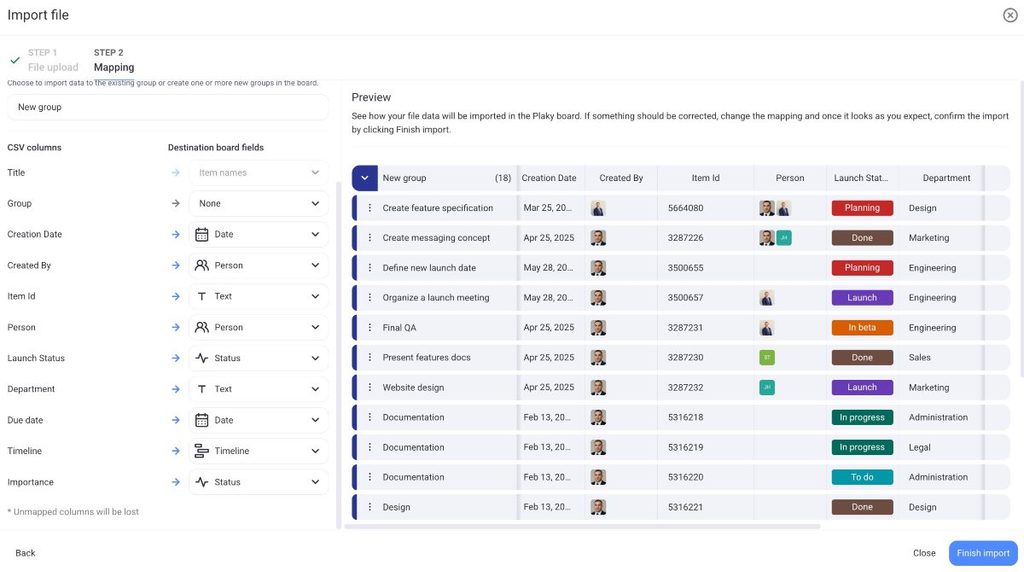
If the CSV column contains more columns than the allowed number of Fields on the Board (a limitation exists on the Free plan), you can map the CSV columns up to that limit, and additional column mapping will be disabled. If some column’s data is not that important for you, you can always choose to skip the mapping for that column by choosing the option None.
Subitems cannot be imported from a CSV file.
Columns that are not mapped will be lost.
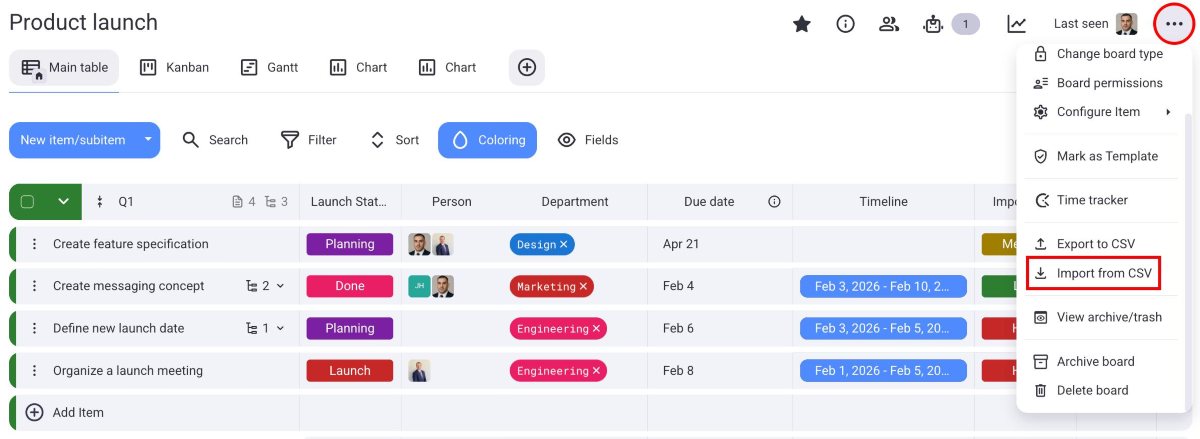
To import a CSV file to an existing Board:
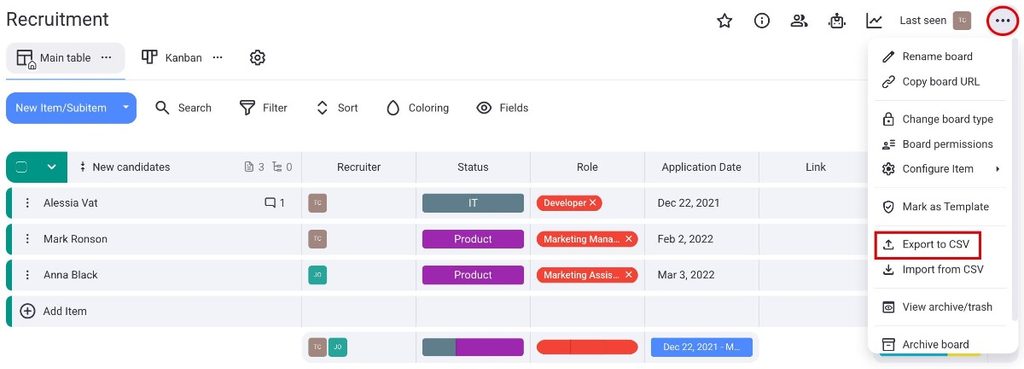
- Cliquez sur les trois points à droite
- Select Import from CSV
- Upload a CSV file
- Select the delimiter
- Toggle if the first row should be headers
- Select which column shows the Item name
- Click Proceed to move on to mapping
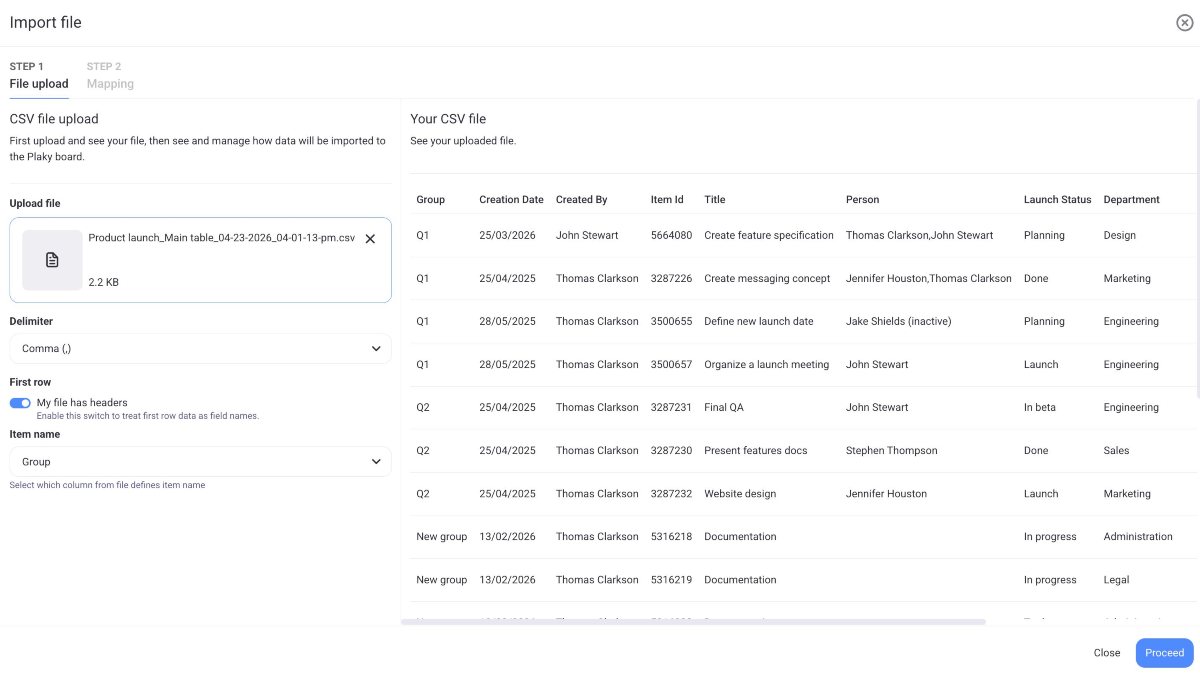
Once the file is uploaded, you can proceed to map the columns.
- Select the destination group
- Create a new Item group
- Select a CSV column for group name
- Map to what Board Fields you want to import the data from the CSV (updateovati prema novom master fields feature-u)
- Click on Finish import to complete the action
Format CSV requis #
- Plaky uses a comma as the default delimiter. However, you can change it to a tab, a pipe, a space, or a semicolon.
- If the file is not marked as having headers, the first row is treated as item data, and for CSV, column names are generic: Column 1, Column 2, etc.
- The maximum CSV file size is 10MB.
If you have a large file with many rows, split it to avoid exceeding the limit.
Remarques #
- If you don’t select which column defines the Item name, the first column from your CSV file will be used by default as the Item name.
- The maximum number of rows in the CSV file is 1001.
- Character limits within the app also apply to CSV files.
- A CSV file can contain up to 18 values for the Status field; any additional values will be skipped during the import.
- The maximum number of Item groups to import is 20; any additional Item groups will be mapped to the last Item group on the Board.
- The content of the CSV file does not need to be in English.
- You can upload only one CSV file to a Board at a time; a new CSV file can be uploaded only after the import of the first file is complete.
- Each Field on the Board can be mapped to only one column from the CSV (1 column = 1 Field).
- CSV columns containing letters or numbers can be mapped to textual fields. However, if you attempt to map textual columns to timeline, date, or number fields, they will be skipped during the import.
Export CSV data #
If you need to analyze your project progress, share information with stakeholders, or perform further data analysis, you can export a Board in CSV format in Plaky.
Here’s how you can export a Board:
- Open the Board you would like to export
- Click on the three dots in the top right corner
- Sélectionnez Exporter vers CSV
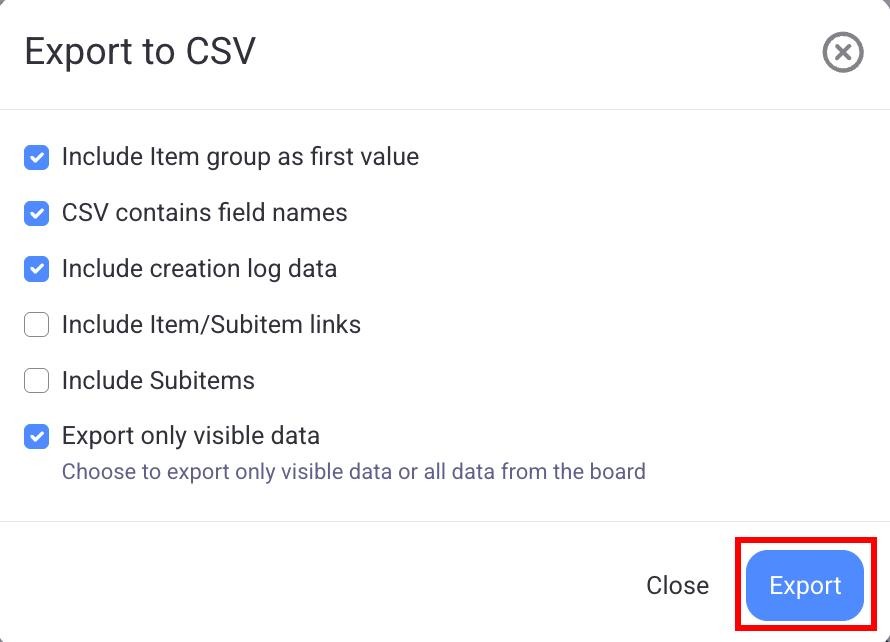
Choose the data to export. You can select if you want the following:
- Inclure le groupe d'éléments comme première valeur
- Contenir les noms de champs dans le fichier CSV
- Inclure les données du journal
- Inclure les liens éléments/sous-éléments
- Inclure les sous-éléments
- Export only visible data (Filters and Field visibility will affect the display)
Personnalisez l'exportation selon vos besoins. Toute vue de tableau (Tableau, Kanban, Gantt) peut être exportée au format CSV.
Click on Export to complete the action.
Le nom du fichier CSV aura le format suivant : boardName_viewName_date_time.csv.
You can’t export user comments from your Plaky Board.