Board members, permissions, and activity logs
In this article
This article covers how you can add members to your Board, how you can set Board permissions, and what you can see in the activity log.
Add or remove members from a Board #
If your Project requires you to grant or revoke access to your Team Members on your Board, you can do so by making your Board Private (available on paid plans only) and adding or removing Users. When someone is added to a Board, they are subscribed to it and will receive notifications about activity on Items they’re watching, and those Items will appear in assignment fields.
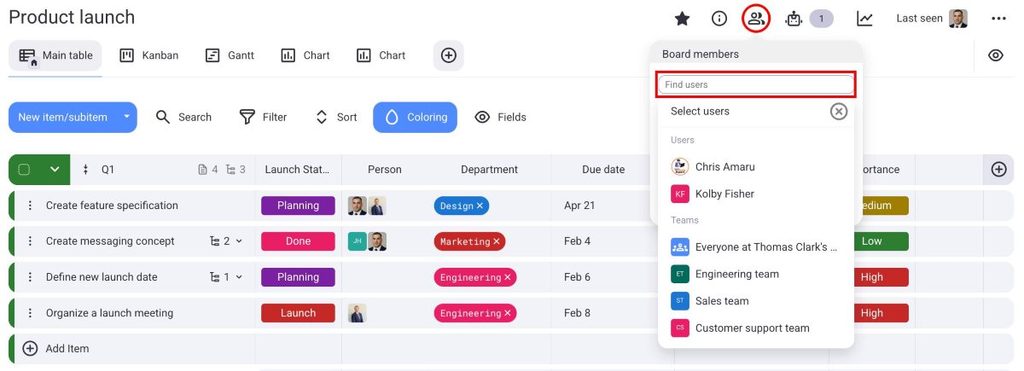
To add members to a Board:
- Navigate to the Board members button at the top
- Search for members in the Board members dialog box
- Choose the member you’d like to add
To remove members from a Board:
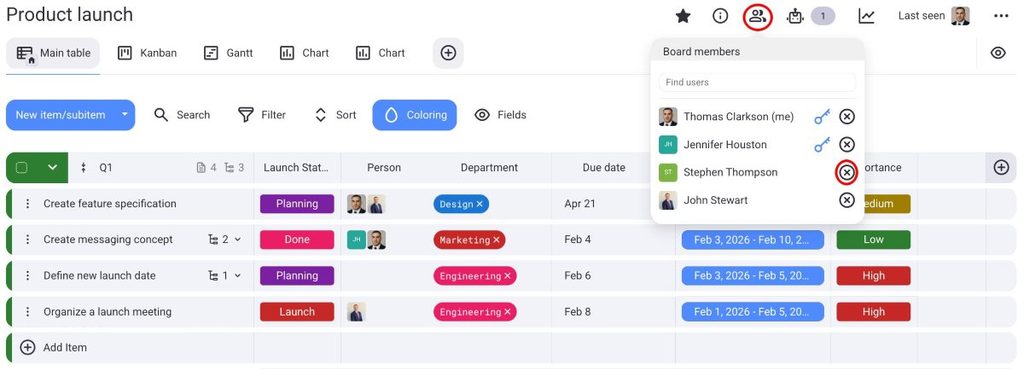
- Navigate to the Board members button at the top
- Click X next to the member you’d like to remove
Droits d’accès au tableau #
The default Board Permission (Edit everything) applies to all Boards. To change to another type of Permission, you need an Enterprise subscription plan.
Board Permissions in Plaky allow Board Owners to control the level of access and editing rights granted to individuals or user groups for a specific Board. Changing Board permissions is a paid feature available only on the Enterprise plan.
If you want to change Board permissions, follow these steps:
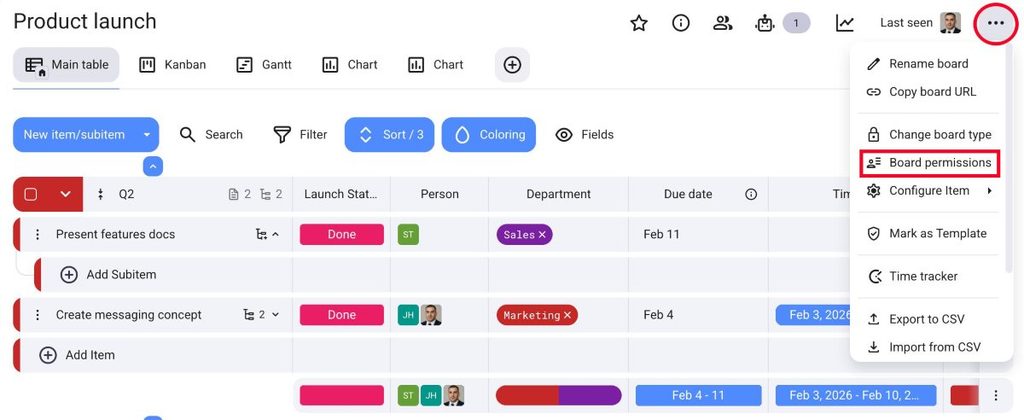
- Click on the three dots in the top-right corner to open the Board menu
- Select Board permissions
- Choisissez l'une des options
- Cliquez sur Enregistrer pour compléter l'action
- Appuyez sur les trois points situés dans le coin supérieur droit
- Tap on Board info
- Select Permission
- Choose Permission type
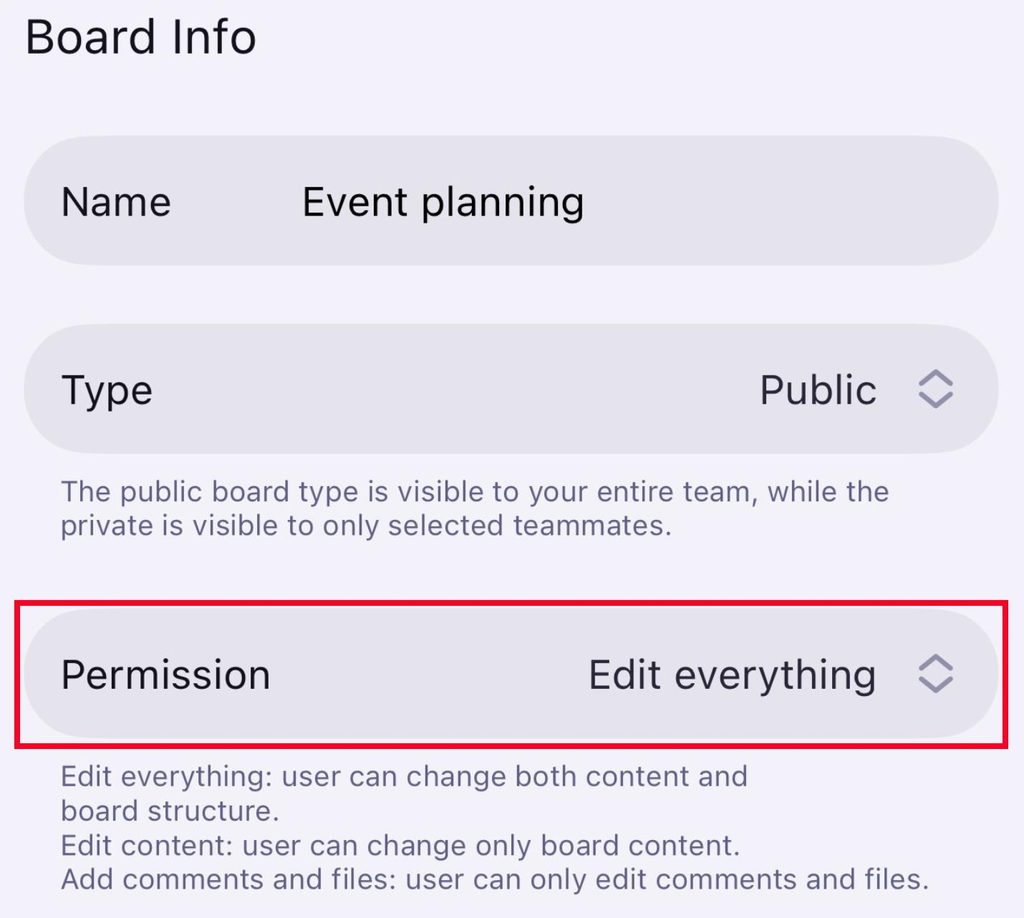
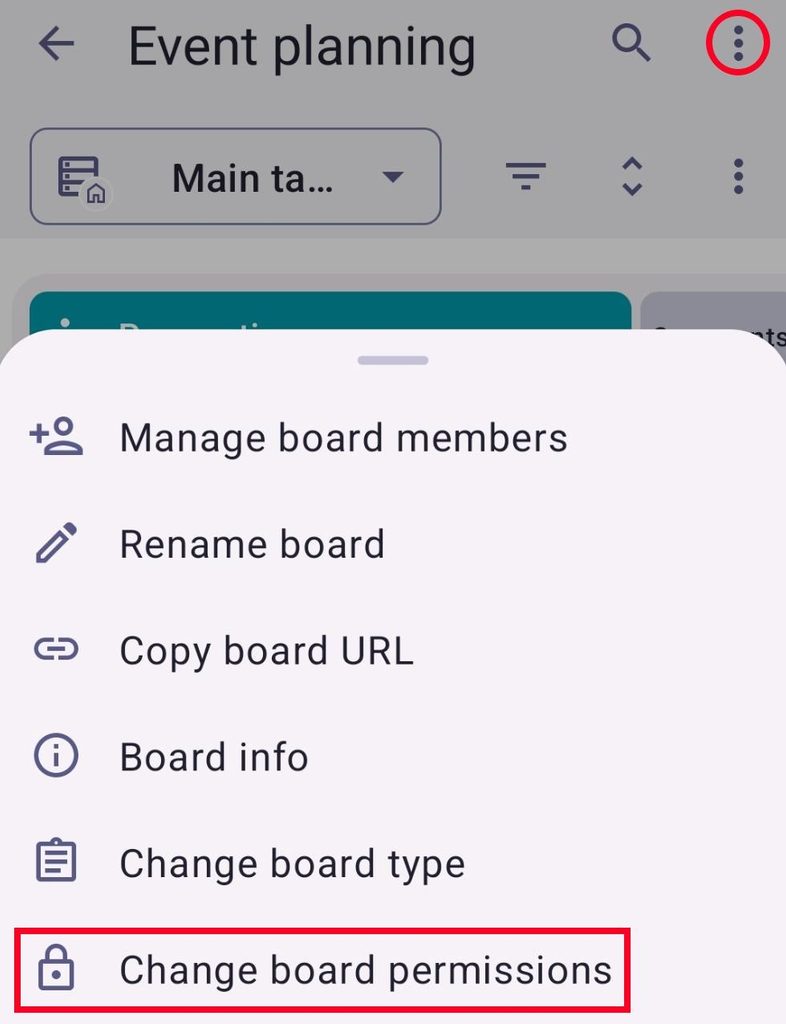
- Appuyez sur les trois points situés dans le coin supérieur droit
- Tap on Change board permissions
- Choose which Permissions apply
- Appuyez sur Enregistrer pour terminer l'action
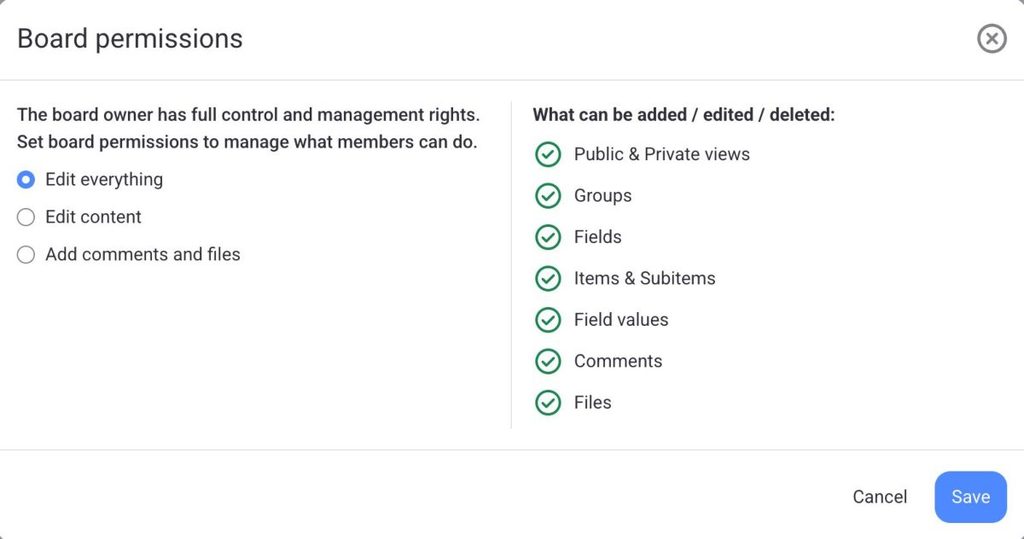
In Plaky, there are three distinct types of Board permissions:
Modifier tout #
Edit everything permission is the default Board permission, and it grants users the highest level of access and editing rights on a Board. Users can change both content and Board structure, and they can add, edit, and delete the following:
- Éléments
- Sous-éléments
- Champs du tableau
- Vues
- Commentaires
- Fichiers
- Groups
- Valeurs du champs
En outre, les utilisateurs peuvent organiser le tableau à l'aide des fonctionnalités suivantes : filtre, ligne résumée, renommer le tableau, trier, etc.
Modifier le contenu #
Edit content permission allows users (Admins and Members who are not Board owners) to change Board content and lets them add, edit, and delete the following:
- Éléments
- Sous-éléments
- Commentaires
- Fichiers
- Affichages privés
- Valeurs du champs
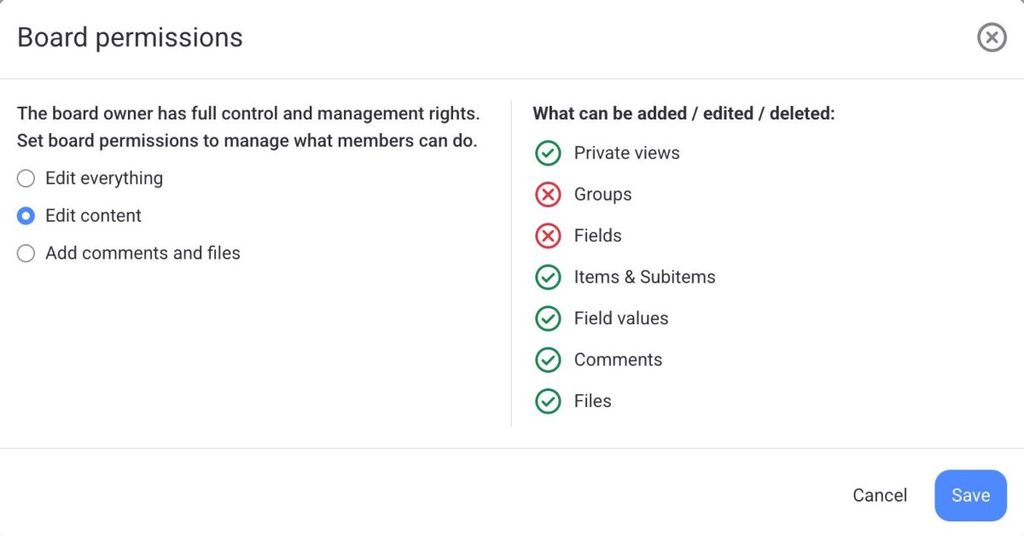
Toutefois, les utilisateurs disposant de cette autorisation ne peuvent pas modifier la structure, les affichages ou les paramètres du tableau.
Ajouter des commentaires et des fichiers #
Add comments and files permission limits users’ editing rights to adding comments and files only. With this permission set, users (Admins and Members) can view all of the Board’s content but can only add, edit, or delete their own:
- Commentaires
- Fichiers
- Affichages privés
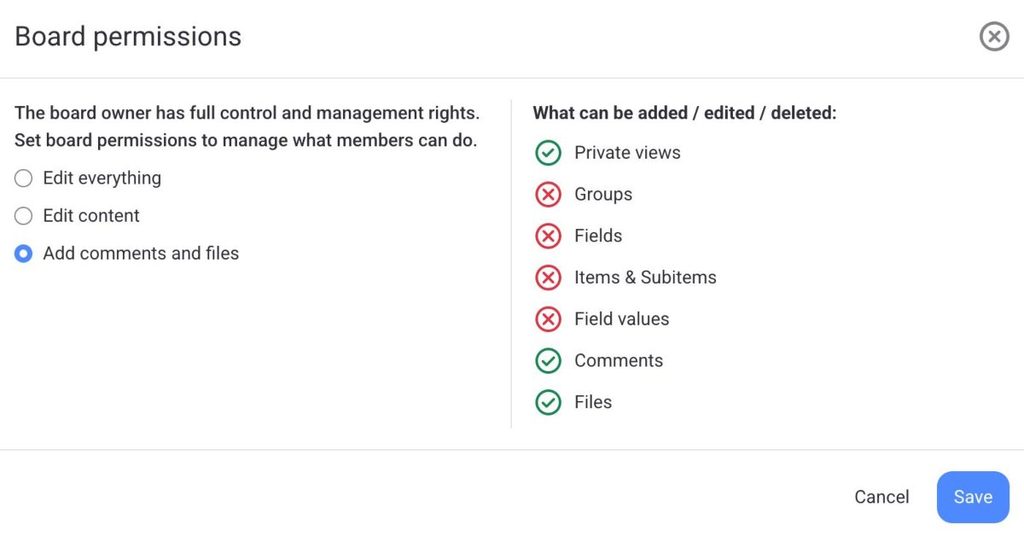
This type of permission is particularly useful for fostering collaborative discussions and resource sharing while maintaining control over the Board’s core content.
Activity log #
With Activity Log, you can track your Team’s tasks and keep up with the activities on the Board or Item.
There are 2 types of activity logs available in Plaky:
- Journal des activités du tableau
- Journal d'activité des éléments
L'accès à l'historique dépend de votre abonnement. Le plan gratuit vous permet d'accéder à l'historique des 7 derniers jours, le plan Pro à celui des 6 derniers mois, et le plan Enterprise offre un historique illimité de toutes vos activités.
Board activity log #
The Board Activity Log displays all past activities on the Board, including status changes and updates, Item deletions, and Team Member assignments.
To check the Activity log for Boards, click the Activity log button at the top of the Board.

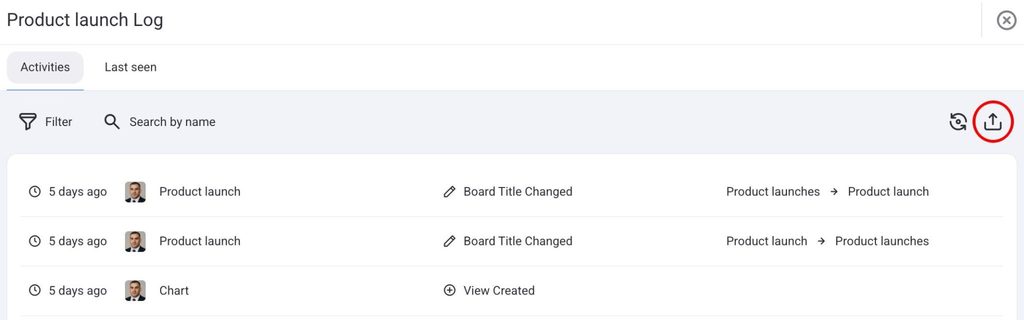
Le panneau s'ouvre avec la liste de toutes les modifications passées du tableau. Chaque entrée contient les informations suivantes : l'heure de la modification, l'auteur de la modification, le nom du tableau/de la vue/du champ/du groupe ou de l'élément auquel la modification a été apportée et son aspect avant et après la modification.
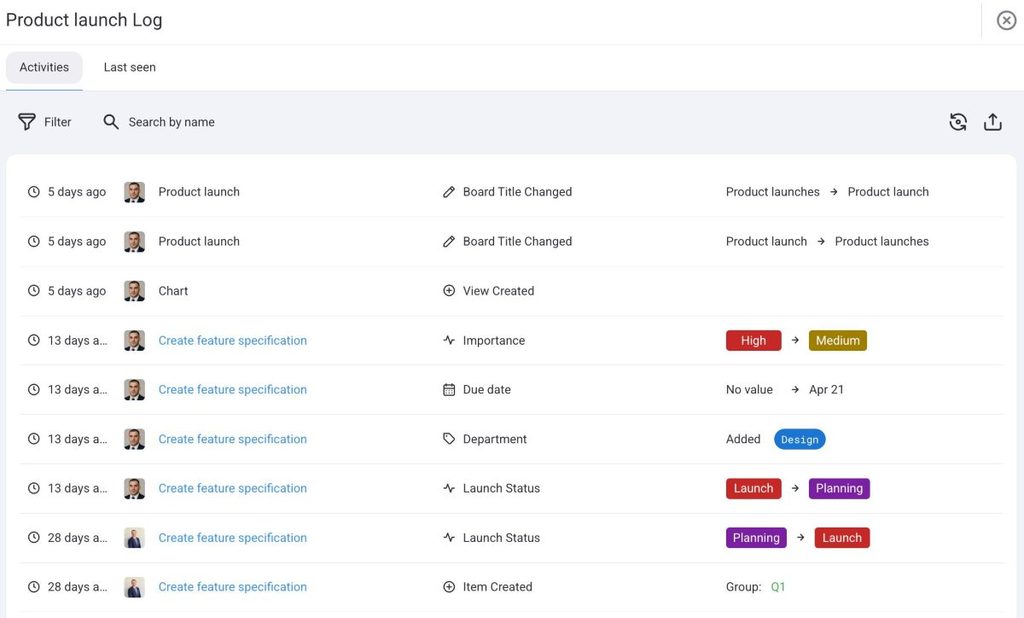
Use the Filter button to narrow entries by time period, Item group, Field type, person, or event type. Use Search by name to find all changes made by a specific useItem activity log
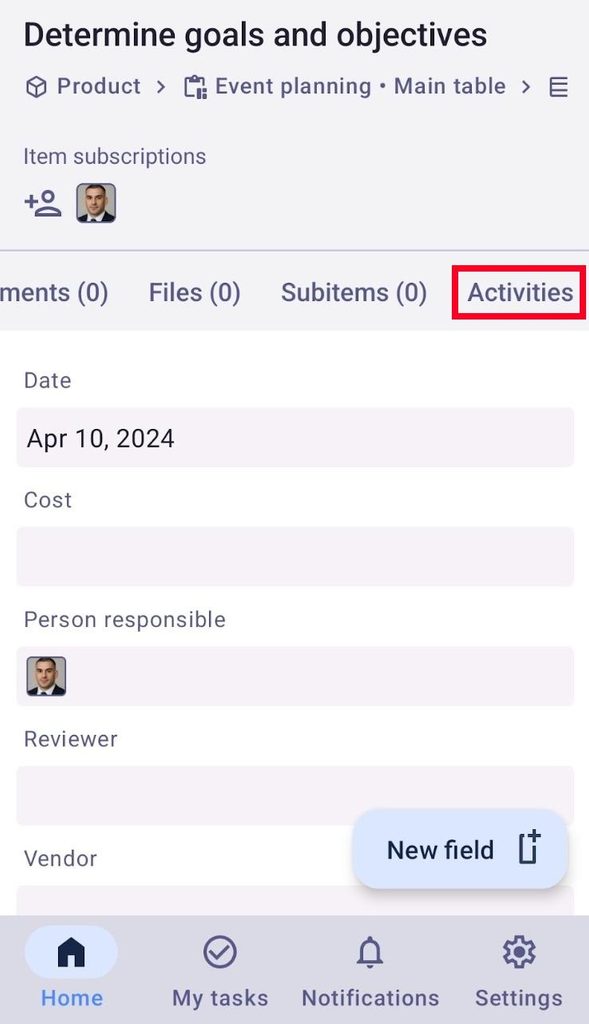
Each Item has its own activity log that tracks every change made to that Item. It tracks field value updates, status changes, comment additions, and more. Entries are ordered with the oldest at the bottom and the newest at the top.
To view the Item activity log, follow these steps:
- Ouvrez un élément
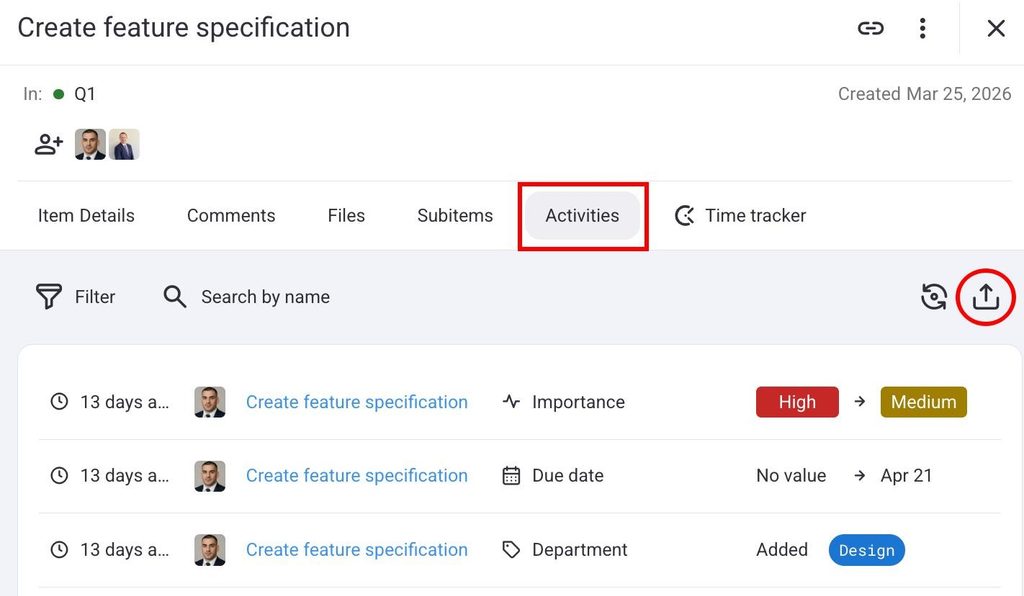
- Ouvrez l’onglet Activités
L'onglet s'ouvre sur la liste de toutes les activités des éléments. Chaque entrée contient les informations suivantes :
- Heure du changement
- Auteur de la modification
- Nom du poste où la modification a été effectuée
- Nom de l'activité
- Valeur précédente
- Nouvelle valeur
You can filter out the activities in the Filter log and Filter by name search bar according to the same parameters as those listed in the Board activity log.
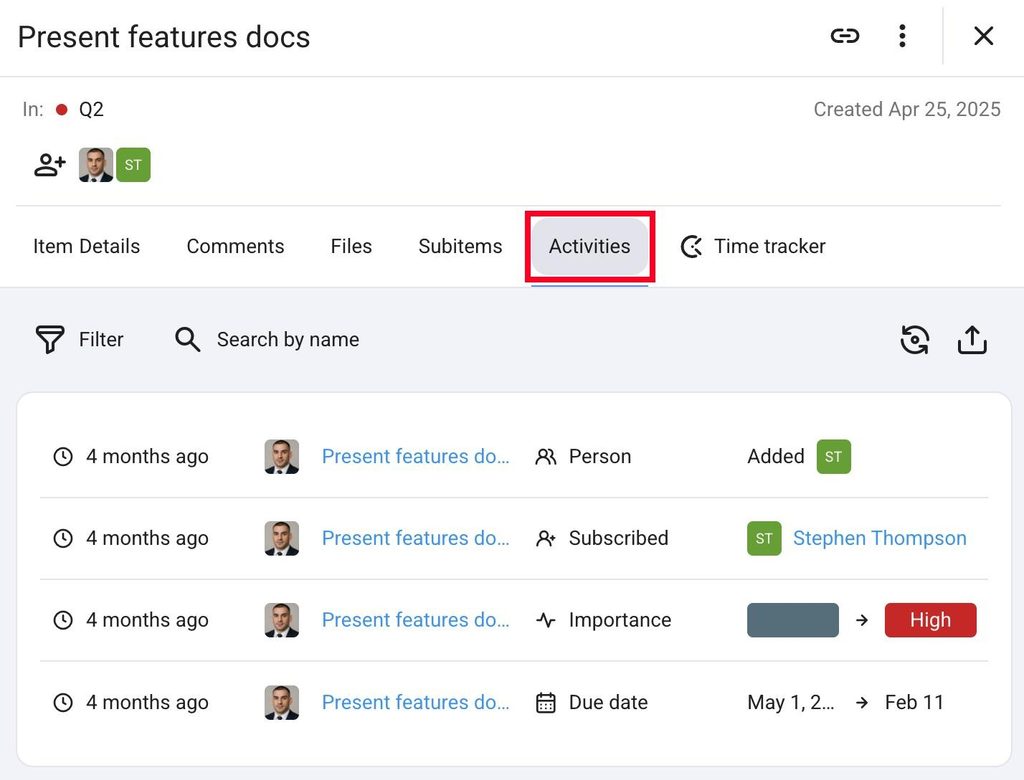
- Ouvrez un élément
- Tap on the Activities tab
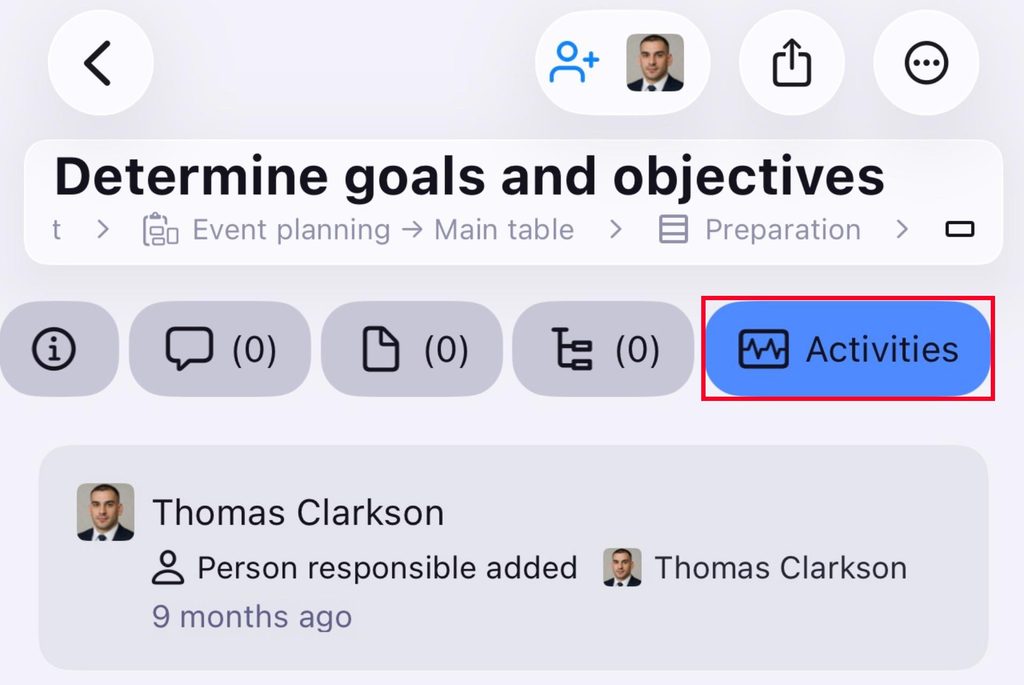
- Ouvrez un élément
- Tap on the Activities tab
Dernière consultation #
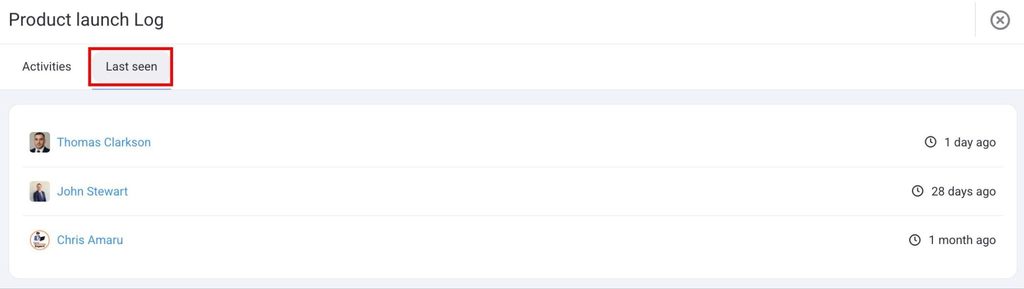
The Last seen tab sits alongside the Activity tab. It shows when each Board member last opened the Board. This is useful for understanding engagement and whether teammates are keeping up with the project updates.
Here’s how to open the Last seen tab:
- Click on the Activity button in the top right corner
- Select the Last seen tab
Les événements affichés dans les journaux d'activité sont les suivants :
| Board Events | Item Events |
|---|---|
| Créer et supprimer un tableau | Créer et supprimer un élément |
| Create and delete Board View | Créer et supprimer un groupe d'éléments |
| Mise à jour du filtre/tri/visibilité/champ de l'affichage du tableau de bord | Créer et supprimer un attribut d'élément |
| Inscription/désinscription d'un utilisateur/d'une équipe à/d’un tableau | Modifier le nom de l'attribut de l'élément |
| Modifier les autorisations du tableau | Changer la valeur de l'attribut de l'élément |
| Changer le titre, le type, modifier et éditer la description du tableau | Modifier le titre de l'élément |
| Déplacer un élément vers un autre tableau | Modifier le titre et la couleur du groupe d'éléments |
| Propriété ajoutée | Déplacer un élément depuis et vers un groupe |
| Propriété ajoutée (par l'administrateur) | Déplacer un élément vers un autre tableau |
| Propriété supprimée | Inscrire/désinscrire un utilisateur/une équipe de/à un élément |
| Propriété supprimée (par l'administrateur) | Propriété ajoutée |
| Propriété supprimée |
Export Activity log #
Both the Board activity log and the Item activity log can be exported to CSV. If you’ve applied filters, only the entries that match them are included in the export.
Here’s how to export the Activity log:
- Ouvrez un tableau
- Click on the Activity log
- Click on the Export button
- Ouvrez un élément
- Click on the Activities tab
- Click on the Export button