Move and copy Items
In this article
Items in Plaky can be moved to a different group on the same Board, or transferred to a different Board entirely. In this article, we will cover both of these options.
Move Item to a different group #
Moving an Item to a different group changes its position on the Board. All Subitems associated with the Item move with it automatically as well.
Here’s how to move an Item to a different group:
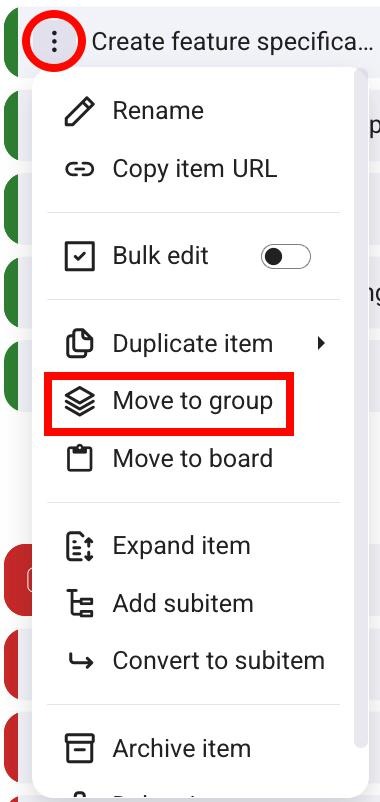
- Navigate to the Item you’d like to move
- Click on the three dots to open a dropdown menu
- Choose Move to group
- Escolha o grupo na lista ou procure-o no campo de pesquisa
- Clique no grupo para concluir o processo
Ou
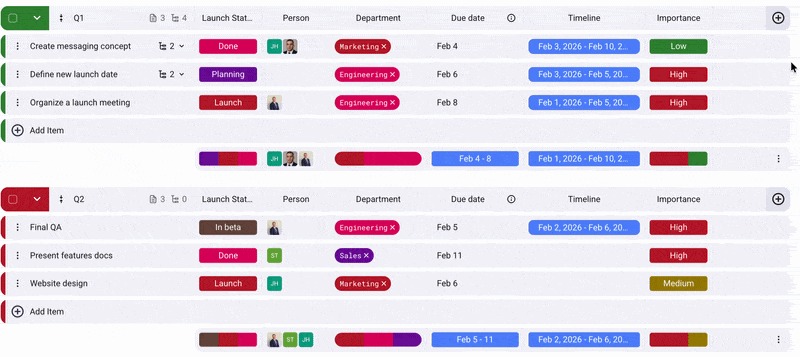
- Hover over the Item you’d like to move
- Vá para a extremidade direita da linha de item, onde estão os seis pontos
- Arraste e solte o item em qualquer lugar do quadro (pode ser o mesmo grupo ou um grupo diferente)
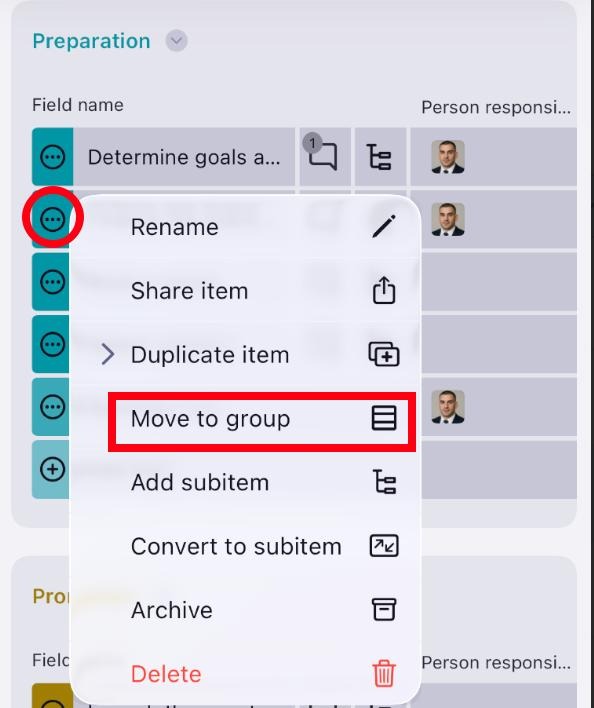
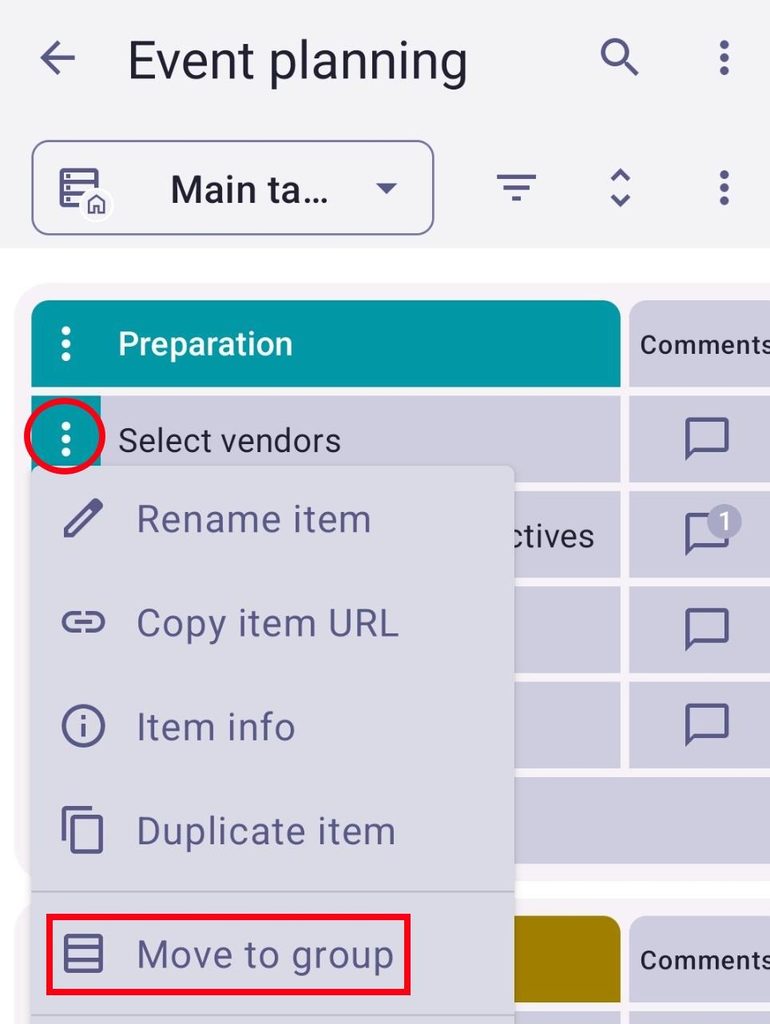
- ap on the three dots next to an Item
- Tap on Move to group
- Select an Item group
- Tap on ✔️to complete the action
Ou
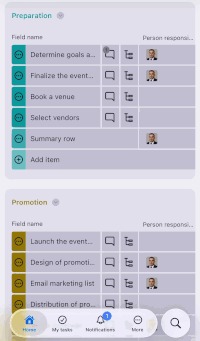
- Hold on an Item
- Drag the Item to the designated group
- Toque nos três pontos ao lado de um item
- Tap on Move to group
- Select the group
- Tap on Move to group to complete the process
Essas ações estão disponíveis apenas na exibição da tabela.
Move/copy Item to another Board #
The Move to Board action transfers an Item to a different Board. You can either copy the Item and keep it in the original Board, or just move it without keeping the original Item.
Here’s how to Move/Copy Item:
- Click on the three dots next to an Item
- Select Move to Board
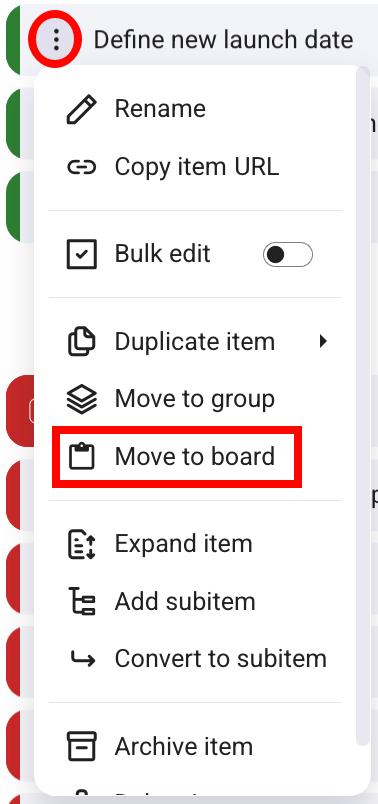
- Choose the Destination board and Destination group
- Map Fields
- Choose if you want to Include Comments
- Choose if you want to Keep Original (Copy)
- Click Proceed to complete the action
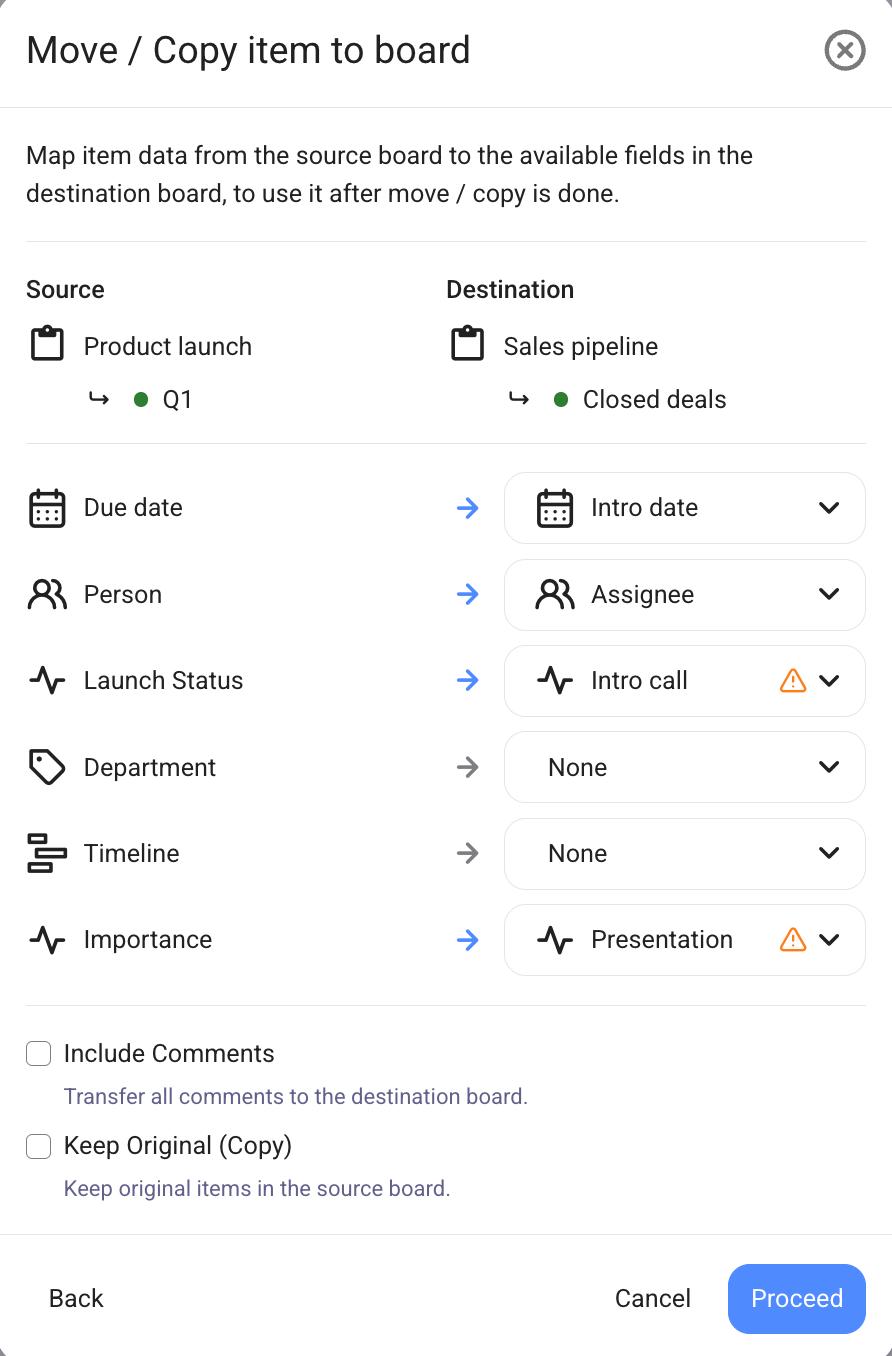
If no Field is selected/added on the destination Board, the source Field data will be lost. If the destination Field’s configuration differs from the source Field’s configuration, the affected values may not be moved.
Field mapping #
Each Field from the source Board must be assigned to a Field on the destination Board. Plaky will try to do this automatically, but a manual review is always recommended.
Here are a few things to be aware of when mapping:
- If a source Field has no matching Field on the destination Board, you can create a new Field directly from the mapping menu.
- If the source Fields don’t match the destination Board Fields, the affected values may not map correctly.
- Fields set to None are skipped. The Field itself will not be created on the destination Board, and the data is not recoverable after moving.
Moving multiple Items at once #
Info: This feature is available only on paid plans.
Both Move to group and Move to board options can be used with multiple Items. To do this, you need to enable Bulk edit for Items. Here’s how:
- Click on the three dots next to an Item
- Toggle Bulk edit
- Select the Items you want to move
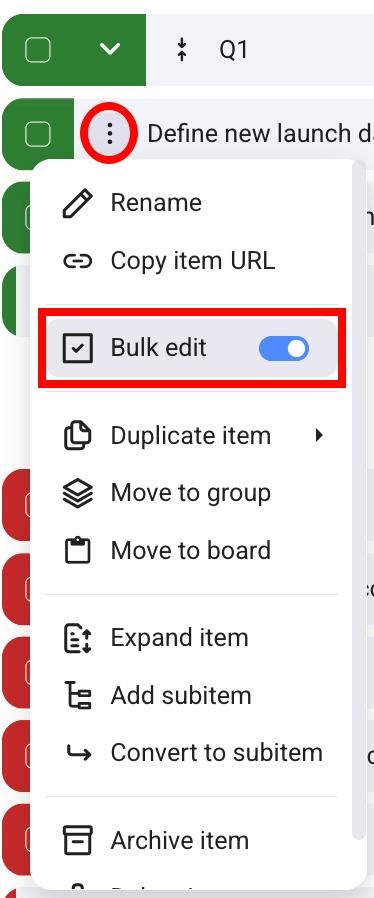
Once you have selected the Items, you can move them as we explained previously.