Intégration des nouveaux utilisateurs de l'espace de travail
Pour aider les nouveaux utilisateurs à se familiariser avec Plaky, nous avons créé ce guide d’intégration afin de vous permettre de tout configurer rapidement.
Rejoindre un espace de travail #
Avant de rejoindre un espace de travail Plaky, un membre de votre équipe (avec autorisation) doit vous inviter. Une fois l’invitation envoyée, voici comment vous pouvez le rejoindre :
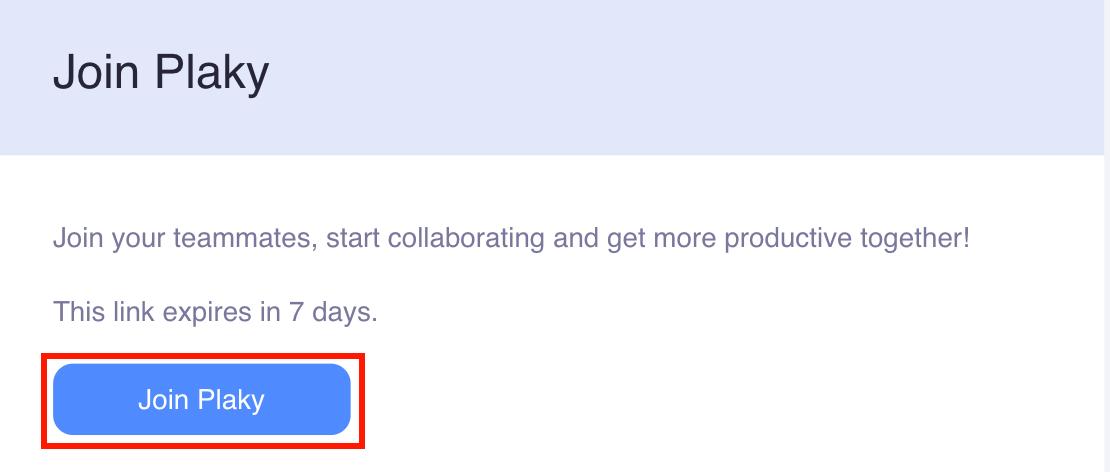
- Ouvrez l’email contenant le lien d’invitation
- Cliquez sur Rejoindre Plaky
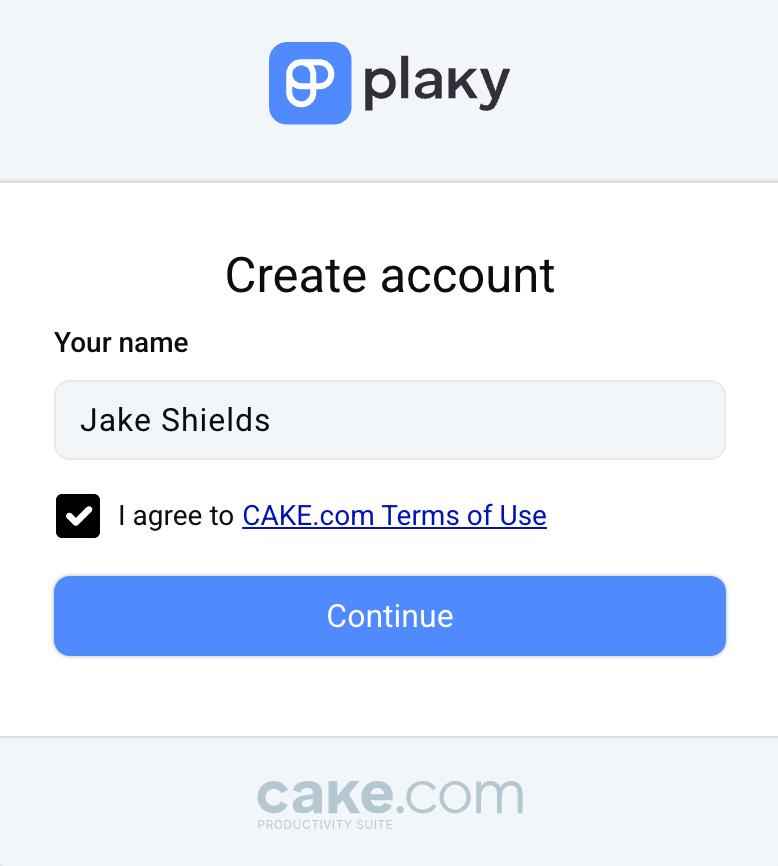
- Indiquez votre nom et acceptez les conditions d’utilisation
- Cliquez sur Continuer
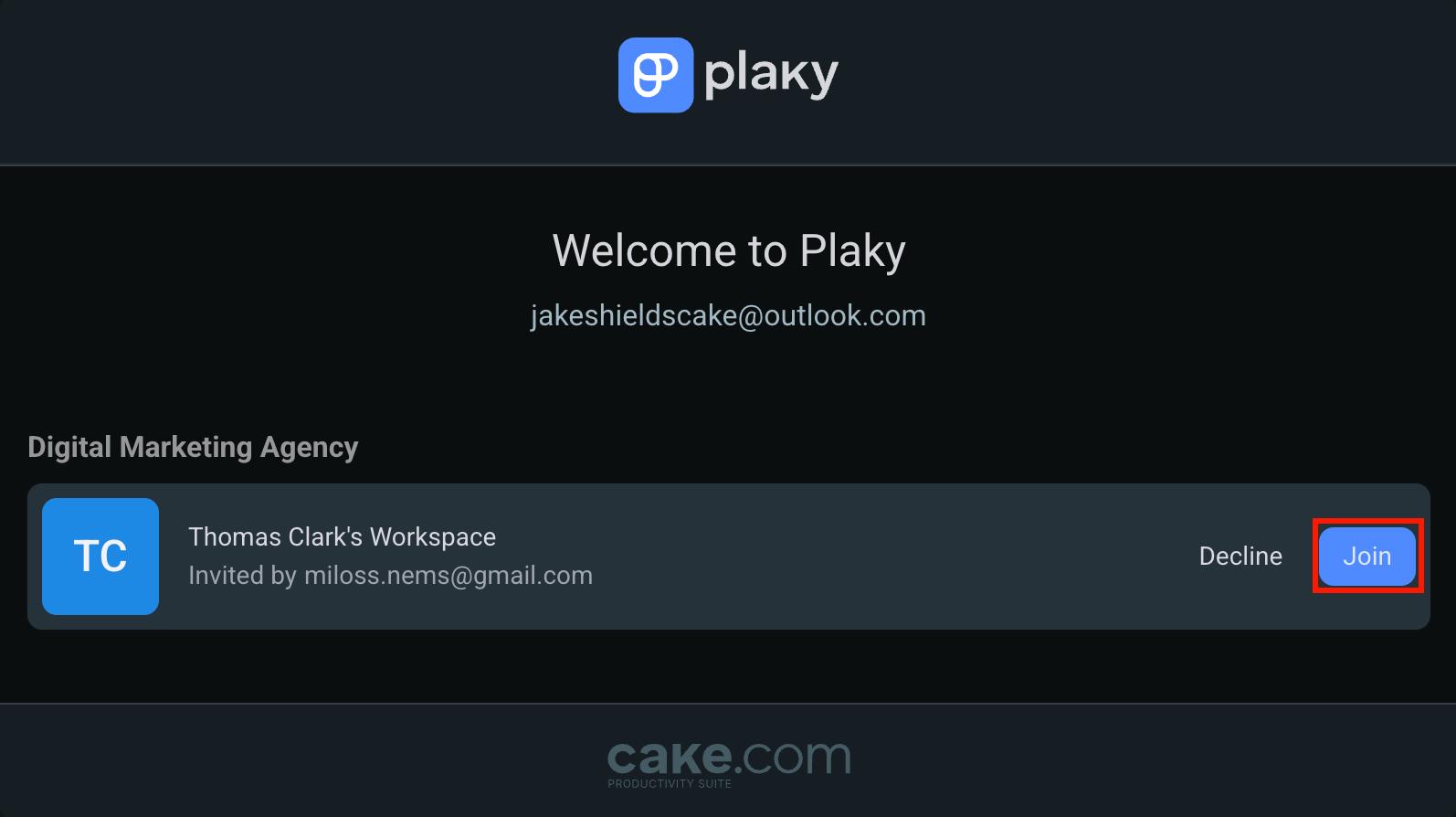
Une autre façon de rejoindre un espace de travail est de vous connecter (avec l’adresse email à laquelle l’invitation a été envoyée) et d’accepter l’invitation. Voici comment procéder :
- Connectez-vous avec l’adresse email à laquelle vous avez reçu l’invitation
- Cliquez sur Rejoindre pour accepter l’invitation
- Saisissez votre nom et acceptez
- Cliquez sur Continuer pour terminer le processus
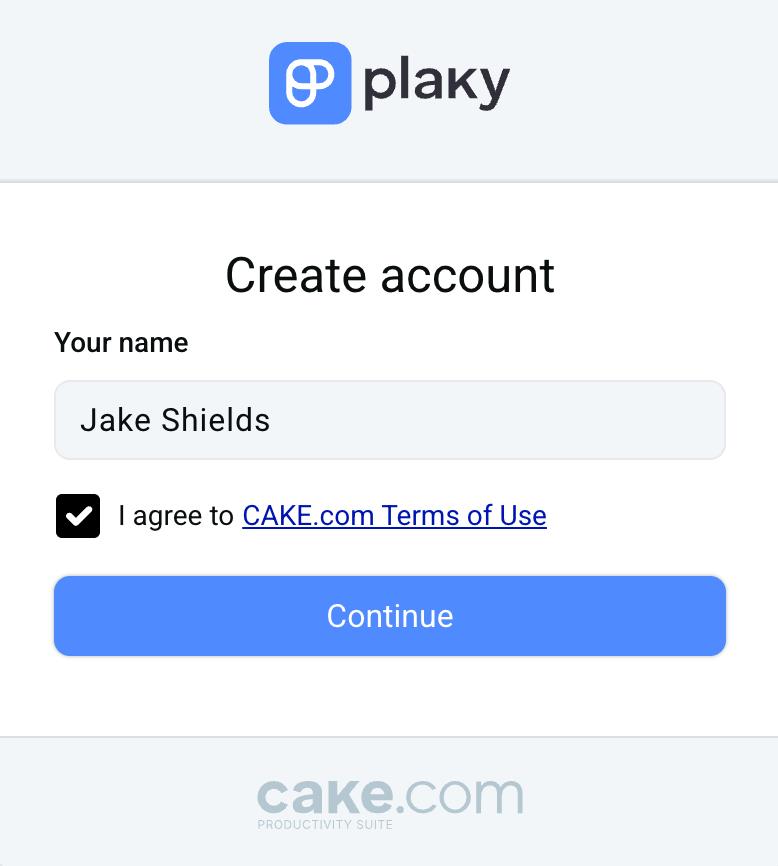
Une fois que vous avez rejoint un espace de travail, vous pouvez passer à l’étape suivante.
Configurer votre profil #
Configurer votre profil est important, car cela permet à vos collègues d’en savoir plus sur vous et votre rôle. Voici les informations que vous pouvez ajouter à votre profil Plaky et comment procéder :
- Cliquez sur votre photo de profil en haut à droite
- Cliquez sur Mon profil
- Cliquez sur les informations que vous souhaitez modifier
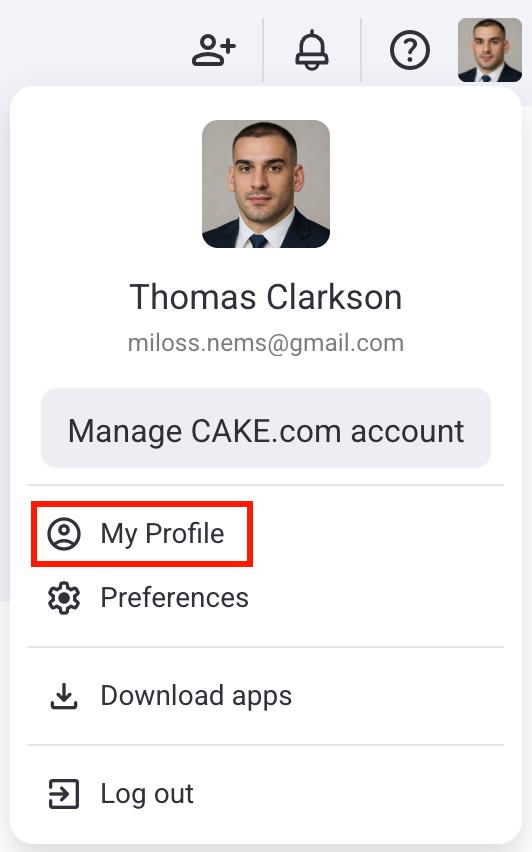
Dans la section Mon profil, vous pouvez modifier les informations suivantes :
- Titre
- Numéro de téléphone
- Numéro de téléphone portable
- Lieu
- Date de naissance
- Date d’anniversaire professionnelle
Configurer les notifications #
Les notifications vous informent de tous les changements apportés à vos projets et tâches. Dans Plaky, vous pouvez recevoir les types de notifications suivants :
- Notifications email
- Notifications appli
- Notifications Pumble
Voici comment configurer les notifications :
- Cliquez sur votre photo de profil en haut à droite
- Cliquez sur Préférences
- Sélectionnez Notifications
- Cliquez sur Notifications par email
- Choisissez les notifications que vous souhaitez recevoir
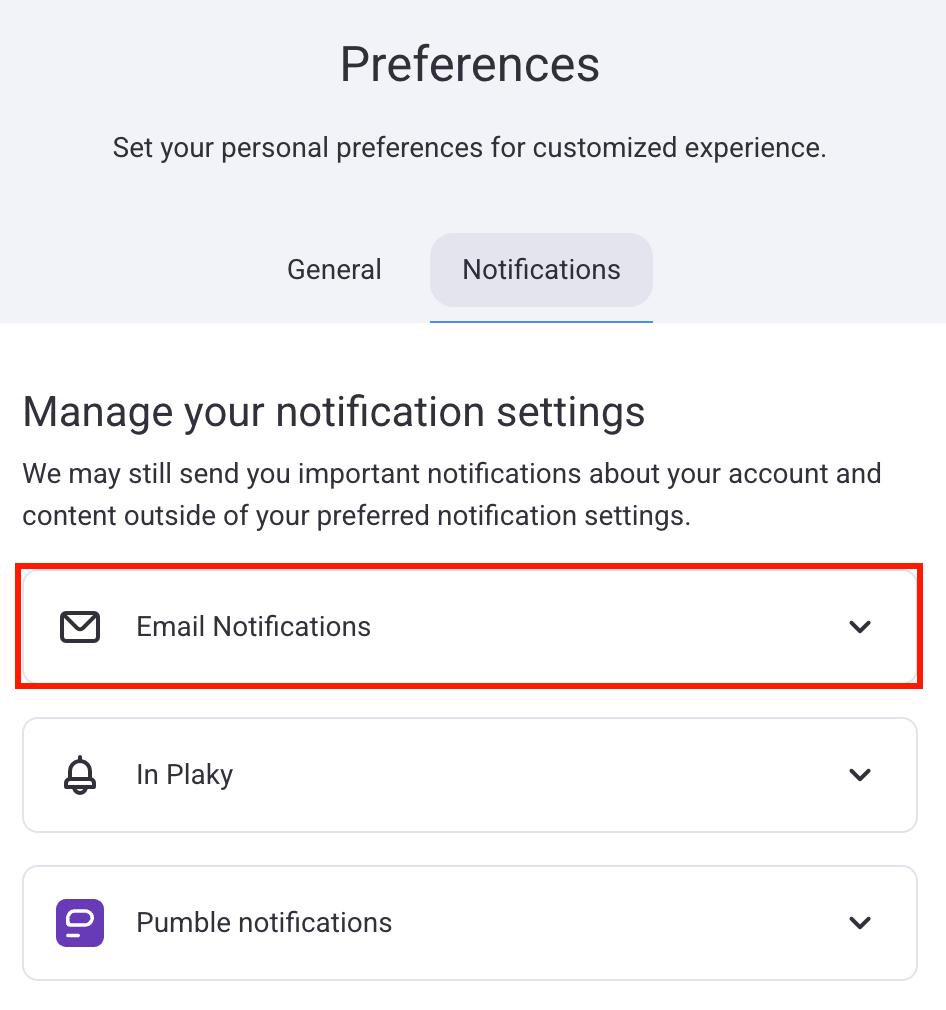
- Cliquez sur votre photo de profil en haut à droite
- Cliquez sur Préférences
- Sélectionnez Notifications
- Cliquez sur Notifications d’application
- Sélectionnez les notifications que vous souhaitez recevoir
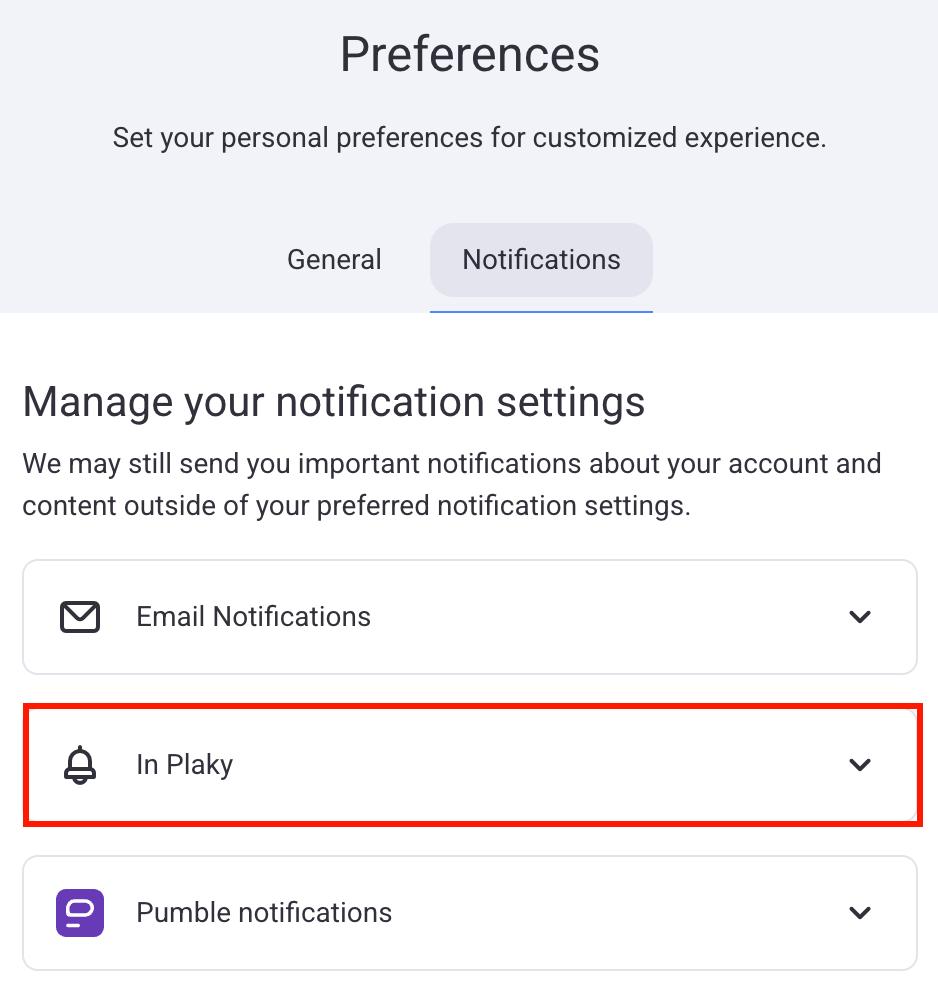
- Cliquez sur votre photo de profil en haut à droite
- Cliquez sur Préférences
- Sélectionnez Notifications
- Cliquez sur Notifications par email
- Sélectionnez les notifications que vous souhaitez recevoir
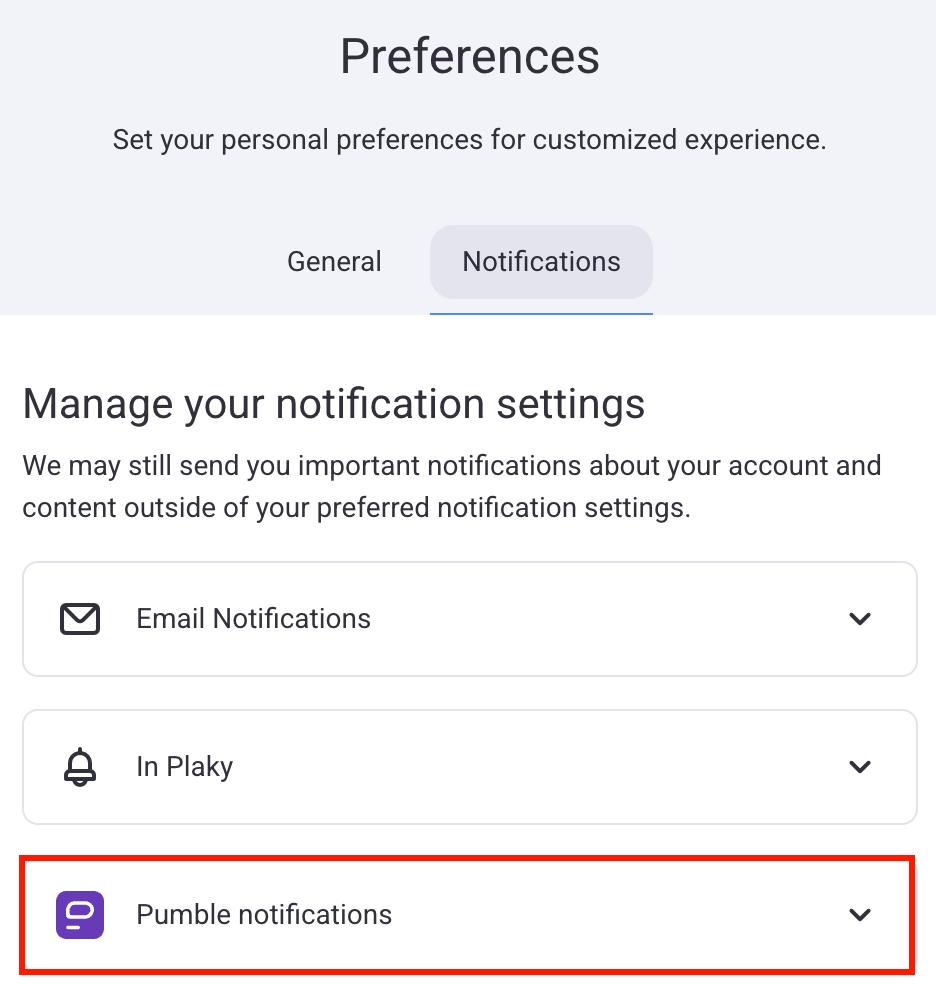
Pour en savoir plus sur l’intégration de Pumble et Plaky, consultez notre article.
Définir le fuseau horaire et le thème #
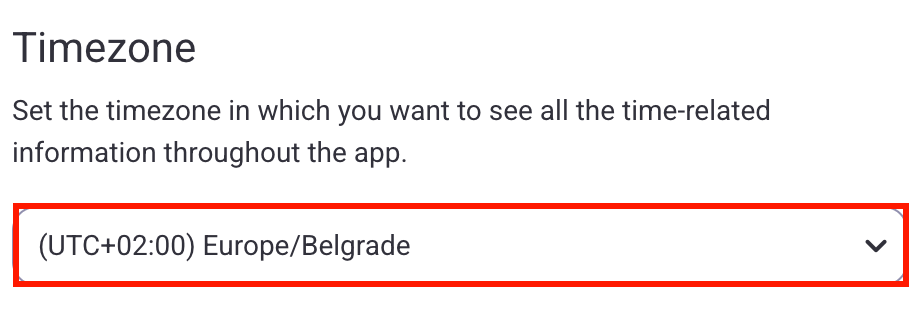
Plaky vous permet de modifier votre fuseau horaire en fonction de votre localisation. Voici comment procéder :
- Cliquez sur votre photo de profil en haut à droite
- Cliquez sur Préférences
- Sélectionnez l’onglet Général
- Cliquez sur le fuseau horaire à modifier
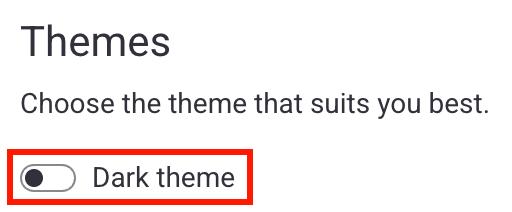
Vous pouvez également modifier votre thème :
- Cliquez sur votre photo de profil en haut à droite
- Cliquez sur Préférences
- Sélectionnez l’onglet Général
- Cliquez sur le bouton pour changer de thème
Choisir les tableaux favoris #
Pour retrouver facilement vos tableaux, vous pouvez les ajouter à vos favoris. Voici comment faire :
- Ouvrez un tableau
- Cliquez sur l’icône en forme d’étoile à droite de votre écran
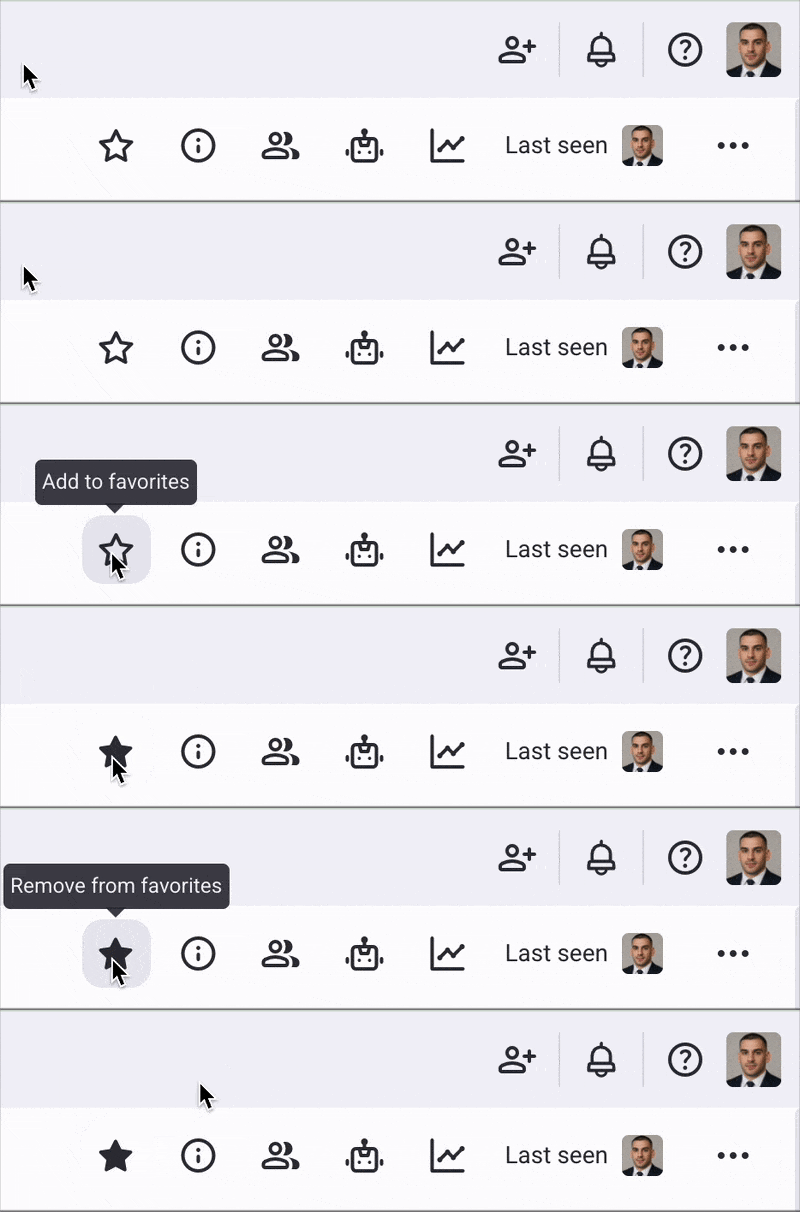
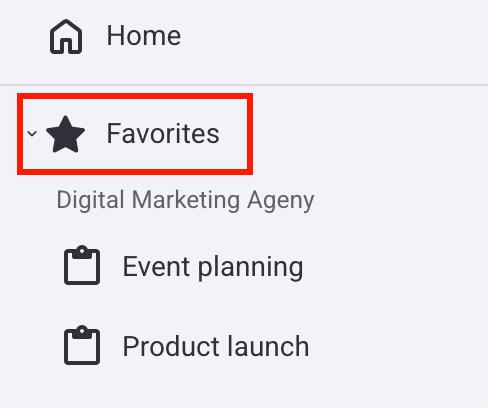
Vos tableaux favoris se trouvent dans la barre latérale gauche, dans la section Favoris.