Profile, time zone & theme
In this article
This article covers how to edit your personal account settings, time zone, and display theme. All of these are personal and apply only to your own account, not to other Workspace users.
Your profile #
This is your identity on Plaky, where you will find your name, email address, and profile picture. Everything is managed through your CAKE.com account, and changes you make there will automatically sync to Plaky.
Here’s how to open your CAKE.com account.
- Cliquez sur le sélecteur d'applis dans le coin supérieur gauche
- Cliquez sur le compte CAKE.com
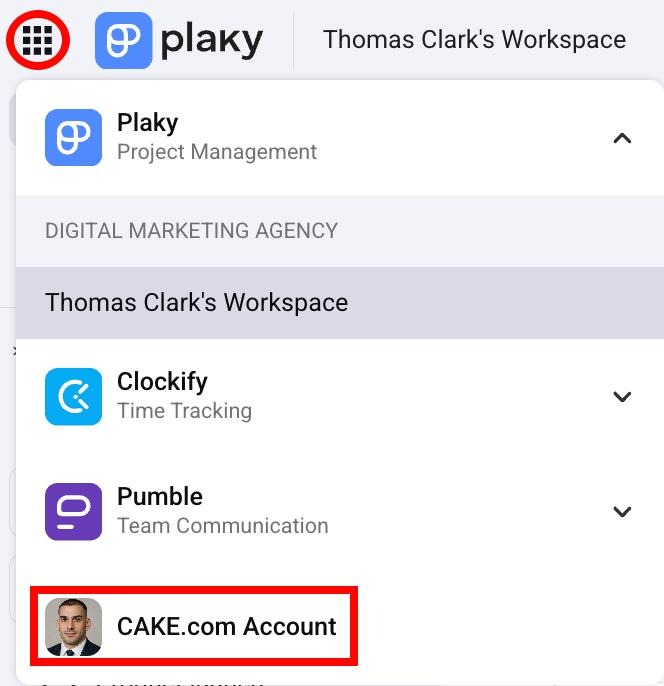
Check out this article to learn how to edit your profile information at CAKE.com.
Certain information about your profile can be edited directly from Plaky. Here’s how to access your profile on Plaky:
- Click on your profile picture in the top right corner
- Cliquez sur Mon profil
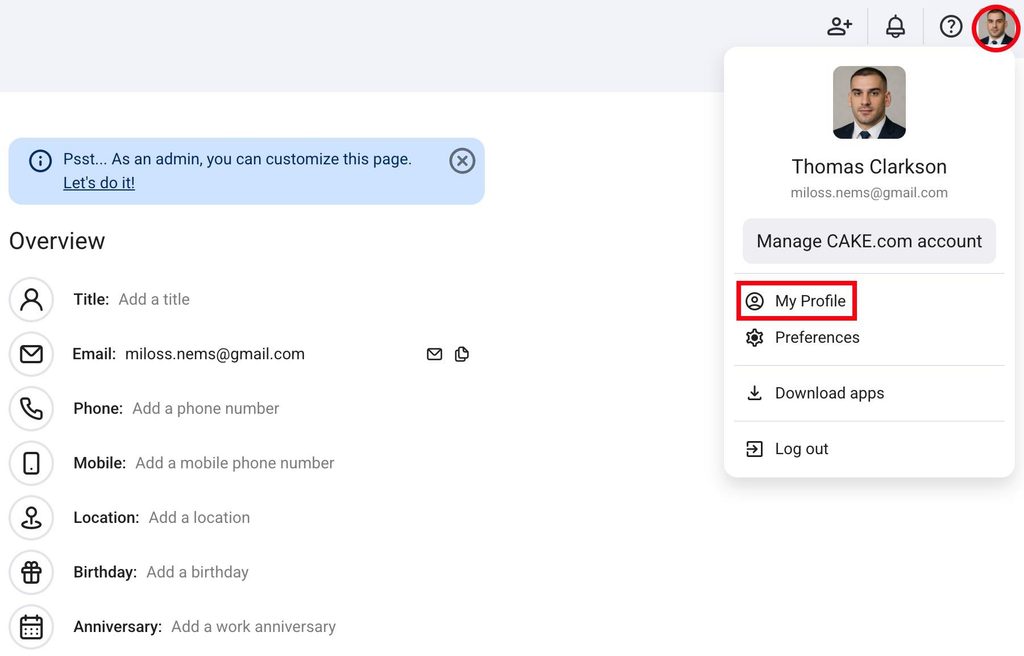
These are the default Fields you can edit here:
- Titre
- Phone
- Mobile
- Lieu
- Date de naissance
- Date d’anniversaire professionnelle
- Tap on More in the bottom sidebar
- Tap on your account
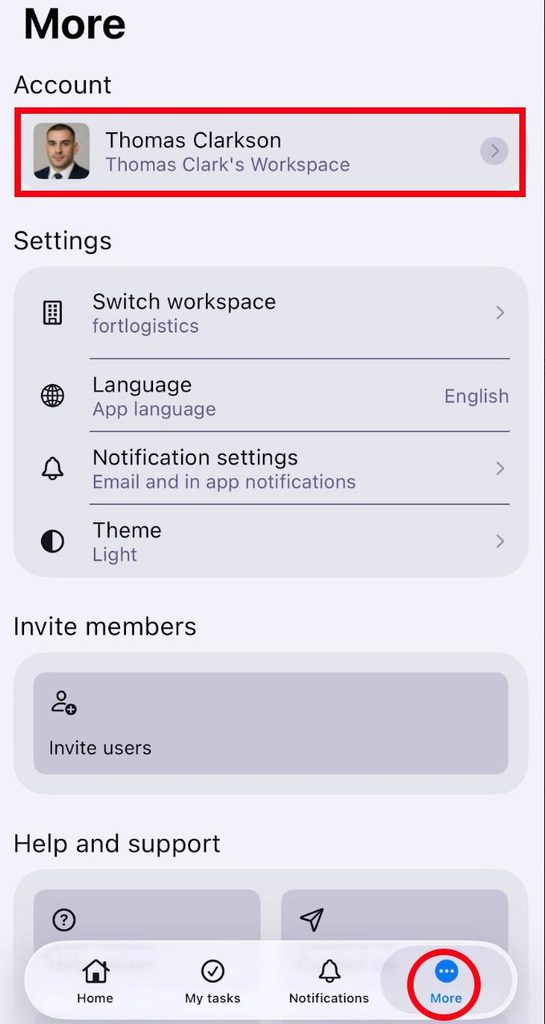
Here you can edit:
- Titre
- Phone
- Mobile
- Lieu
- Date de naissance
- Anniversary
- Tap on your profile picture in the top right corner
- Tap on See profile
- Tap on Edit profile in the top right corner
- Tap on the field you want to change
- Appuyez sur Enregistrer pour terminer l'action
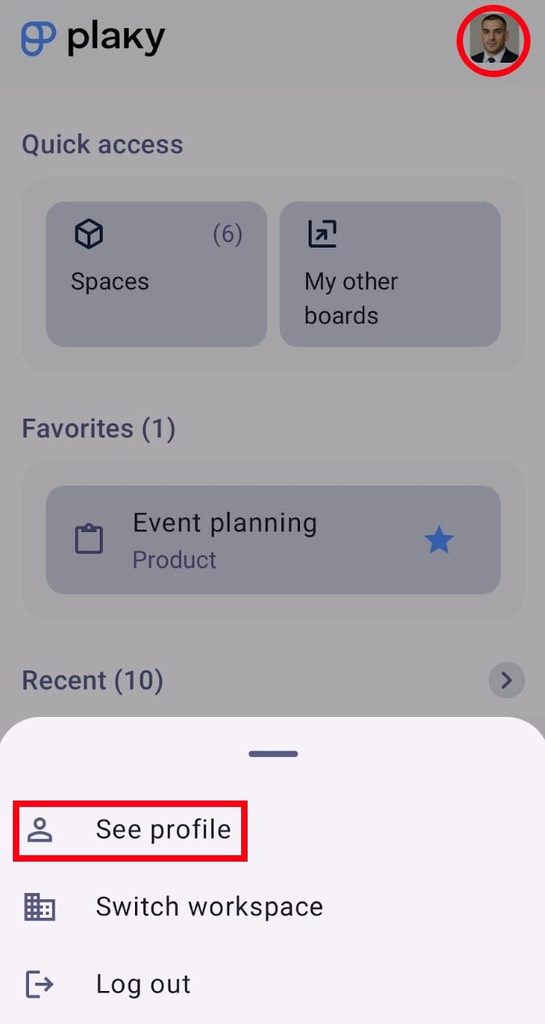
Here you can edit:
- Titre
- Phone
- Mobile
- Lieu
- Date de naissance
- Anniversary
Time zone #
Your time zone controls how timestamps in Plaky are displayed to you. This includes comment timestamps, notification times, and date field values. Time zones are personal, so each user can see a different time based on their time zone.
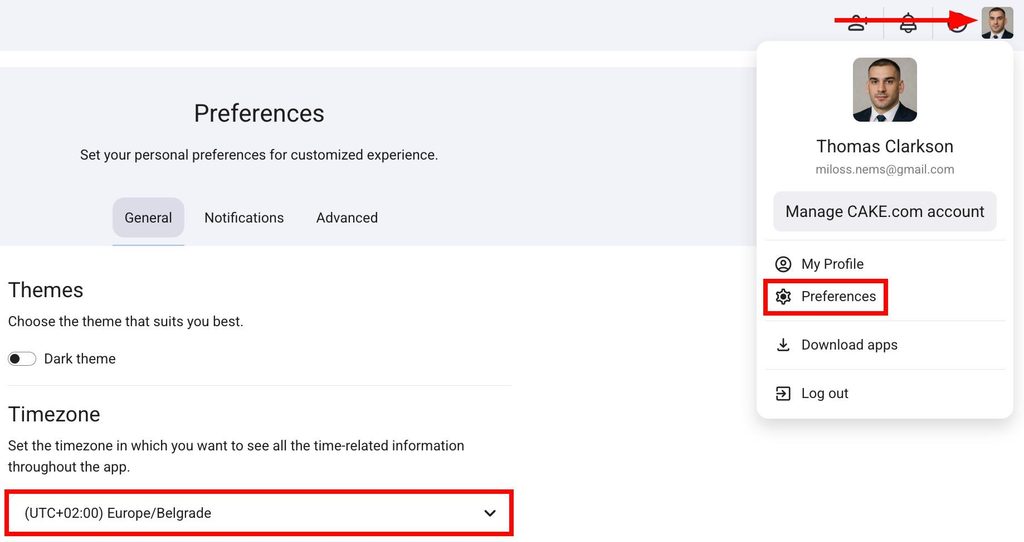
When you log in to Plaky, the system will automatically set the time zone to the time zone of the device you are using. If the device’s time zone changes, you will be prompted to update the time zone settings. Here’s how you can do that:
- Click on your profile picture in the top right corner
- Cliquez sur Préférences
- Select the time zone under Timezone
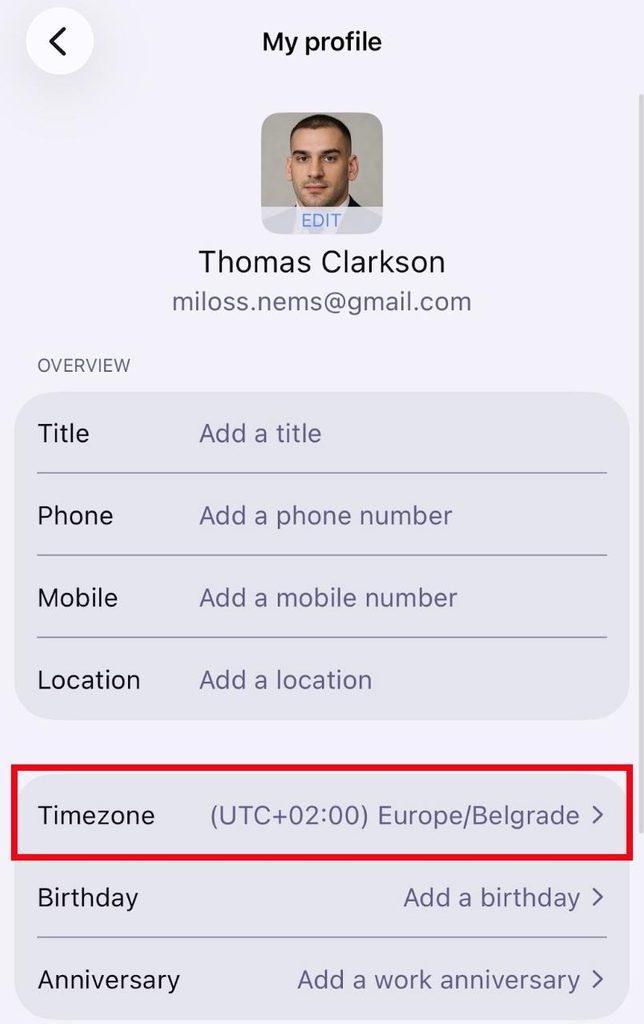
- Tap on More in the bottom sidebar
- Tap on your account
- Appuyez sur Fuseau horaire
- Select a time zone
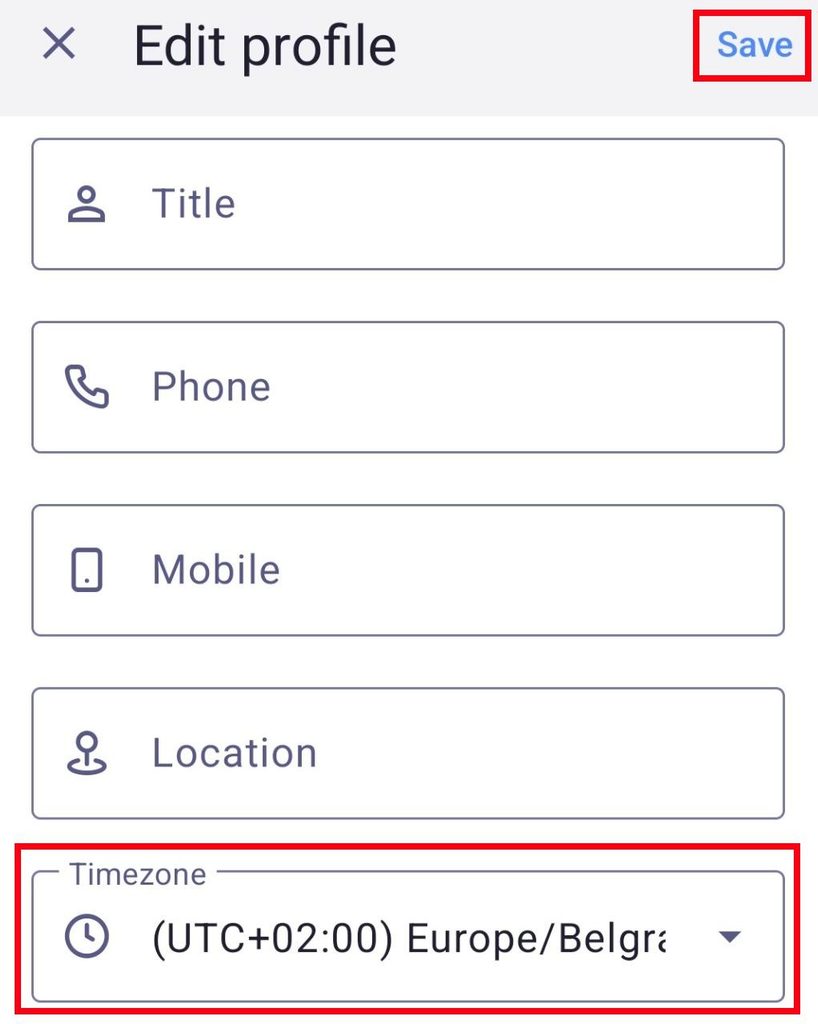
- Tap on your profile picture in the top right corner
- Tap on See profile
- Tap on Edit profile in the top right corner
- Appuyez sur Fuseau horaire
- Select a time zone
- Appuyez sur Enregistrer pour terminer l'action
Thème #
In Plaky, you can use both light and dark themes. Your theme preference is saved to your account and stays consistent across devices.
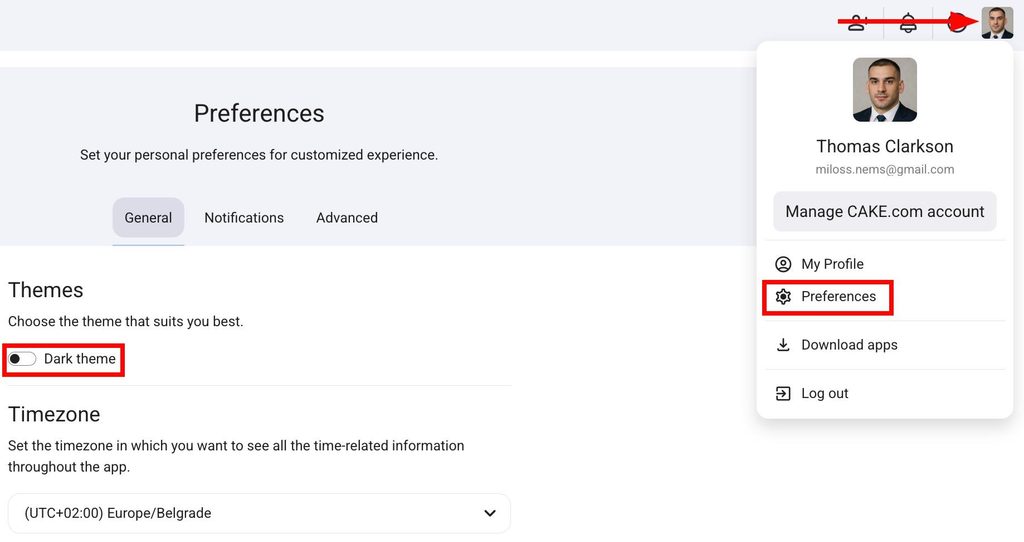
Here’s how you can change your theme:
- Click on your profile picture in the top right corner
- Cliquez sur Préférences
- Switch between light and dark themes under Themes
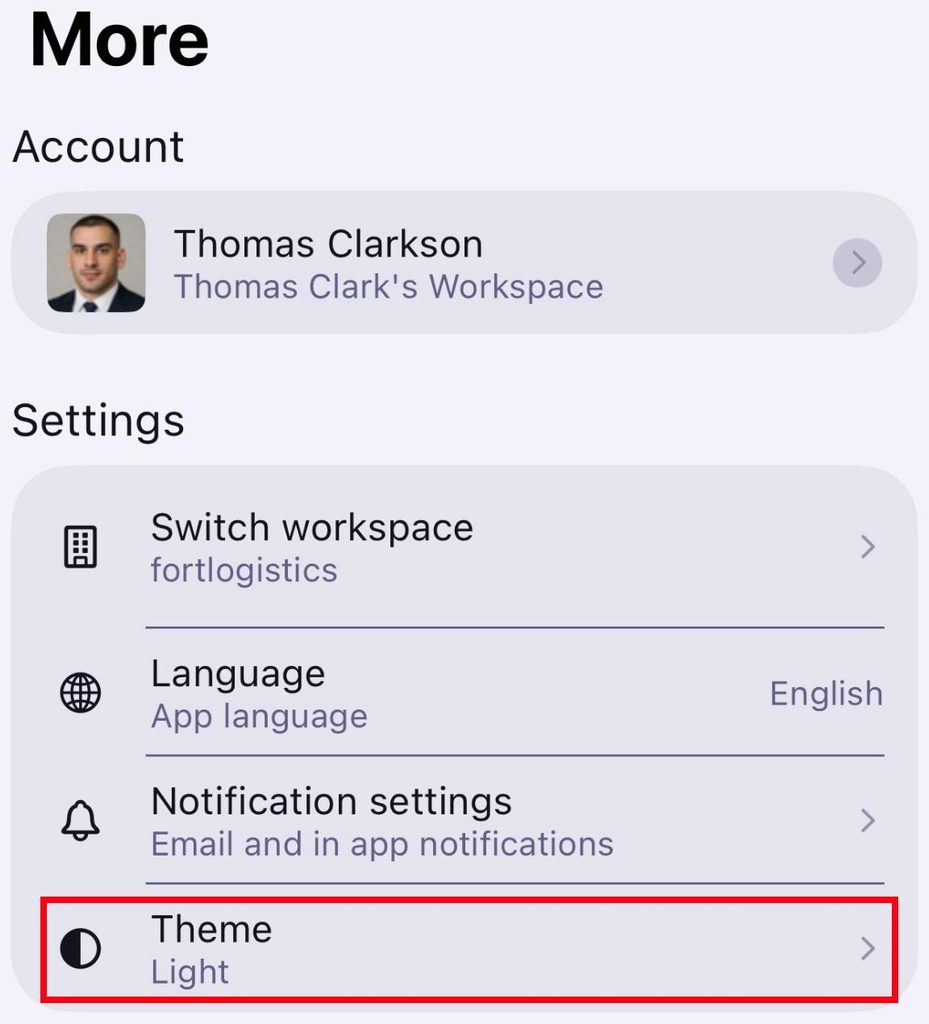
- Tap on More in the bottom sidebar
- Appuyez sur Thème
- Choose a theme (Dark, Light, Device)
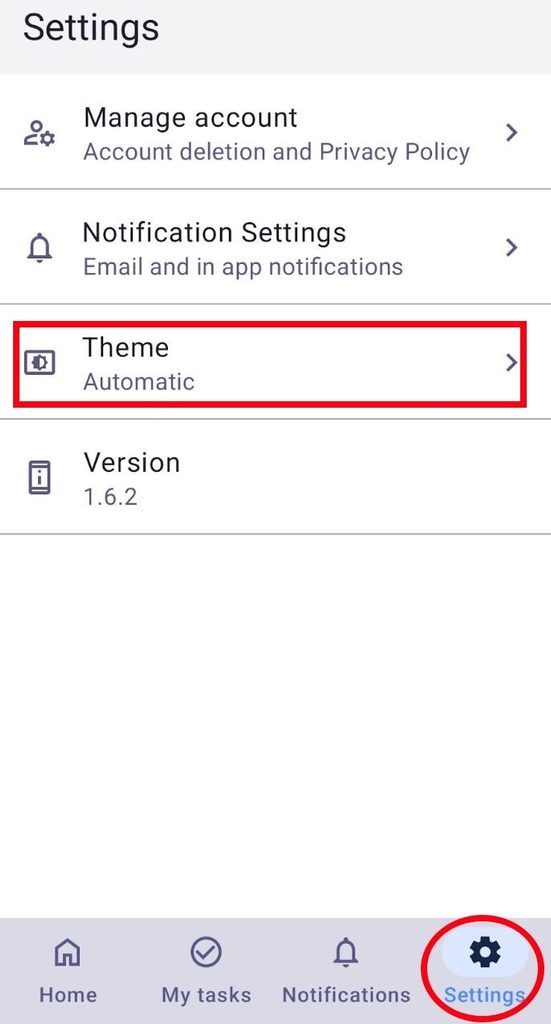
- Tap on Settings in the bottom sidebar
- Appuyez sur Thème
- Select the theme (Automatic, Dark, Light)
Dark theme is the default theme in Plaky.